
VPN Matcher for DrayOS 5 Vigor Routers
If your ISP only provides a private IP address, setting up a traditional VPN can be a struggle. DrayTek’s VPN Matcher is designed to solve exactly this. It acts as a digital coordinator, helping two routers find each other and connect seamlessly through NAT. By combining this with the modern WireGuard VPN protocol (available in DrayOS 5, v5.4.1 or later), we ensure a faster and more reliable connection even in complex network environments. Below, we’ll show you how to easily connect VPN between two Vigor2928 routers using this method.
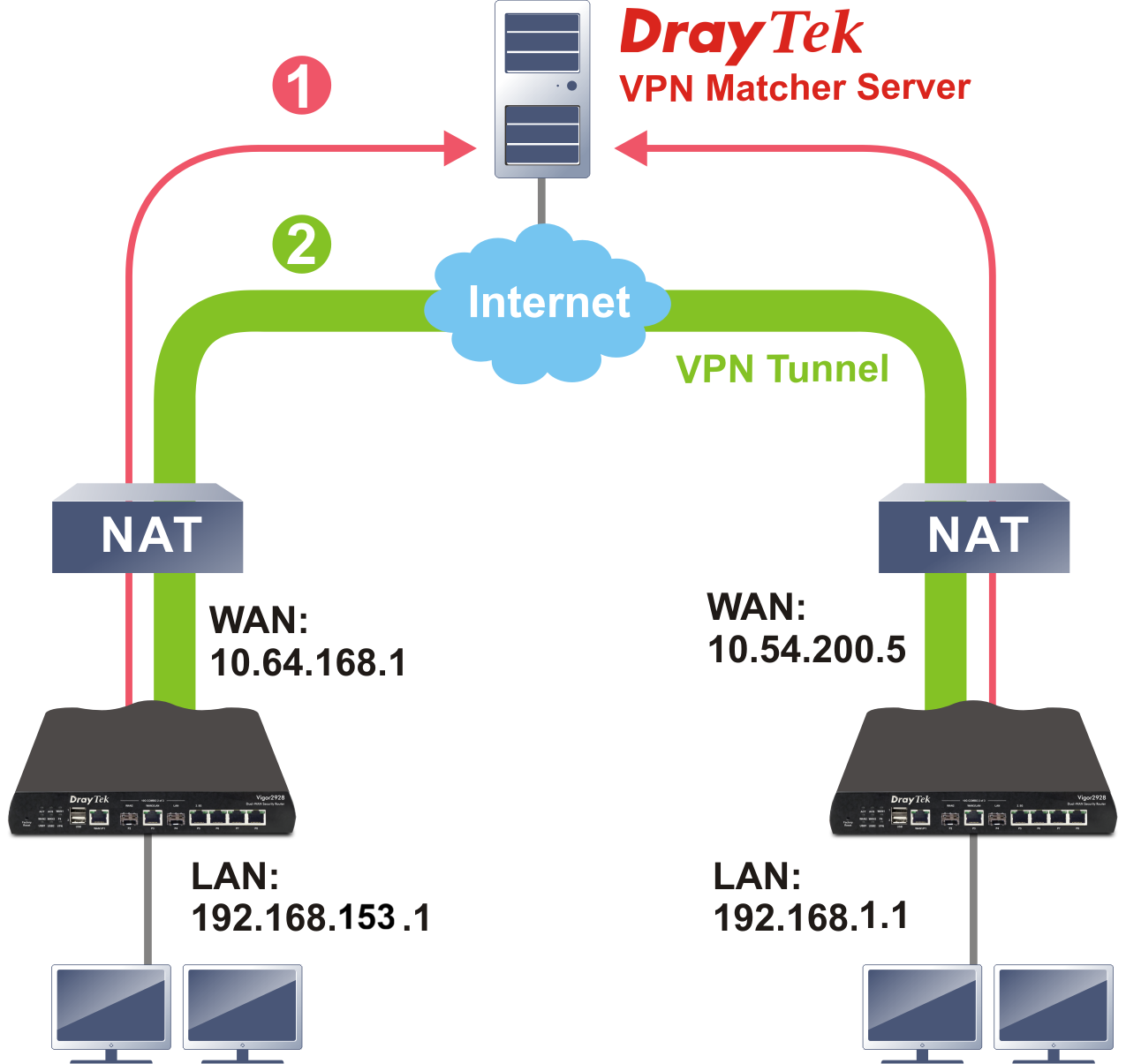
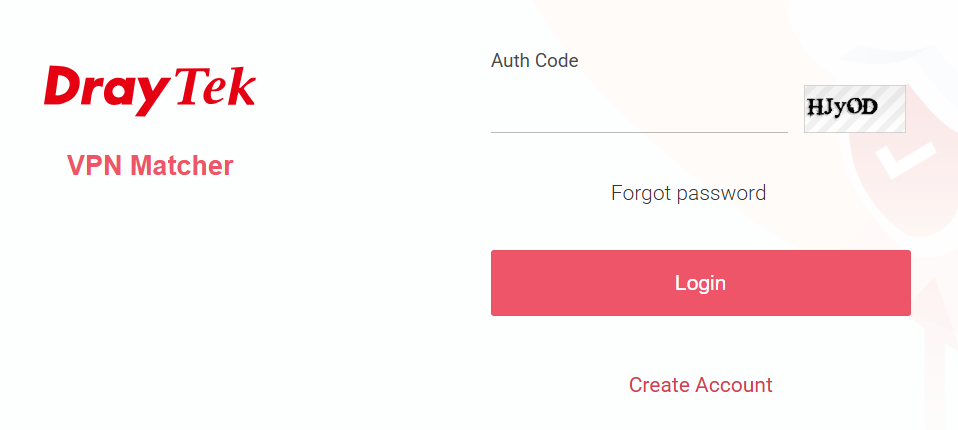
1. Sign up for a VPN Matcher account via https://vpn-matcher.draytek.com/ and activate it.
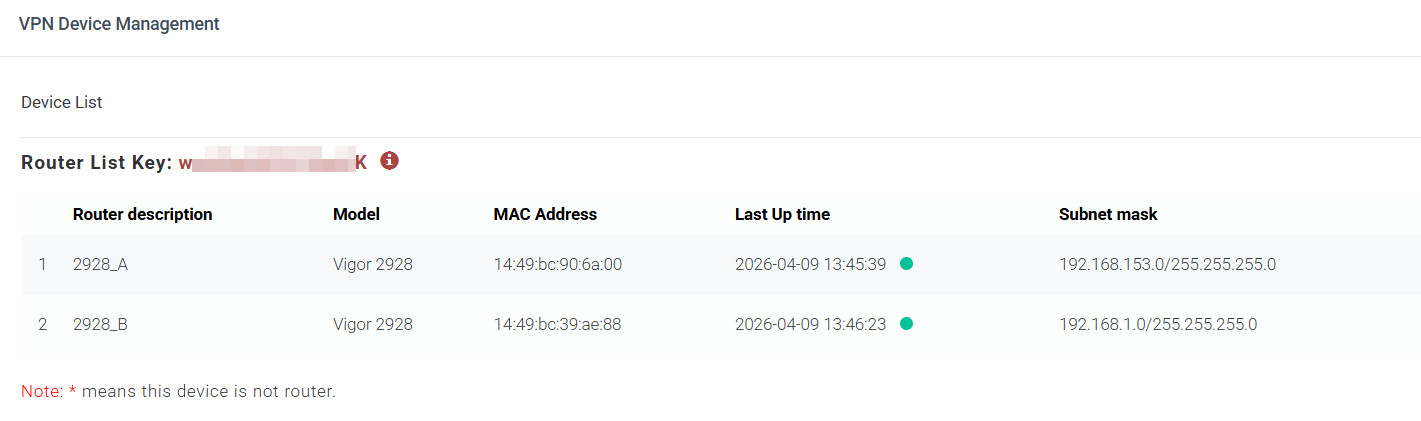
2. Add DrayTek Routers to the VPN Matcher Server
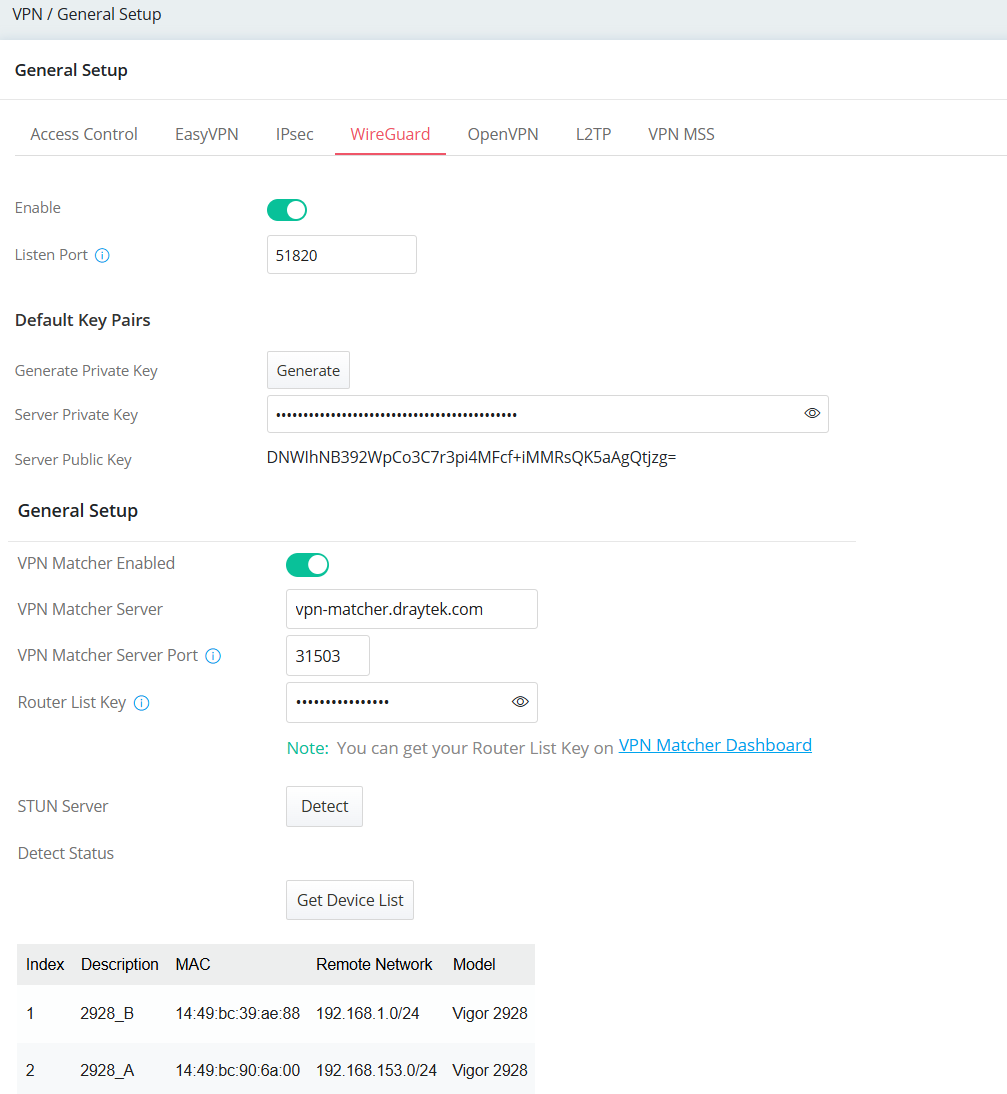
3. Enable WireGuard VPN and VPN Matcher Service on Both Routers.
Navigate to VPN / General Setup / WireGuard on each router:
4. Create VPN Site-to-Site Profiles on Both Routers
Navigate to VPN / Site-to-Site VPN.
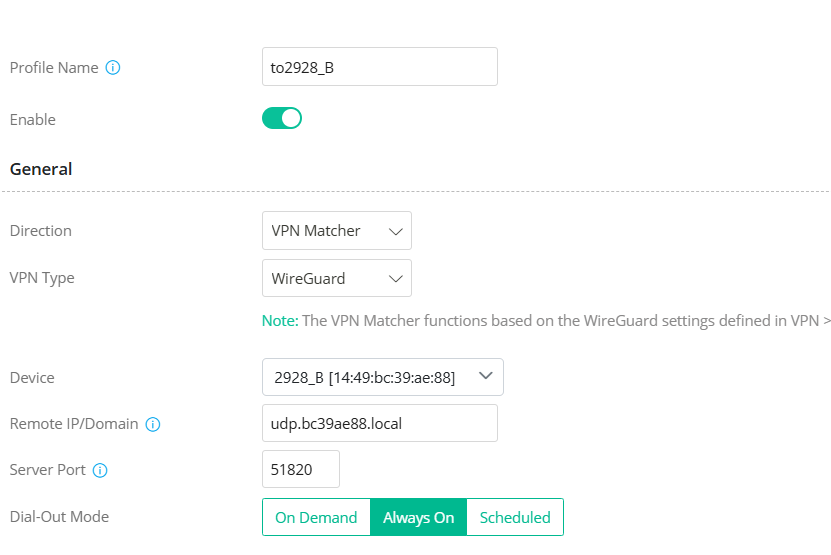
In General area,
Both routers must be set to Always On to maintain connectivity with the VPN Matcher server and initial the VPN connection to each other.
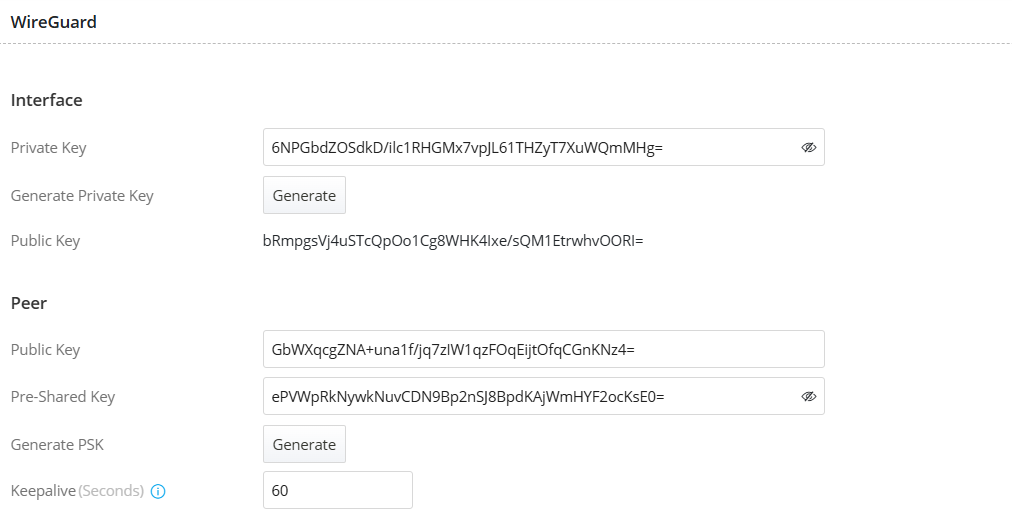
In WireGuard area,
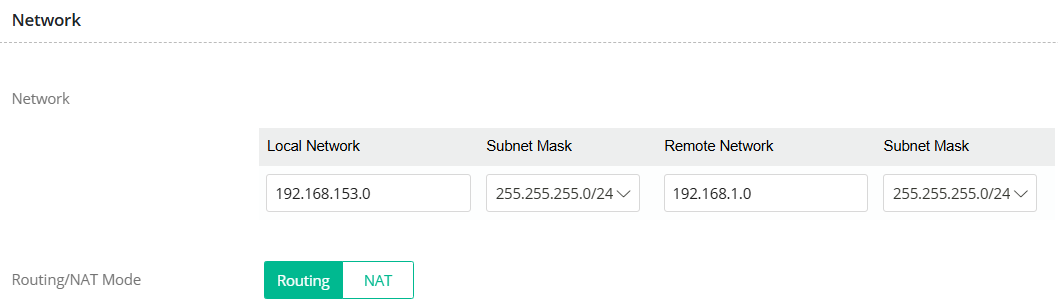
In Network area,
5. Verify VPN Connection
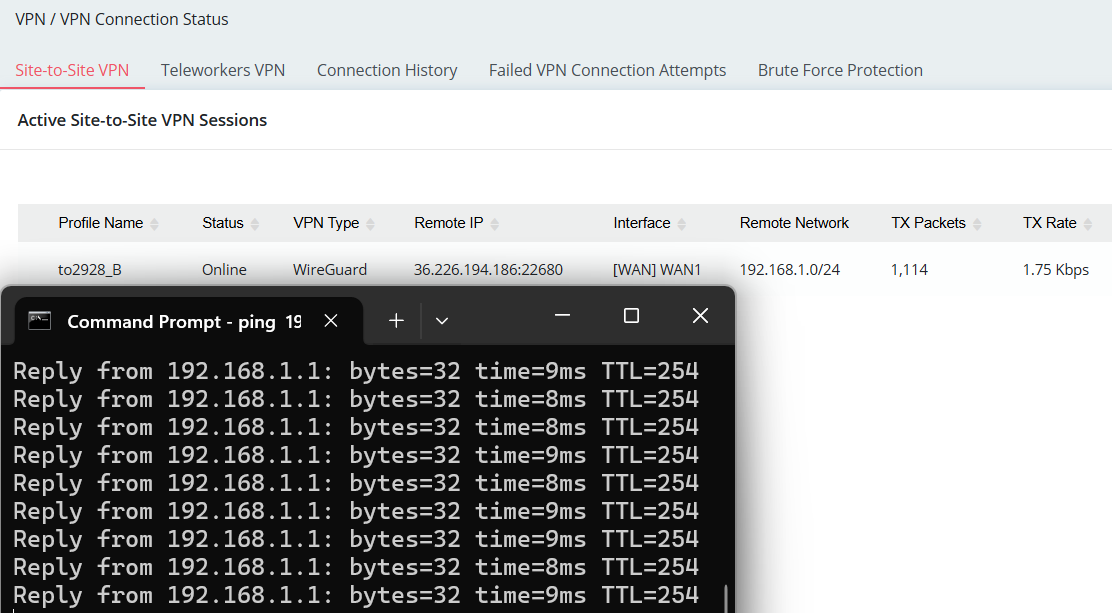
Navigate to VPN / VPN Connection Status. Check the VPN connection is Online and Use ping to verify that traffic is passing through the VPN tunnel correctly.
Trouble Shooting Tips:
1. If the Router Cannot Retrieve the Device List
2. If the VPN Cannot Be Established
- Use STUN under VPN → General Setup → WireGuard to detect whether the environment is VPN Matcher compatible.
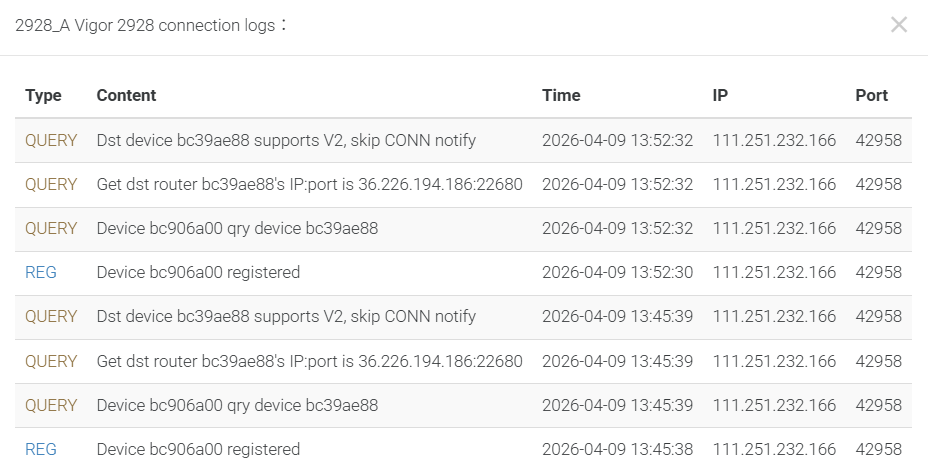
- Check the logs on the VPN Matcher Server to confirm that both routers are registered successfully.
- Check the settings on both routers’ WireGuard Site-to-Site VPN profiles. The peer public key should match the remote router’s interface public key, and the pre-shared key must be the same on both sides.
- Check the VPN Syslog on the router for WireGuard errors or BFP block messages.
- If errors are found, verify that the WireGuard key settings are correct on both routers.
- Make sure the selected device corresponds to the correct peer router.
Note: Vigor2962, Vigor3910, and Vigor3912 firmware 4.4.6.1 and above versions support VPN Matcher connection with DrayOS 5 routers.
Published On:2026-04-14
ShareWas this helpful?