
EasyVPN
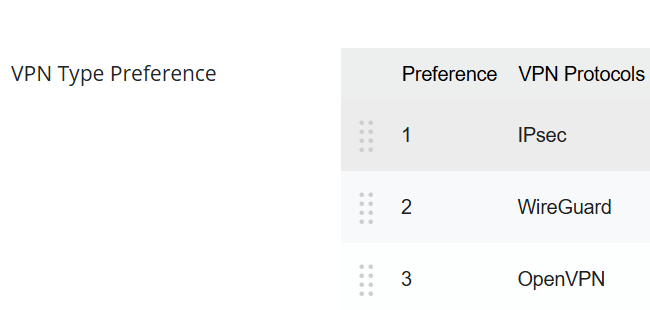
Vigor Router supports various VPN protocols, including IPsec, WireGuard, and OpenVPN. With so many protocols and configuration options, general users may encounter difficulties in choosing the right one, face challenges during setup, or fail to establish a VPN connection due to environmental factors. To reduce these issues, Vigor Router has developed a new EasyVPN feature. With EasyVPN, users no longer need to generate WireGuard keys, import OpenVPN configuration files, or upload certificates. Instead, VPN can be successfully established by simply entering the username and password or getting the OTP code by email. Additionally, if a VPN connection cannot be established for any reason, the EasyVPN Client will automatically switch to the next available protocol and retry the connection.
Supported model and firmware version:
Supported Easy VPN protocols in each OS:
| VPN Type | Windows | iOS | macOS | Android | Linux |
|---|---|---|---|---|---|
| IPsec IKEv1 PSK | Y | Y | |||
| IPsec IKEv1 XAuth | Y | Y | |||
| IPsec IKEv2 PSK | Y | Y | |||
| IPsec IKEv2 EAP | Y | Y | Y | Y | Y |
| WireGuard | Y | Y | Y | Y | Y |
| OpenVPN | Y | Y | Y |
Vigor Router Setup
1. Enable VPN services and configure the corresponding settings.
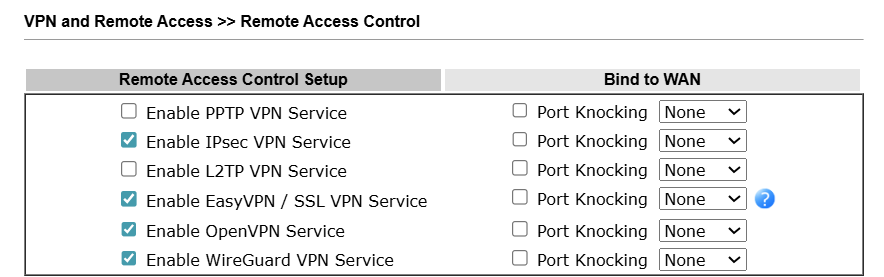
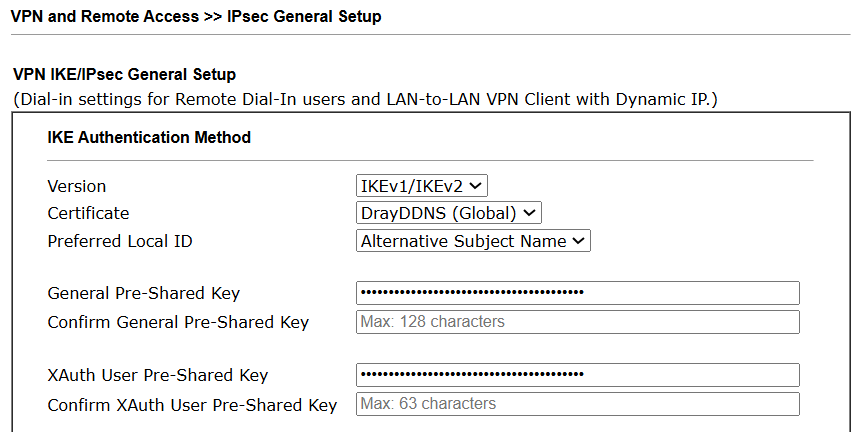


2. Create a Remote Dial-in User Profile.
Go to VPN and Remote Access >> Remote Dial-in User, then click on an available index number.
In the profile settings:

3. Enable EasyVPN service.
Go to VPN and Remote Access >> EasyVPN and SSL Setup.

4. To use Email OTP as the authentication method, create a Mail Service Object on the router by navigating to Objects Setting >> SMS/ Mail Service Object. Then specify the user’s email in the Notification Setting of the VPN Remote Dial-in User profile.
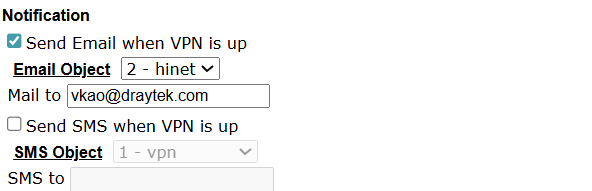
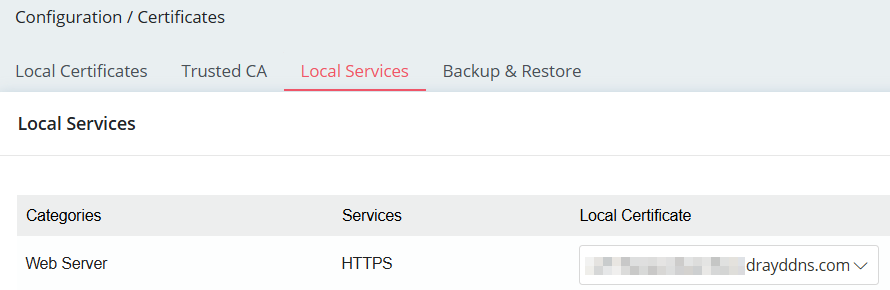
5. To use EasyVPN on an iOS device, it is necessary to select a valid certificate, such as a Let’s Encrypt certificate, for the HTTPS service on the Vigor Router.

Windows Smart VPN Client Setup
Authentication Type: Username and Password
0. Before using EasyVPN, please ensure that the native OpenVPN and WireGuard software is already installed on your Windows system. Alternatively, it is recommended to use SmartVPN Client version 5.7.1 or later, which includes the installation packages for both OpenVPN and WireGuard during setup.
1. Add a VPN profile, select EasyVPN (Auto mode) as the VPN type, enter the VPN server’s IP or domain name, the username and the password, then click OK to save the settings.

2. Switch on Connect. A Dial To VPN prompt will appear, enter the password to initiate the VPN connection.

3. EasyVPN is up.
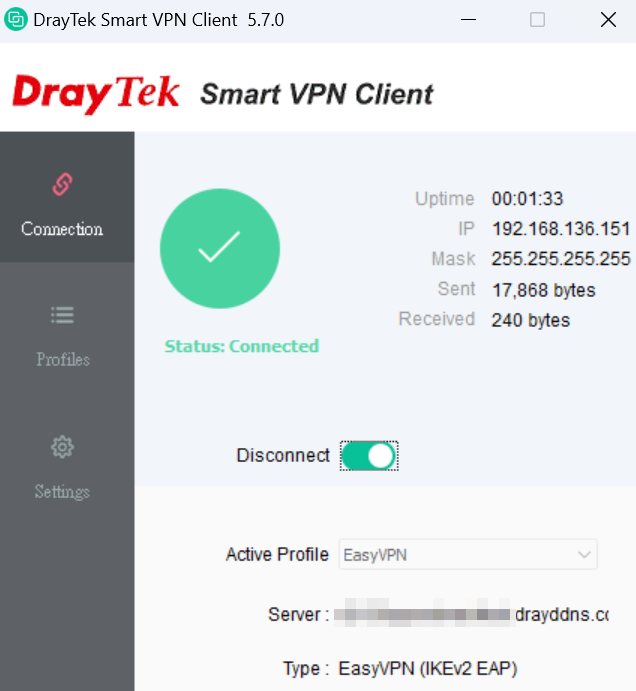
4. The VPN client includes a Preferred Protocol option, allowing users to specify their preferred VPN types. For instance, if a user is unable to connect via IPsec VPN but can establish a connection using WireGuard VPN, we recommend selecting WireGuard as the Preferred Protocol in the VPN profile within the Smart VPN Client. This will ensure that WireGuard is prioritized for connection attempts in the future.
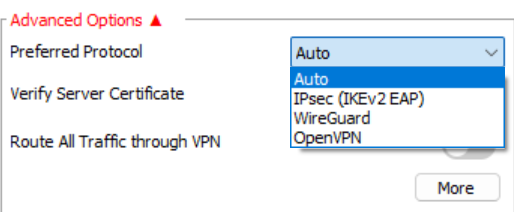
Verify Server Certificate option determines whether the EasyVPN server's certificate will be verified. The EasyVPN server uses the same certificate as the HTTPS server. When enabling this option, the EasyVPN server needs to have a valid certificate installed, such as Let’s Encrypt Certificate for its Web/HTTPS server.
Authentication Type: Email OTP
1. Add a VPN profile, select EasyVPN (Auto mode) as the VPN type, enter the VPN server’s IP or domain name, select Email OTP as the Authentication Type, enter the user’s email address, then click OK to save the settings.

2. Switch on Connect. A Dial To VPN prompt will appear, click the Get Login code button. The login code will be sent from Vigor2136 to the user’s email.
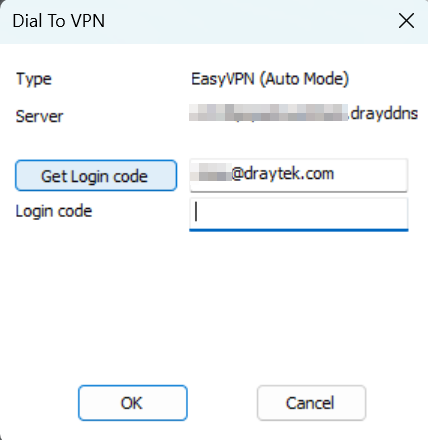
3. Check the mailbox to get the code from the email.

4. Enter the code in the Dial To VPN prompt window, then click OK.
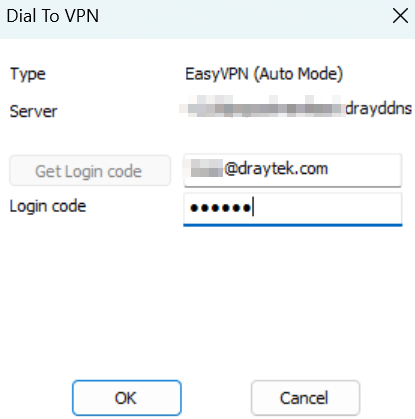
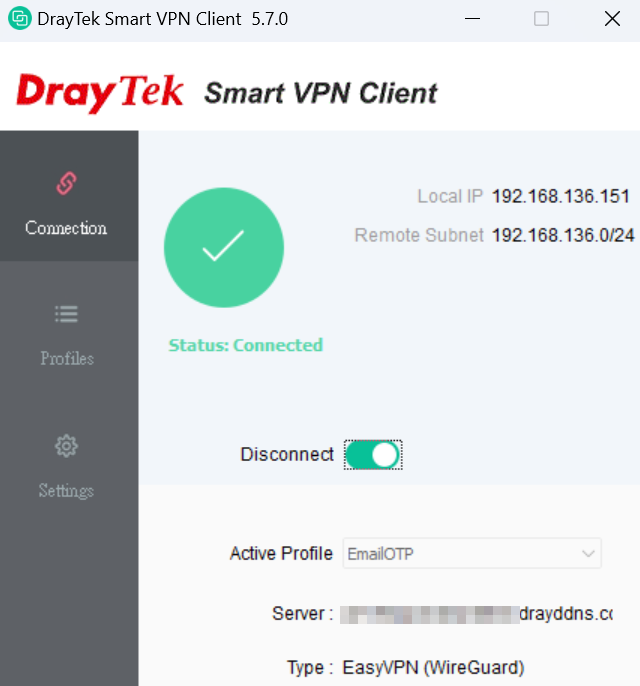
5. EasyVPN is up.
Android SmartVPN App Setup
1. Add a VPN profile.
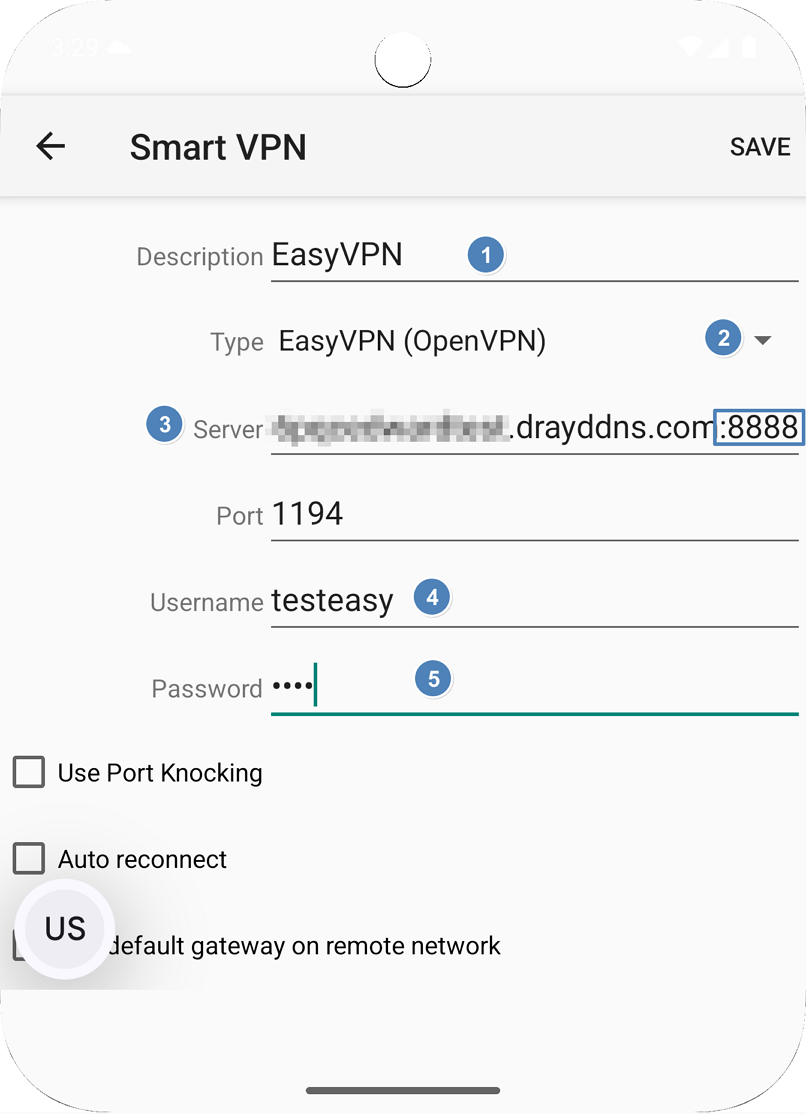
2. Switch On Connect. EasyVPN connection is successfully connected.

iOS Smart VPN Client Setup
1. Run SmartVPN app and add a profile as follows:

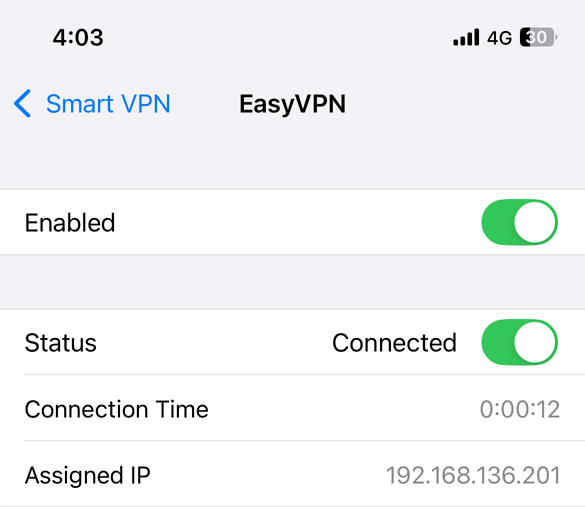
2. Switch on the profile, then switch on Connect to start the VPN connection. EasyVPN connection is successfully connected.
macOS Smart VPN Client Setup
1. Run SmartVPN app and add a profile as follows:

2. Tick Enable Profile to enable this profile, and click Connect to dial up the EasyVPN connection.
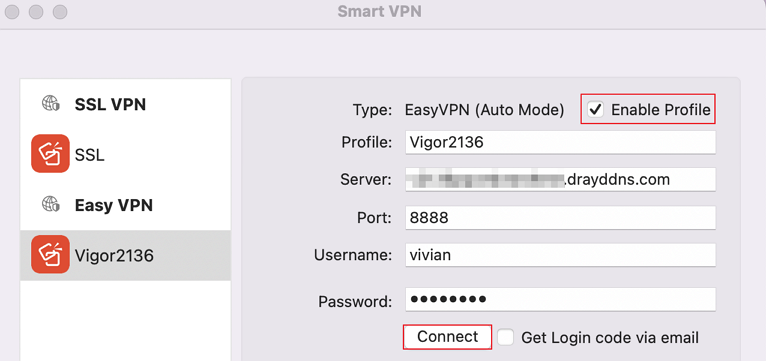
3. EasyVPN connection is successfully connected.

Vigor Router Setup
1. Enable VPN services and configure the corresponding settings.
2. Create a Teleworker VPN User Profile.
Navigate to VPN > Teleworker VPN, click Add, and enter the Username and Password.

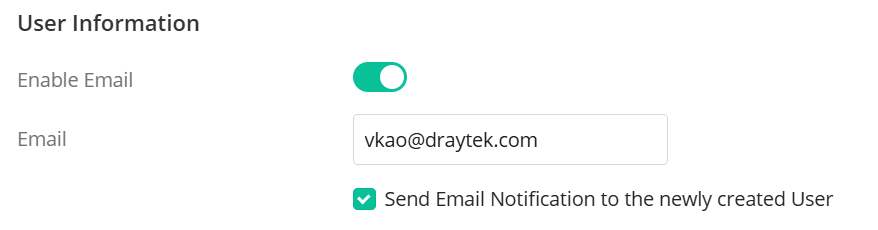
In the User Information section, switch on the Enable Email option and enter the user's email address. This will be used when using the Email OTP method for authentication.
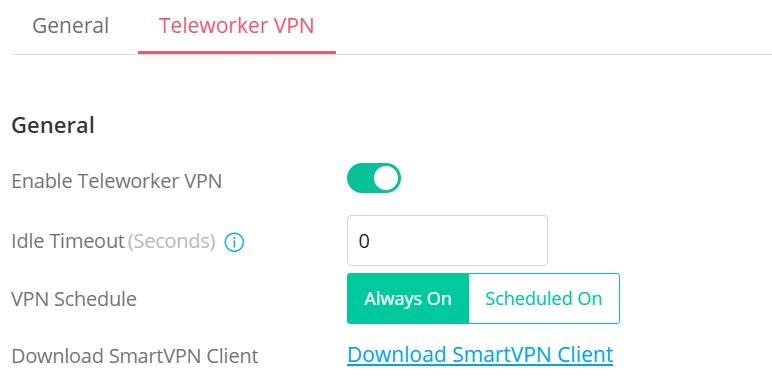
In the Teleworker VPN tab,
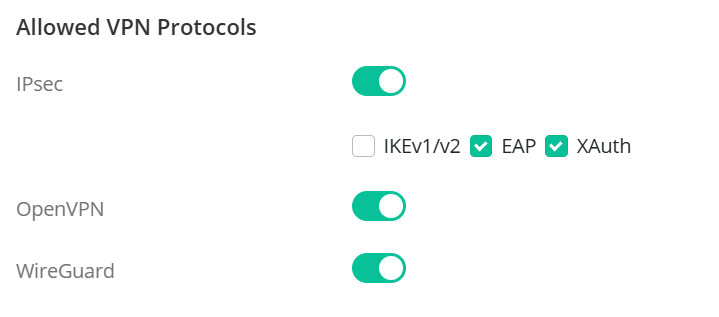

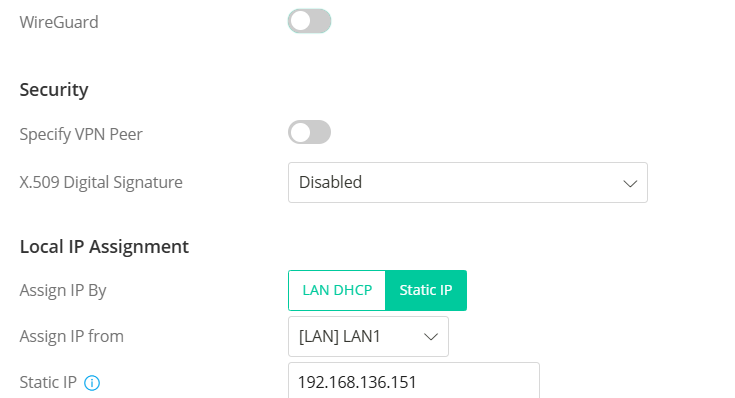
Please note that the Static IP option is not available when WireGuard is selected in the current firmware version. To assign a fixed IP to the VPN user, first deselect WireGuard and choose Static IP. Then, reselect WireGuard.
3. Enable EasyVPN service.
Navigate to VPN / General Setup/ EasyVPN and Enable the EasyVPN service.
The Listen Port mode allows users to configure the ports that the EasyVPN service listens to.


4. To use Email OTP as the authentication method, create an Email profile on the router by navigating to Configuration > Notification Services > SMTP Server. Refer to the SMTP setup article here for more details.

5. To use EasyVPN on an iOS device, it is necessary to select a valid certificate, such as a Let’s Encrypt certificate, for the HTTPS service on the Vigor Router.
Windows Smart VPN Client Setup
Authentication Type: Username and Password
0. Before using EasyVPN, please ensure that the native OpenVPN and WireGuard software is already installed on your Windows system. Alternatively, it is recommended to use SmartVPN Client version 5.7.1 or later, which includes the installation packages for both OpenVPN and WireGuard during setup.
1. Add a VPN profile, select EasyVPN (Auto mode) as the VPN type, enter the VPN server’s IP or domain name, the username and the password, then click OK to save the settings.
2. Switch on Connect. A Dial To VPN prompt will appear, enter the password to initiate the VPN connection.
3. EasyVPN is up.
4. The VPN client includes a Preferred Protocol option, allowing users to specify their preferred VPN types. For instance, if a user is unable to connect via IPsec VPN but can establish a connection using WireGuard VPN, we recommend selecting WireGuard as the Preferred Protocol in the VPN profile within the Smart VPN Client. This will ensure that WireGuard is prioritized for connection attempts in the future.
Verify Server Certificate option determines whether the EasyVPN server's certificate will be verified. The EasyVPN server uses the same certificate as the HTTPS server. When enabling this option, the EasyVPN server needs to have a valid certificate installed, such as Let’s Encrypt Certificate for its Web/HTTPS server.
Authentication Type: Email OTP
1. Add a VPN profile, select EasyVPN (Auto mode) as the VPN type, enter the VPN server’s IP or domain name, select Email OTP as the Authentication Type, enter the user’s email address, then click OK to save the settings.
2. Switch on Connect. A Dial To VPN prompt will appear, click the Get Login code button. The login code will be sent from Vigor2136 to the user’s email.
3. Check the mailbox to get the code from the email.
4. Enter the code in the Dial To VPN prompt window, then click OK.
5. EasyVPN is up.
Android SmartVPN App Setup
1. Add a VPN profile.
2. Switch On Connect. EasyVPN connection is successfully connected.
iOS Smart VPN Client Setup
1. Run SmartVPN app and add a profile as follows:
2. Switch on the profile, then switch on Connect to start the VPN connection. EasyVPN connection is successfully connected.
macOS Smart VPN Client Setup
1. Run SmartVPN app and add a profile as follows:
2. Tick Enable Profile to enable this profile, and click Connect to dial up the EasyVPN connection.
3. EasyVPN connection is successfully connected.
Published On:2025-03-24
ShareWas this helpful?