This article demonstrates how to set up the Vigor router as a VPN gateway for Remote Dial-in IKEv2 PSK VPN connections, especially from iOS. We will show the necessary configuration of the router and the IKEv2 VPN setup on iOS as well.
Connecting VPN from iOS
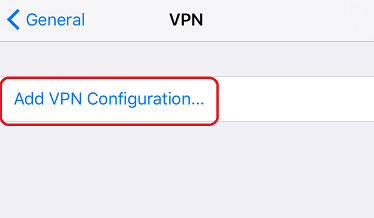
1. Go to Settings >> General >> VPN and tap Add VPN Configuration
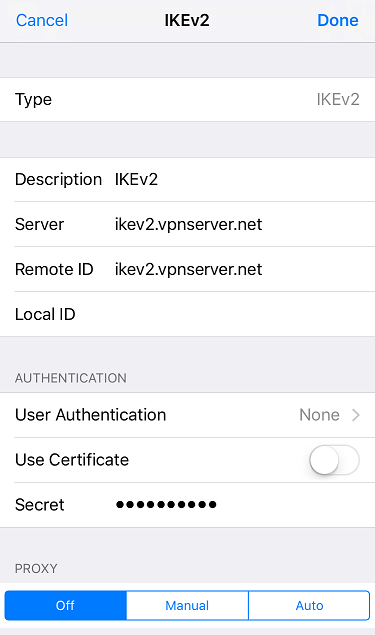
2. Edit the configuration as follows:
- Select "IKEv2" for Type
- Type the WAN IP or hostname of the router at Server and Remote ID
- Select "None" for User Authentication
- Disable Use Certificate
- Type the Pre-shared key in the router's IPsec General Setup at Secret
- Tap Done
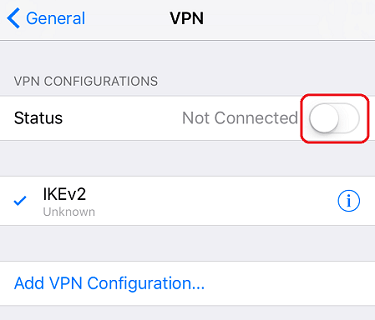
3. Switch on Status to start the IKEv2 VPN connection to Vigor Router.
1. Go to VPN and Remote Access >> IPsec General Setup, input a Pre-Shared Key, then click OK.

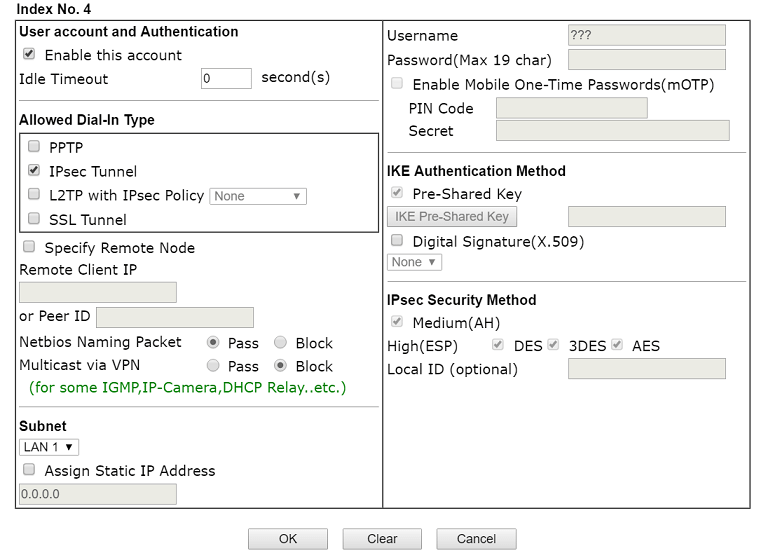
2. Go to VPN and Remote Access >> Remote Dial-in User, click an available index number to edit the profile.
- Check Enable this account
- Check IPsec Tunnel at Allowed Dial-In Type
- Click OK to save
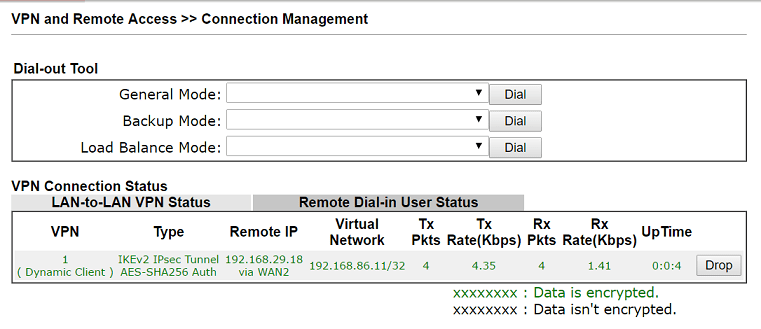
Now the settings are complete. If the VPN user is online, you will see VPN connection status at VPN and Remote Access >> Connection Management.
Vigor Router Setup
1. Make sure the router is connected to the Internet and has a public WAN IP address so that VPN clients on the Internet can reach it.
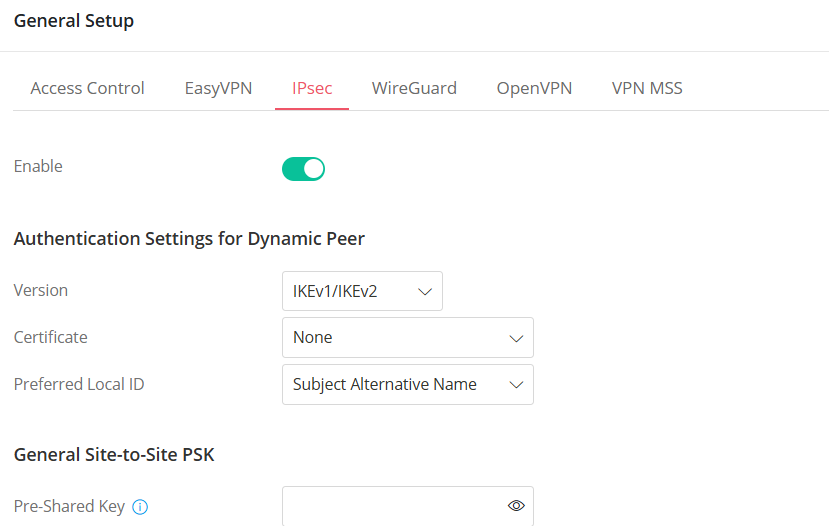
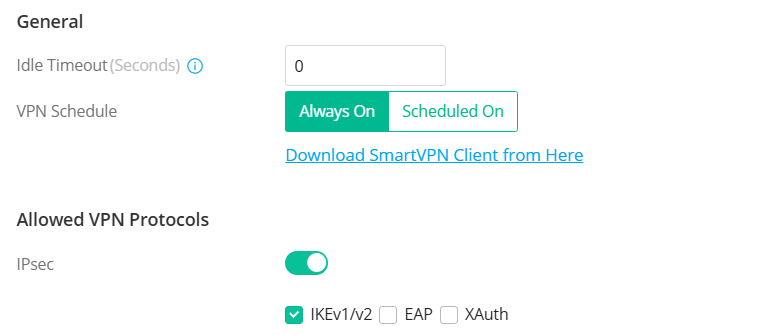
2. Activate the IPsec VPN service.
Go to VPN > General Setup,
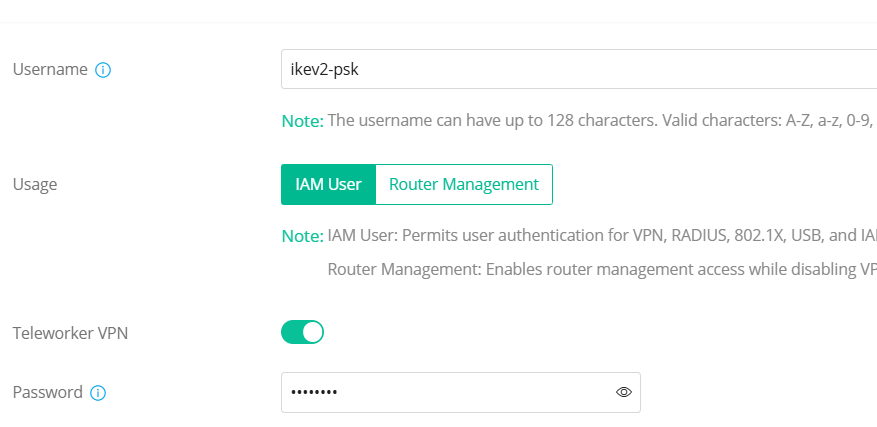
3. Create a Teleworker VPN User Profile.
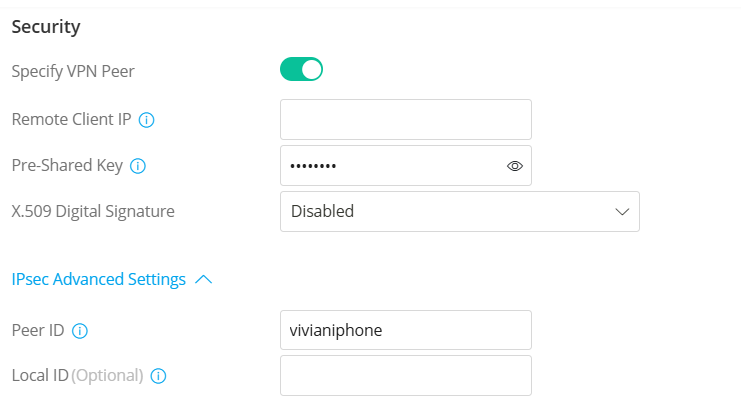
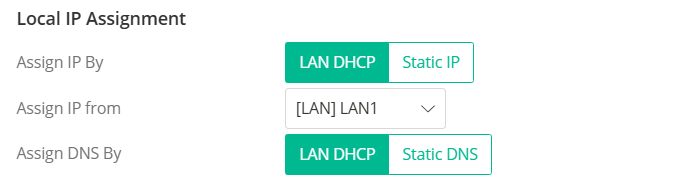
Go to VPN > Teleworker VPN, click Add. Enter the Username, toggle Teleworker VPN and enter Password.
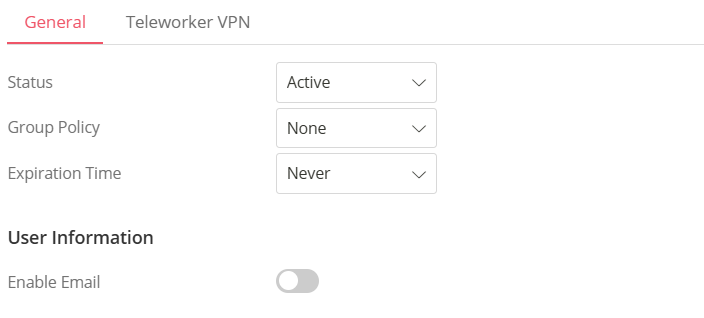
In General Tab,
In the Teleworker VPN tab,
The Peer ID setting allows different IKEv2 remote dial-in users to authenticate using different Pre-Shared Keys.
iOS VPN Setup
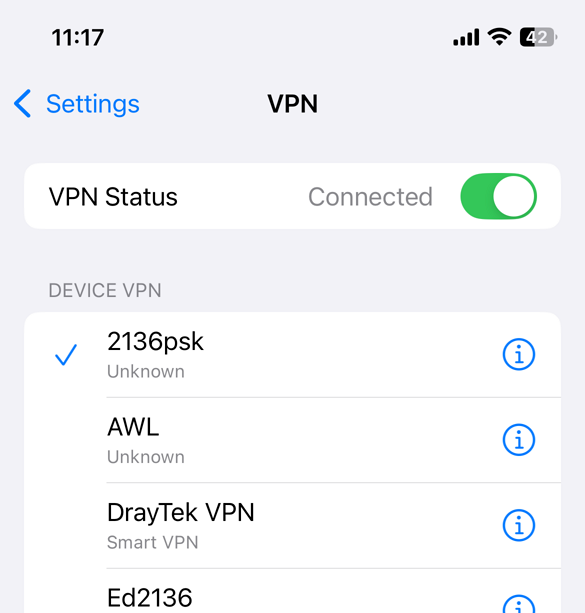
1. Navigate to Settings >> VPN. Click Add VPN Configuration to create a VPN IKEv2 profile.
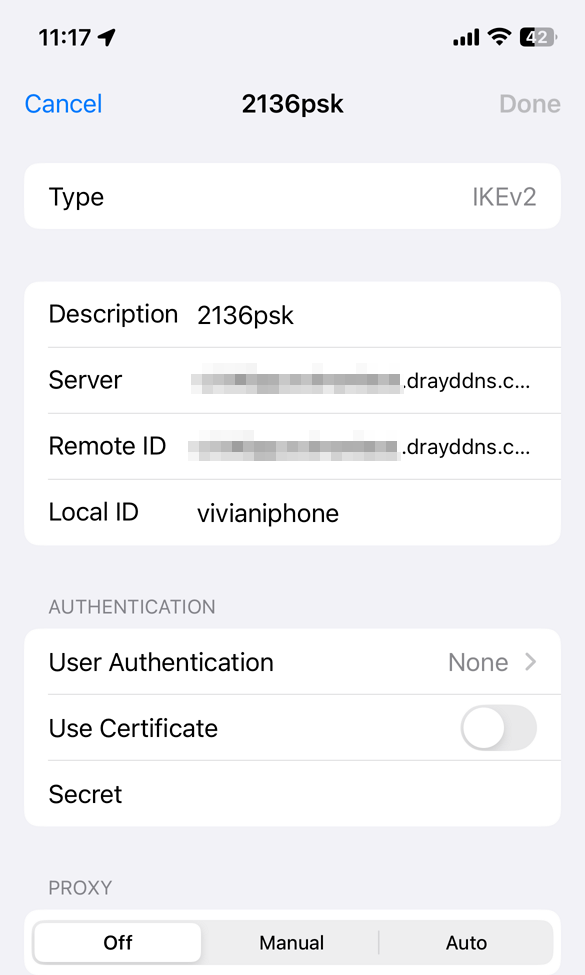
2. Toggle VPN Status. The IKEv2 PSK connection will connect successfully.
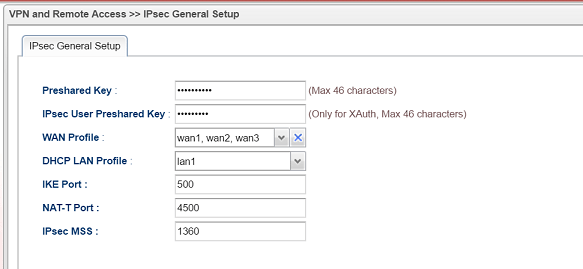
1. Go to VPN and Remote Access >> IPsec General Setup. Type Pre-Shared Key then click Apply to save.
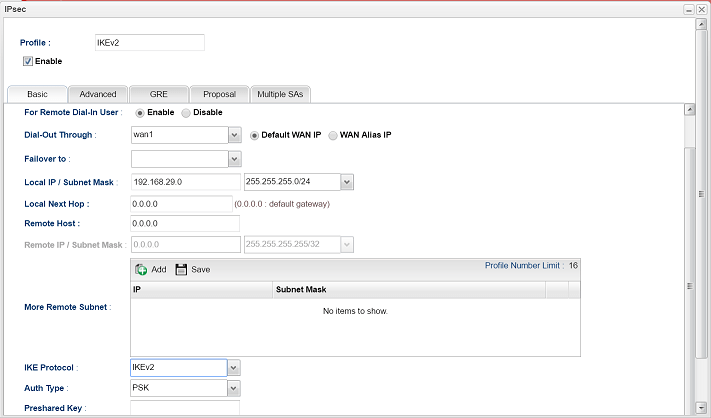
2. Add an IPsec VPN profile at VPN and Remote Access >> VPN Profiles:
- Enter Profile name
- Check Enable
- Select "Enable" for For Remote Dial-in User
- Specify the LAN network for VPN client at Local IP/Subnet Mask
- Select "IKEv2" for IKE Protocol
- Click Apply
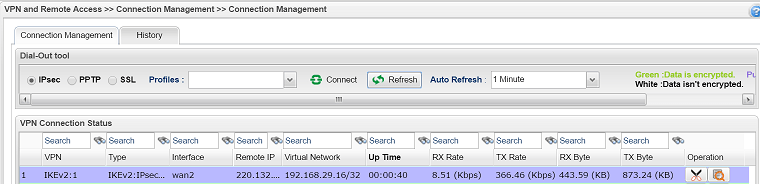
Now the settings is complete. If the VPN user is online, you will see VPN connection status at VPN and Remote Access >> Connection Management.
Published On:2025-10-02
ShareWas this helpful?