
Renew License Key for URL/IP Reputation Service
This article demonstrates how to add a new license key for URL Reputation service for a Vigor Router.
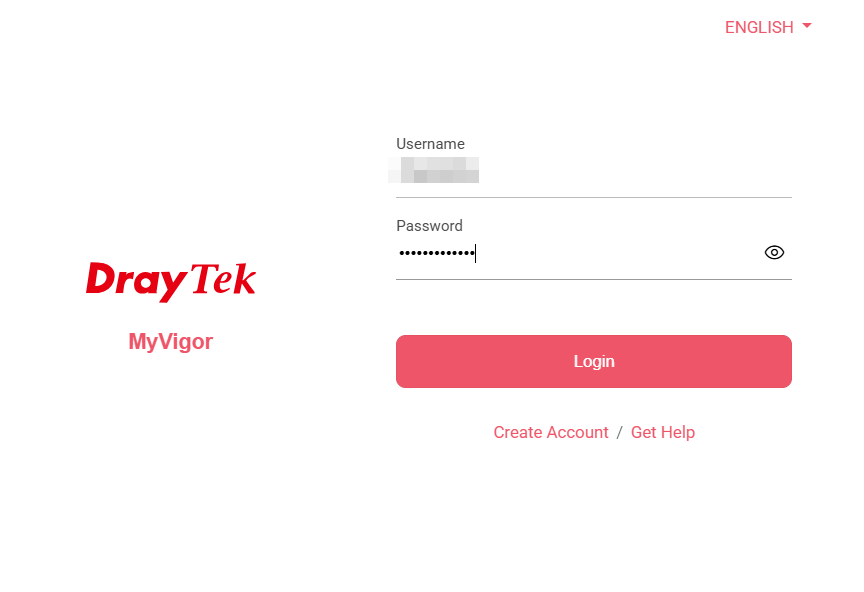
1. Login Vigor Router’s Web User Interface and click Product Registration. You will be directed to MyVigor portal login page. Entering your myVigor account credentials to login myVigor.
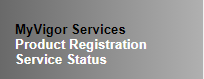
2. After logging in, it will lead you to VigorRouter Service Status page. Click Renew License. (Only when it's less than 30 days before the expiration date, the Renew License button is available)
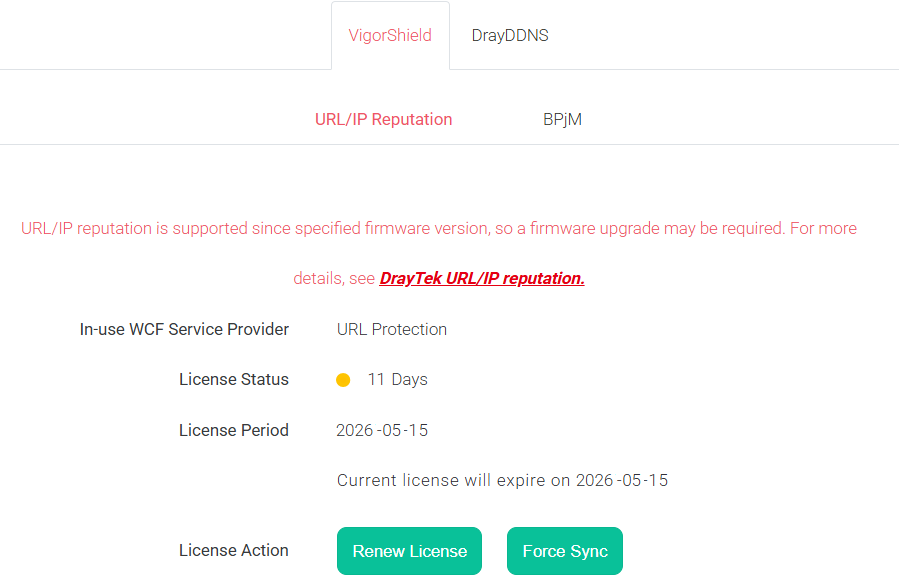
Note: If you can not click renew after logging in, it may cause by:
- You did not login myVigor from the Vigor Router’s Web User Interface.
- The Vigor Router is not bound to your myVigor account.
If the problem could not be solved, please provide the serial number of the router and your myVigor account to us by emailing to [email protected]
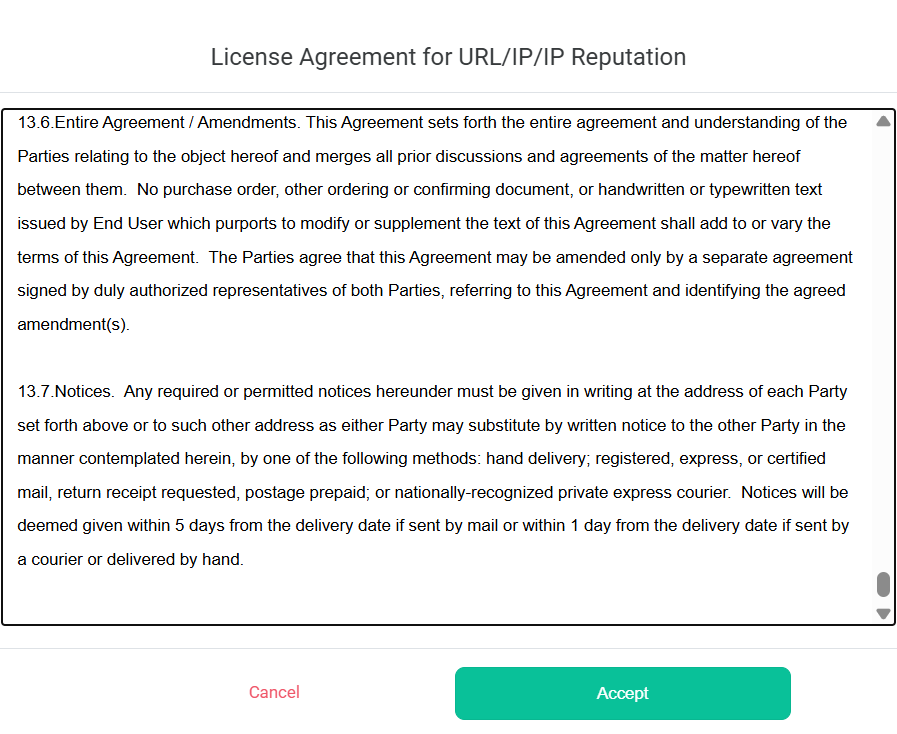
3. After clicking Renew License, MyVigor will pop out the License Agreement. Please read and click Accept.
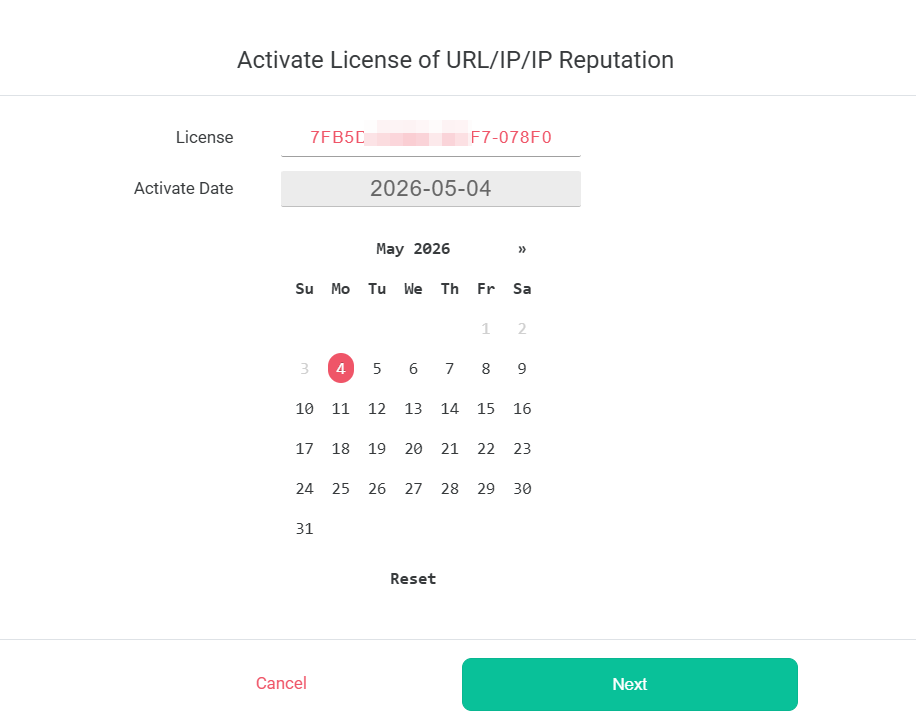
4. Enter in your License Key, select Activate Date, and click Next.
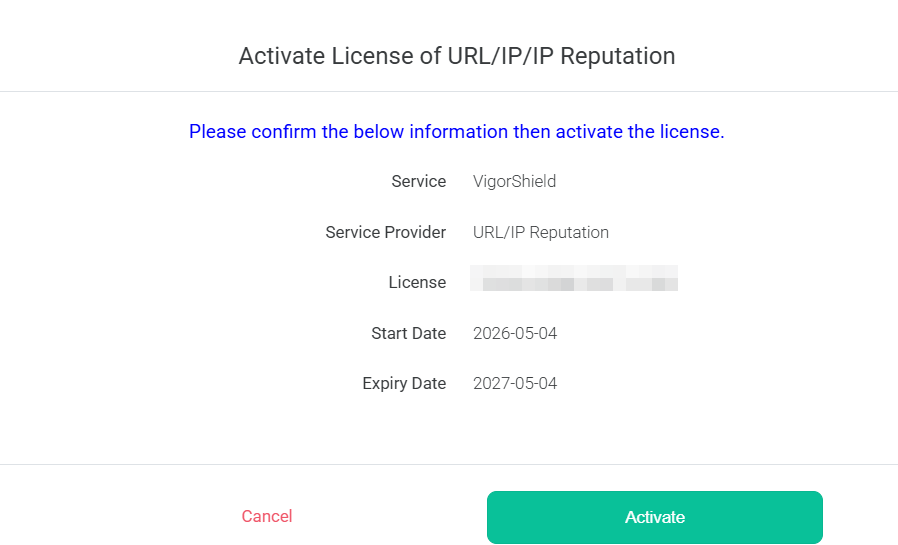
5. Please confirm the license information and click Activate.
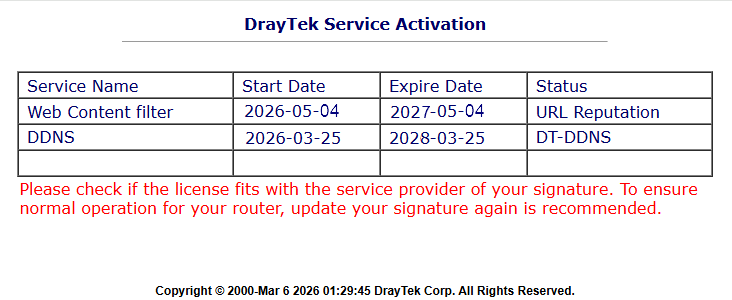
6. Once the website shows the information, it means the license has been successfully renewed.
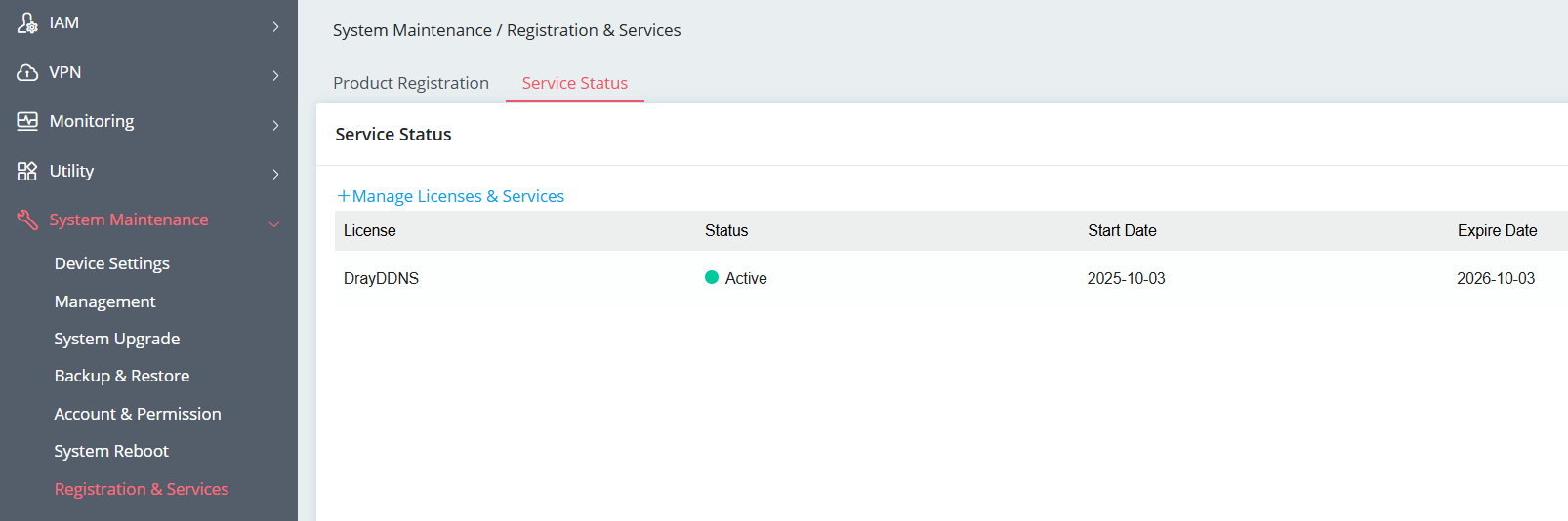
1. Login to your Vigor Router's Web UI. Navigate to System Maintenance >> Registration & Services. On the Service Status tab, click + Manage Licenses & Services to initiate the synchronization with the MyVigor portal.
2. The router will redirect you to the MyVigor login page. Enter your MyVigor account credentials (Username and Password) to proceed.
3. Once logged in, you will see the Service Status page for your specific router. Find the VigorShield → URL/IP Reputation service and click the Renew License button.
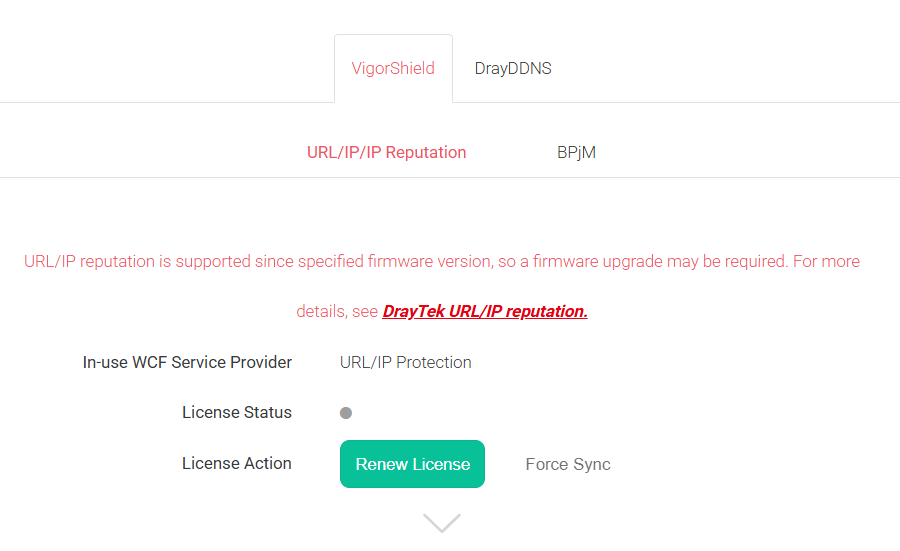
4. A License Agreement for the URL/IP Reputation service will appear. Please read the terms carefully and click Accept to continue.
5. Type in your new License Key in the provided field. You also need to select the Activate Date from the calendar picker. After confirming the details, click Next.
6. Review the license information, including the Service Provider (e.g., URL/ IP Reputation), Start Date, and Expiry Date. If everything is correct, click Activate.
7. A confirmation message will be displayed on the website, indicating that the license has been successfully renewed.
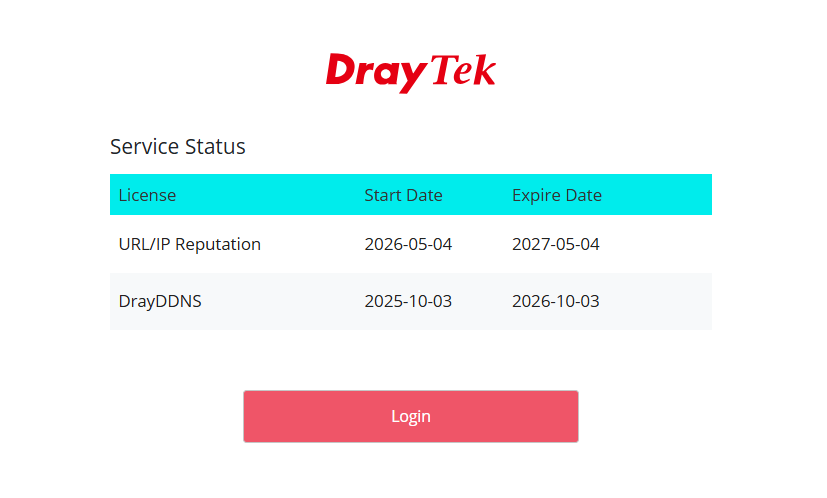
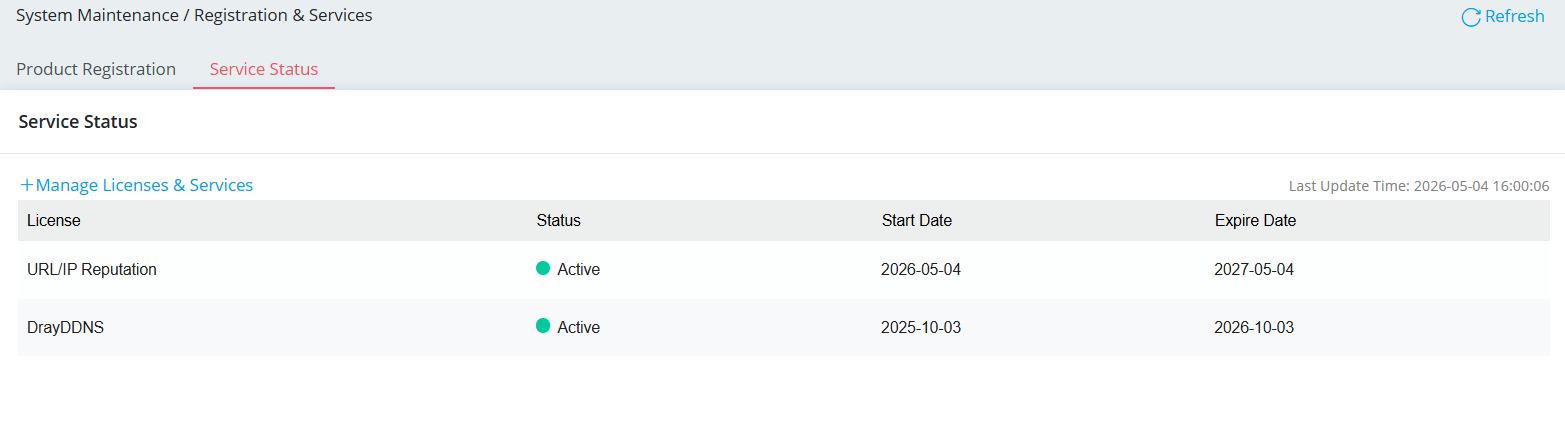
8. Return to your router's Web UI (System Maintenance / Registration & Services) to verify whether the URL/ IP Reputation license status is Active and shows the updated expiration date.
Published On:2026-05-11
ShareWas this helpful?