
Capture Packets on Router's WAN
Having WAN packets would be helpful for support engineers to analyze issues about WAN connection. We can use Wireshark with Port Mirror function of the router to capture the packets on router's WAN. However, Port Mirroring will affect the router's performance, so we should always disable it when not doing packet capture.
To get the router's WAN packet, first, you need to install a packet sniffer tool (e.g., Wireshark) on your computer. Then, follow the steps below to do port mirroring.
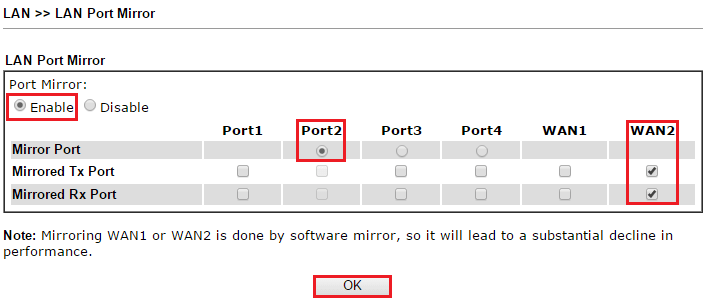
1. Go to LAN >> LAN Port Mirror:
- Select Enable
- Select Mirror Port as the LAN port to which the computer is connected.
- Check Mirrored Tx Port and Mirrored Rx Port for the WAN interface we would like to capture the packets.
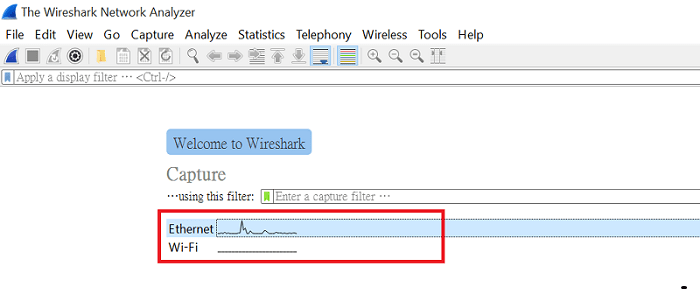
2. Run Wireshark on the computer (you might need to Run As Administrator), choose the network Interface to which the router is connected. Then, click Start.
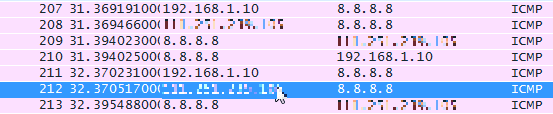
3. We should see packets from the WAN interface.
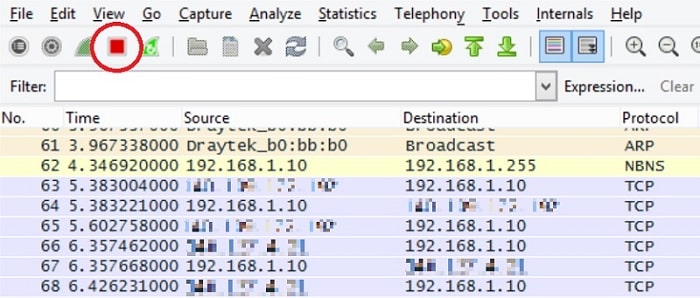
4. After collecting the packets we need, click the stop button.
5. Save the file.
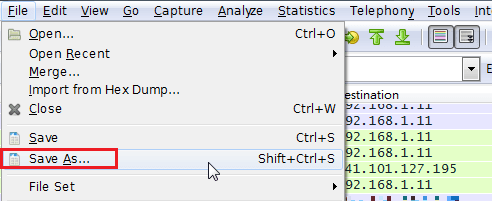
6. Disable Port Mirror function.
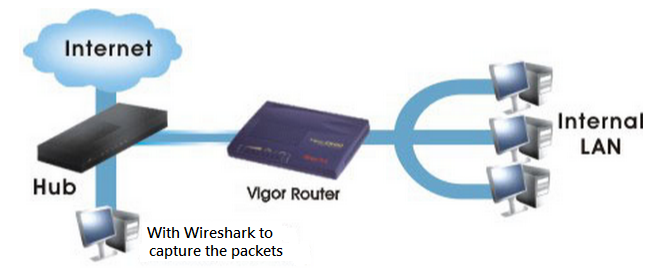
NOTE: For the Vigor Router that doesn't support LAN Port Mirror or WAN port as a mirrored port, please connect a hub between the ISP modem and Router's WAN port, and do the packet capture from the hub.
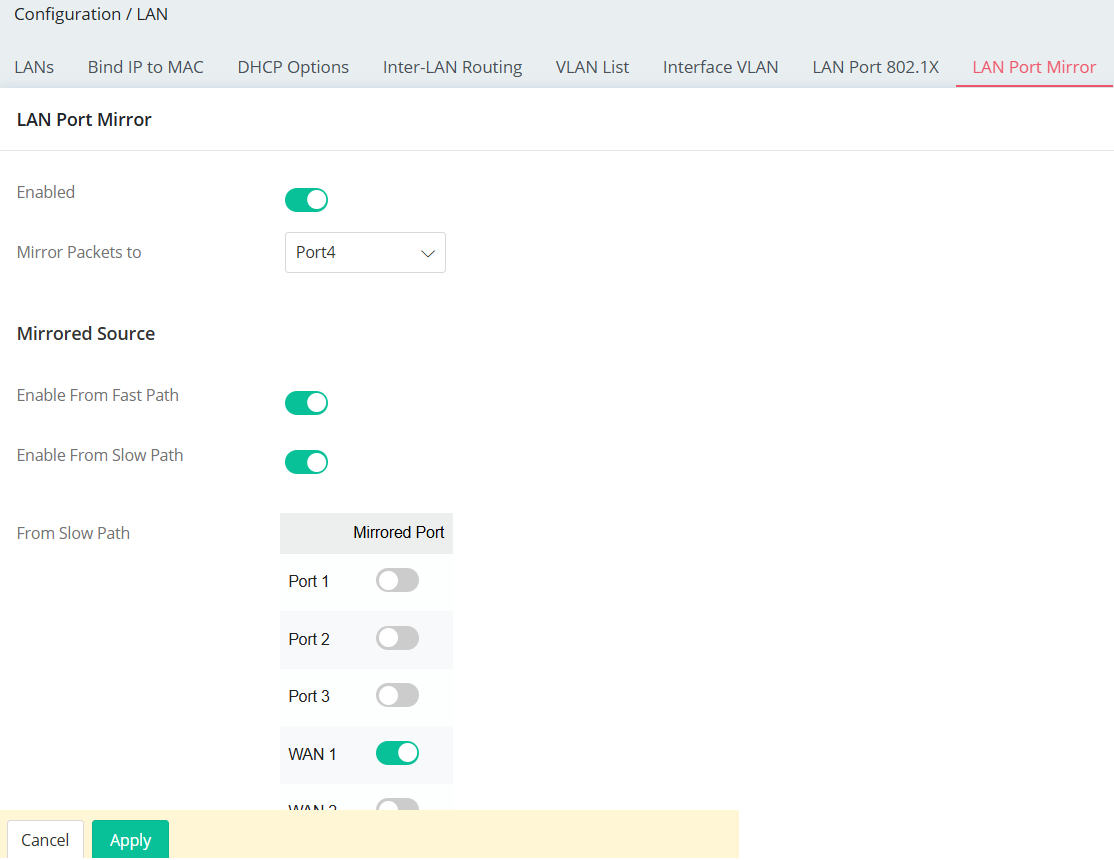
1. Navigate to Configuration > LAN > LAN Port Mirror.
In the Mirrored Source section:
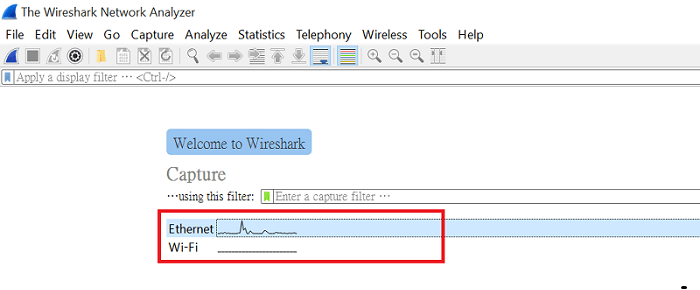
2. Launch Wireshark on the computer connected to the Mirror Packets To port. (you may need to run it as Administrator.) Select the network interface that connects to the router, then click Start to begin capturing packets.
3. We should see packets originating from or passing through the mirrored WAN interface/ IP appearing in the packet capture.
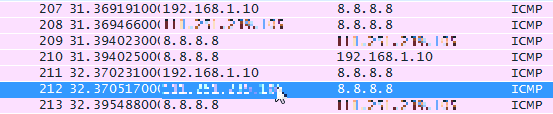
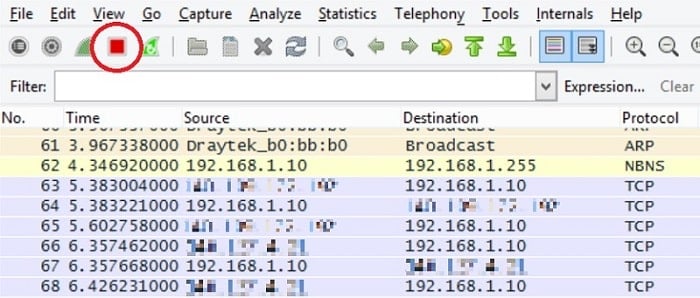
4. After collecting the packets we need, click the stop button.
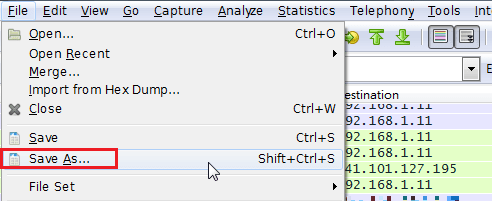
5. Save the file.
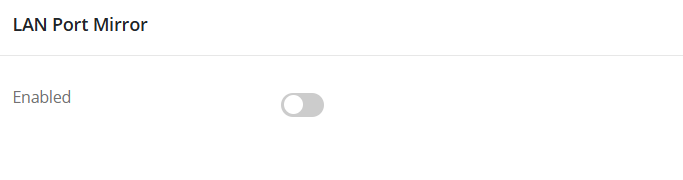
6. After completing the packet capture, disable the Port Mirror function to resume normal operation.
Note:
Port mirroring is not supported on the ADSL WAN interface.
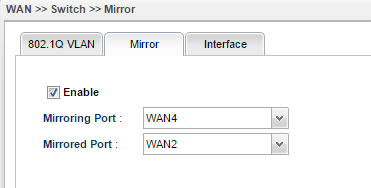
1. Go to WAN >> Switch >> Mirror:
- Check Enable
- Choose Mirroring Port to which the computer is connected
- Choose Mirrored Port as the WAN interface we would like to capture the packets.
2. Run Wireshark on the computer (you might need to Run As Administrator), choose the network Interface to which the router is connected. Then, click Start.
3. We should see packets from the WAN interface.
4. After collecting the packets we need, click the stop button.
5. Save the file.
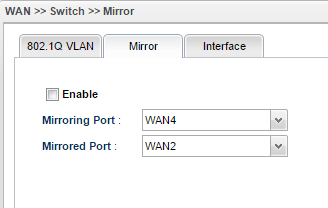
6. Disable Port Mirror function.
Published On:2016-07-06
ShareWas this helpful?