
Use OpenVPN with TCP port 443 to bypass limited or restricted Internet access
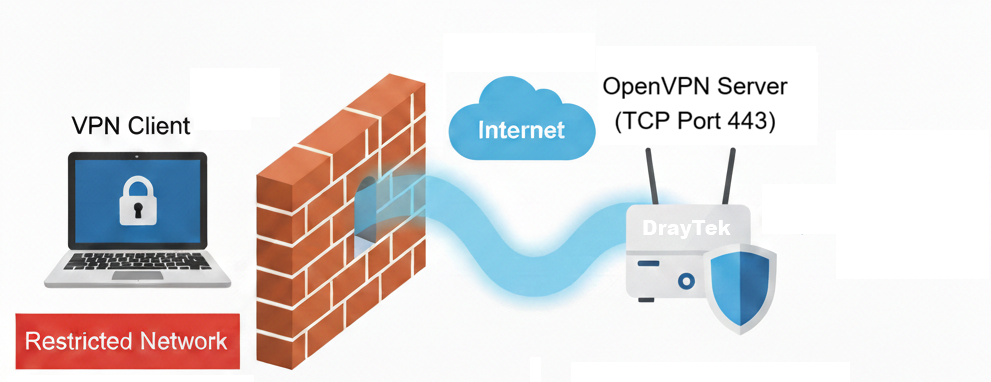
In some network environments, Internet access may be limited or restricted by firewalls or security policies. Common examples include hotels, public Wi-Fi networks, corporate offices, or campus networks, where VPN traffic and uncommon ports are often blocked.
Since TCP port 443 is widely used for HTTPS traffic, it is usually allowed through most firewalls. By configuring OpenVPN to use TCP port 443, VPN traffic can appear similar to regular HTTPS traffic, which greatly increases the chance of successfully establishing a VPN connection in restricted environments.
This document explains how to configure OpenVPN to operate over TCP port 443, allowing users to bypass network restrictions and securely access remote networks when standard VPN connections are blocked.
Router Setup
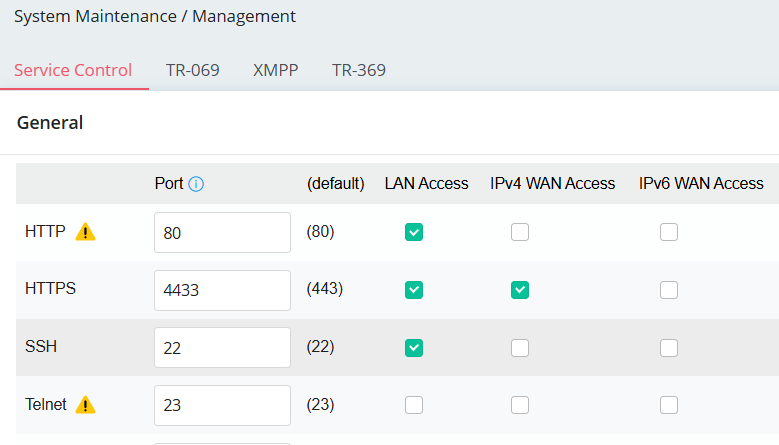
1. Change the HTTPS port for Web Management by navigating to System Maintenance / Management.
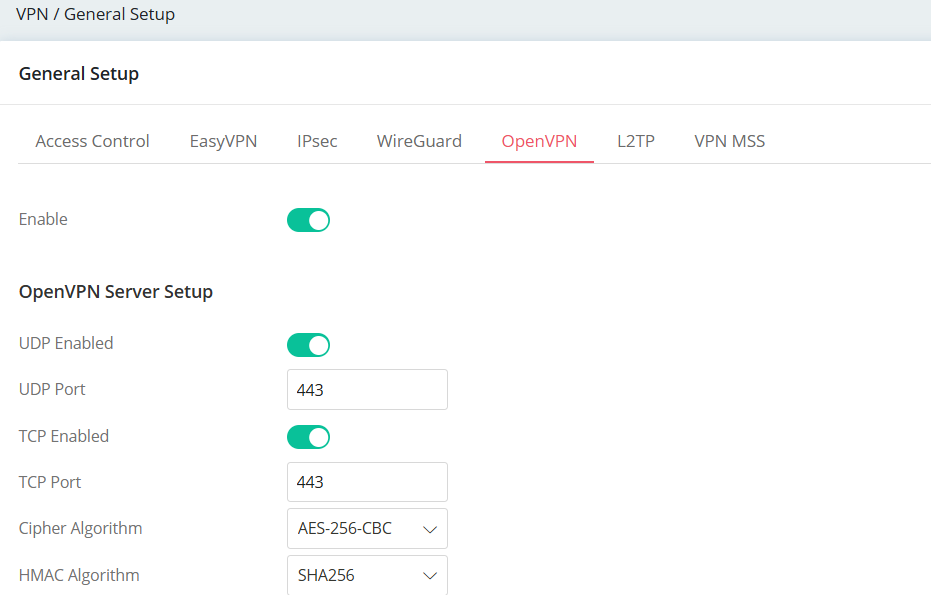
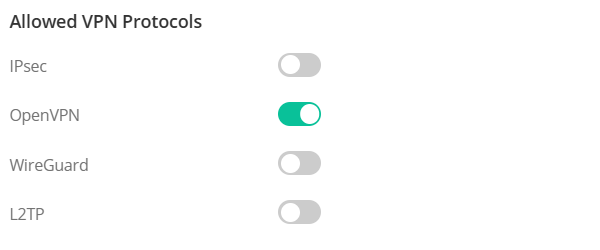
2. Enable OpenVPN Service by navigating to VPN / General Setup / OpenVPN.
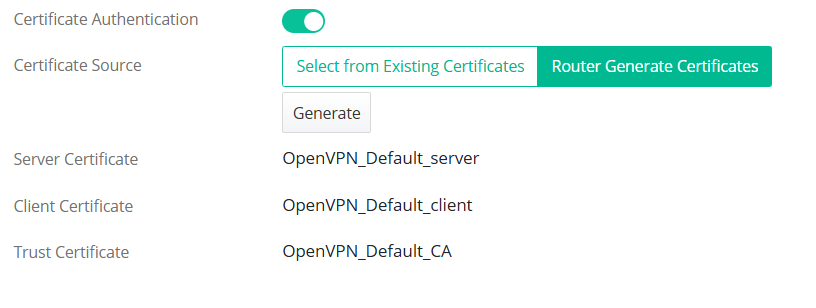
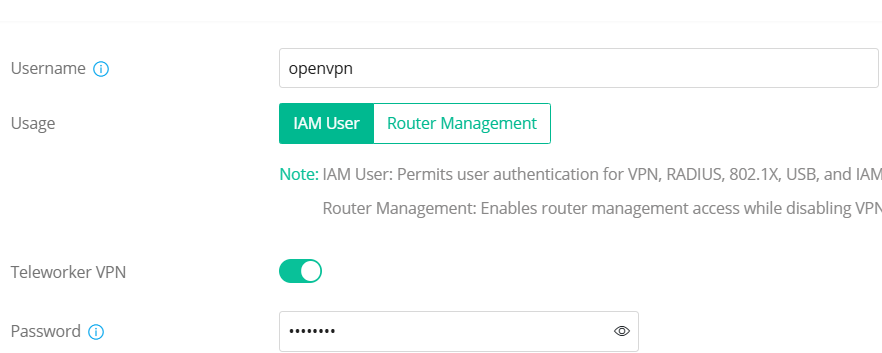
3. Create a Teleworker VPN User Profile. Navigate to VPN > Teleworker VPN, click +Add to create a new profile
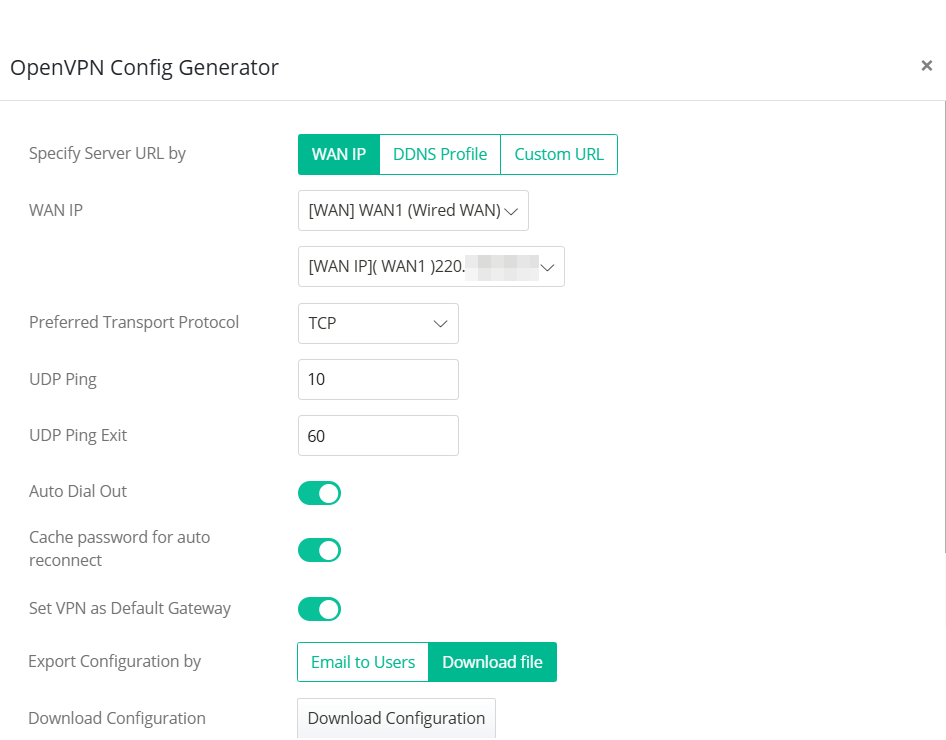
4. Generate an OpenVPN configuration file for the VPN user by clicking the strong<>OpenVPN Config Generator. Specify the WAN interface, IP or Domain Name, preferred Protocol and the required settings then click Download Configuration.
VPN Client Setup
1. Run the SmartVPN Client and Import the OpenVPN configuration file

2. Enter the Username and Password, then click OK to save the profile.
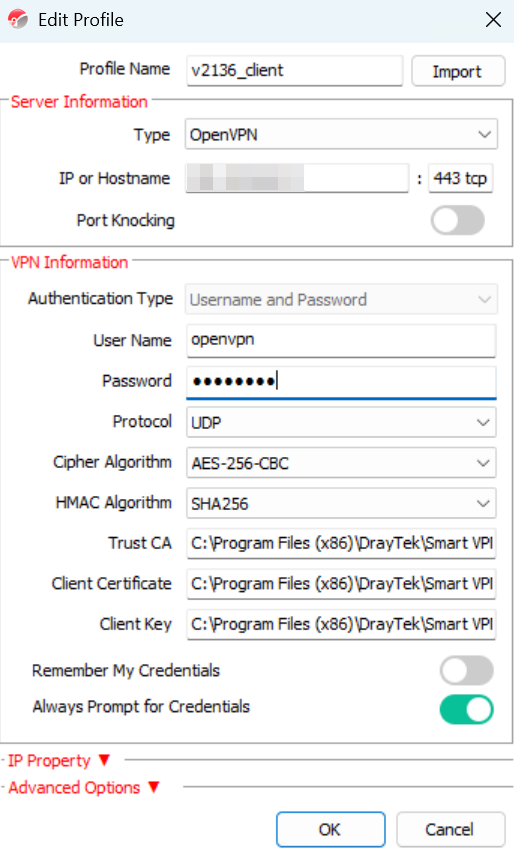
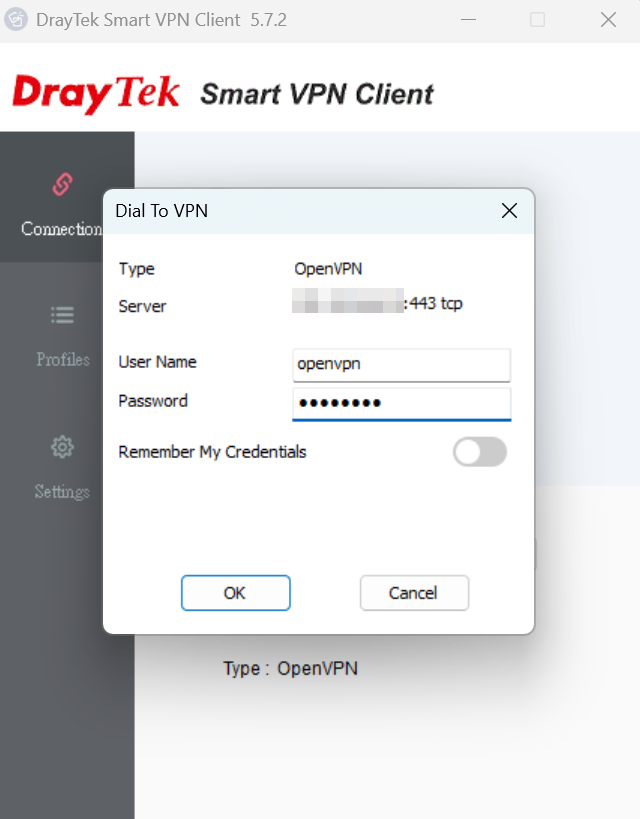
3. Toggle Connect. When the Dial To VPN prompt appears, re-enter the password and click OK to initiate the VPN connection.
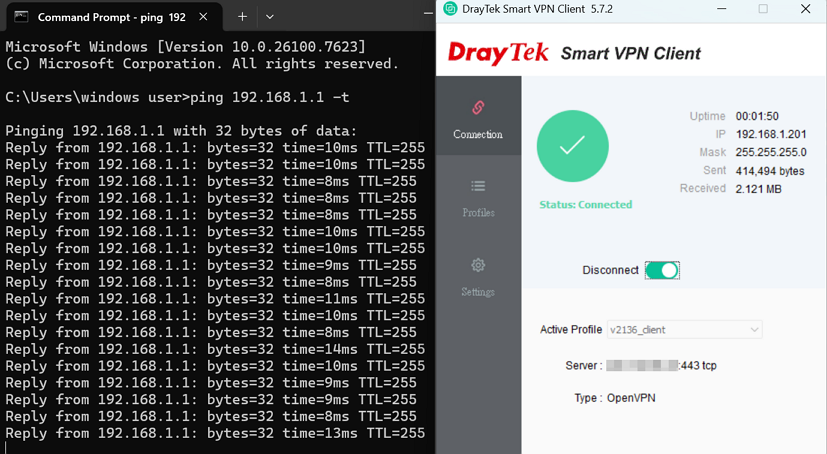
4. Once OpenVPN is established, use ping or other network tools to confirm that traffic passes successfully through the VPN.
Published On:2026-01-27
ShareWas this helpful?