
Protect Router's Management Interface by Port Knocking
Port knocking is a technology that enhances router security by adding an extra layer of protection. The core concept is that only open ports are vulnerable to attacks. To mitigate this, all ports are kept closed by default, and access is controlled using a "password" based on a specific sequence of port interactions. Only users who know the correct sequence can open the ports and establish a connection.
Vigor Router supports Port Knocking with TOTP for its Local Services. The supported models are:
*Future support
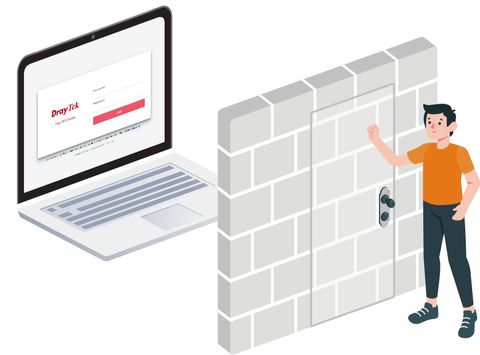
Below are the configuration steps for using the Port Knocking feature on Vigor Router.
1. Download the and execute it on the client’s computer.
2. Login the router’s Web interface.
3. Navigate to System Maintenance >> Time and Date. Ensure the router gets the correct system time. If the time is not updated correctly.
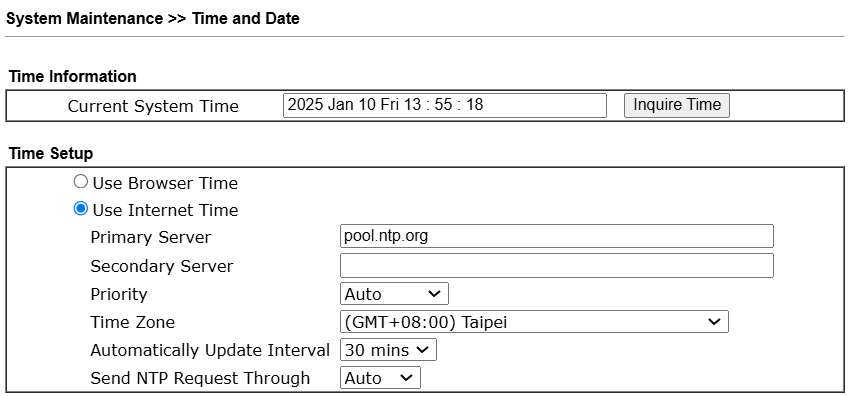
4. Navigate to System Maintenance >> Management, and select Enable port knocking protection at the Port Knocking for Local Service area.

5. The details of the Port Knocking configurations will be displayed.
a. Select the Local Services which require the Port Knocking protection.
b. Configure the 1st Knock Port.

c. Scan the QR code using the Google Authenticator app installed on your phone, or copy the TOTP key. Then, paste the TOTP key into the DrayTek Port Knocking Tool. In this configuration example, we are using the DrayTek Port Knocking Tool.
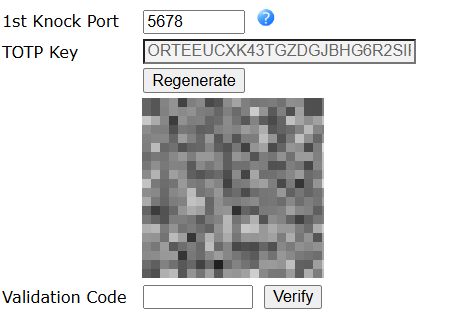
d. Enter the Profile Name, the first knocking port, and paste the TOTP Key into the DrayTek Port Knocking Tool. A 6-digit code will be generated. Click Copy to copy the code.

e. Paste the 6-digit code from the tool to the Validation Code field on the router, then click Verify.
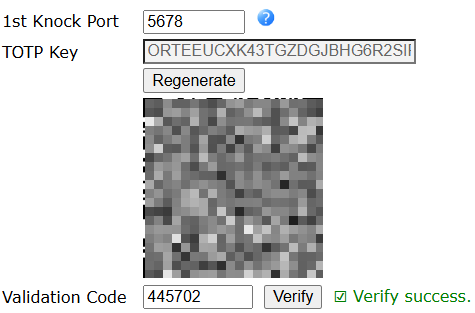
f. Once the message “Verify success.” appears, click OK to save the configuration.
The Port Knocking setup on the Vigor Router is now complete.
6. Try to connect to the router’s management interface using its WAN IP through the connection method you enabled. The connection will not be established because the service port is closed.

7. Continue the configuration on the PortKnocking Tool.
a. Enter the router’s WAN IP or Domain Name
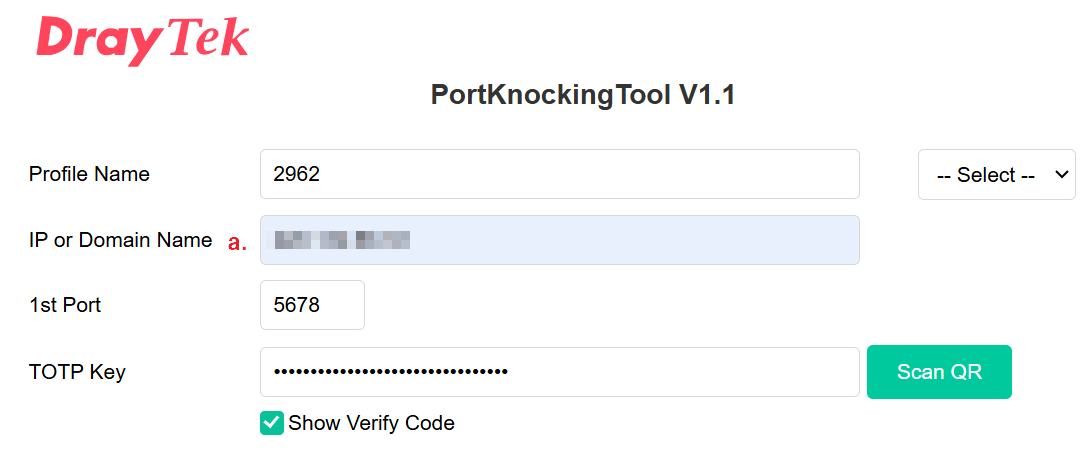
b. Select More Settings. Enter the server’s Public Port and Protocol you want to access.
c. Click Knock Ports. The tool will knock the router’s ports by sequence.

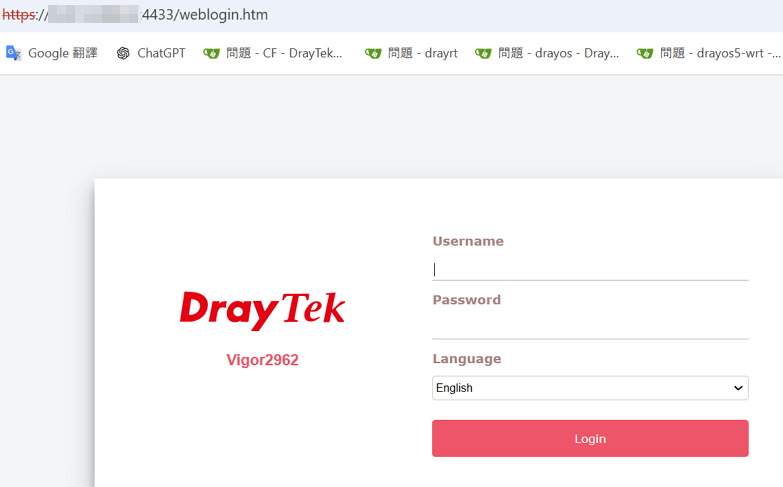
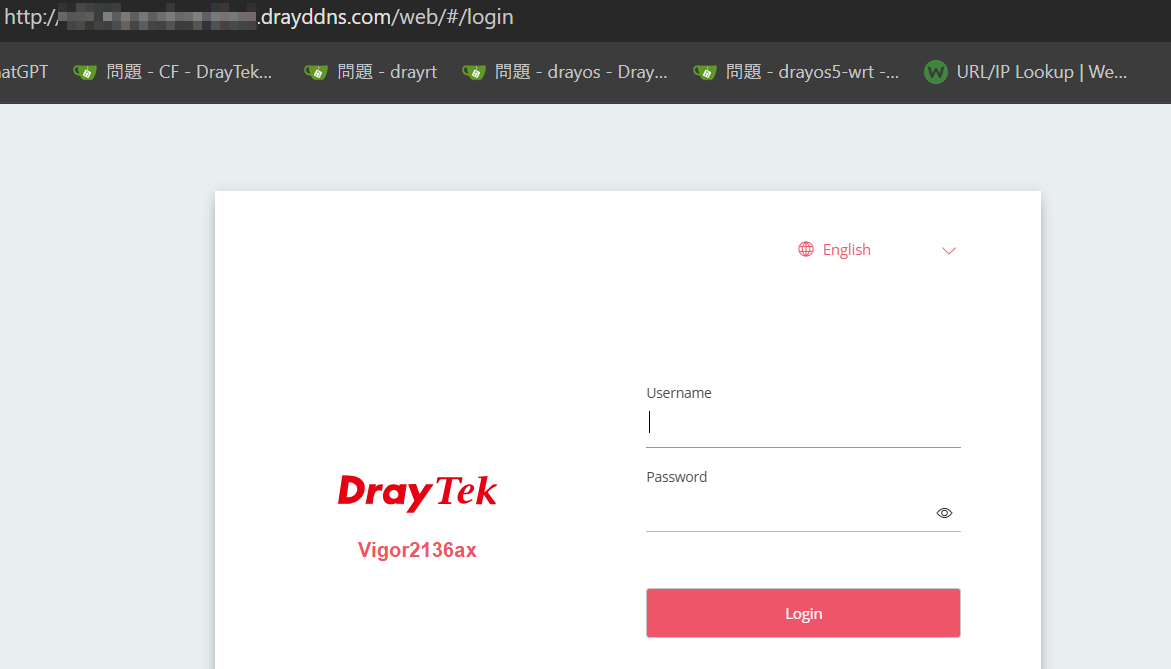
8. Click the Status link to browse the router’s web interface. You are able to see the Web Login page of the router now.
Configuring NAT Port Redirection rules is the typical way to allow the internal servers to be accessible from the Internet. However, once the port opens, it is exposed to the Internet and can be scanned by the malware. Port knocking is a technology that can add an extra layer of protection to the internal servers. Its basic idea is that only open ports are at risk of being attacked, so it allows all ports to be closed at the beginning. Do not open them, and then set a password based on the port combination. Only those who know the password can open the ports and connect.
Vigor Router supports Port Knocking with TOTP. The supported models are:
Below are the configuration steps for using the Port Knocking feature on Vigor Router.
1. Browse DrayTek Portknock Tool
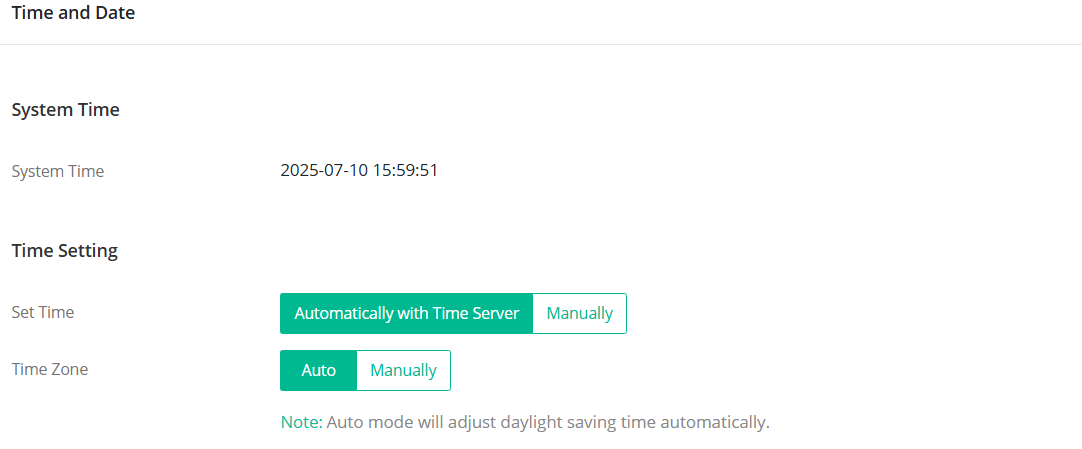
2. Login to the router’s Web, and navigate to System Maintenance / Device Settings / Time. Ensure the router gets the correct system time.
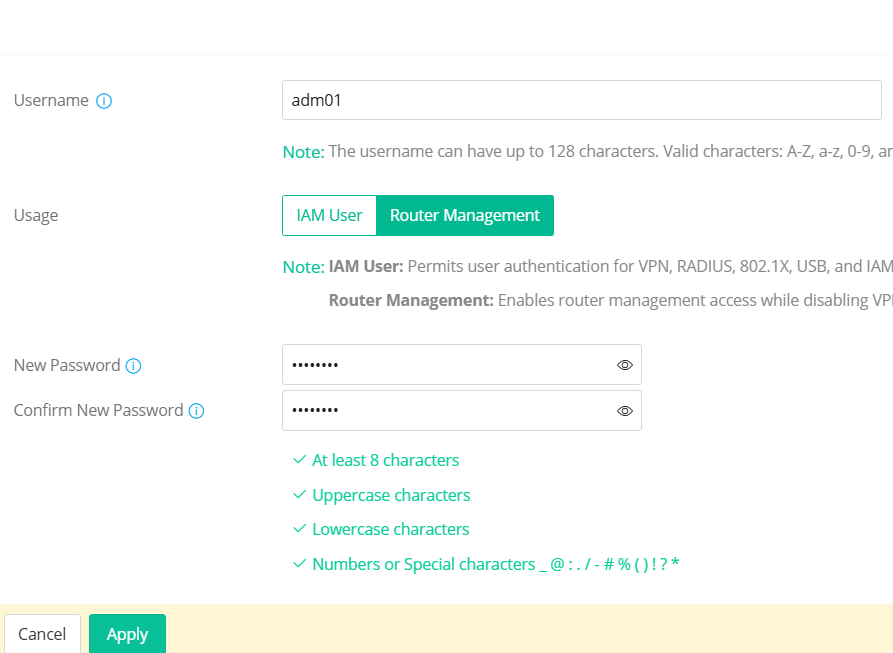
3. Navigate to IAM / Users & Groups / Users, click +Add to create an IAM user profile.
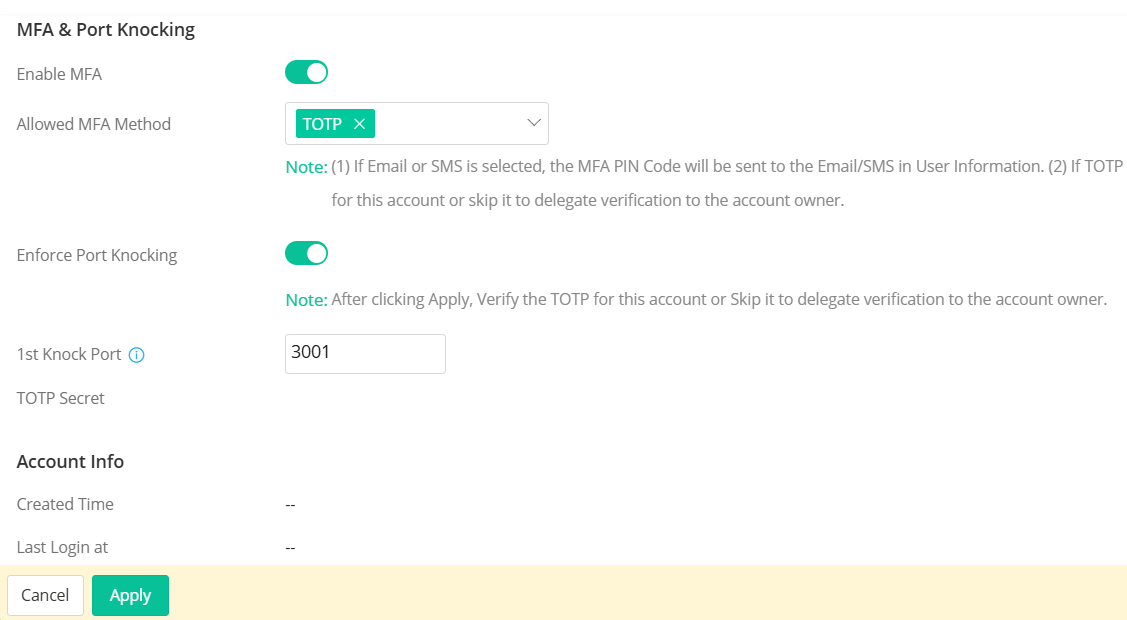
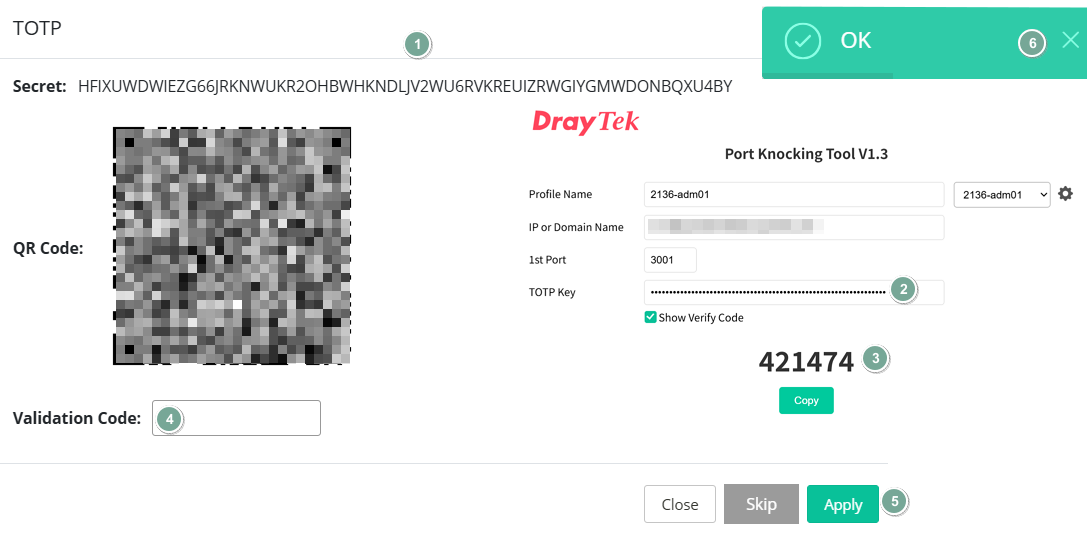
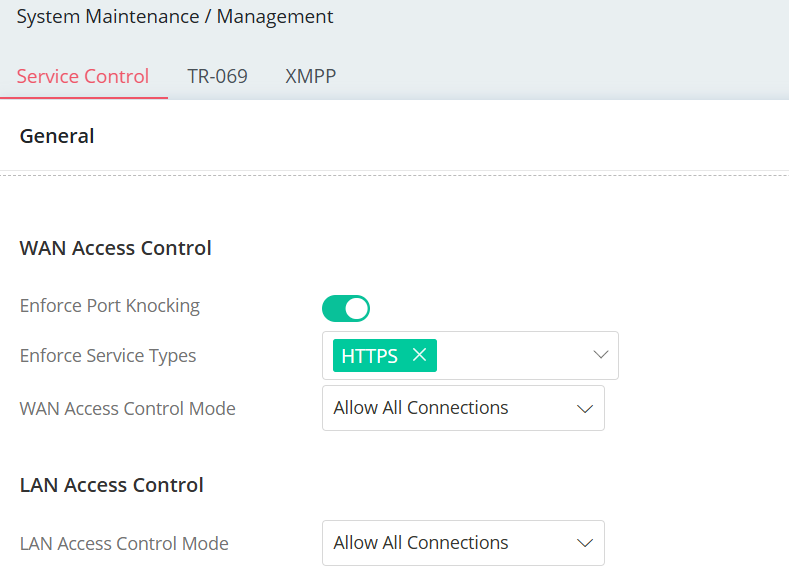
4. Navigate to System Maintenance > Management > Service Control, enable Enforce Port Knocking and select the Enforce Service Types under WAN Access Control.
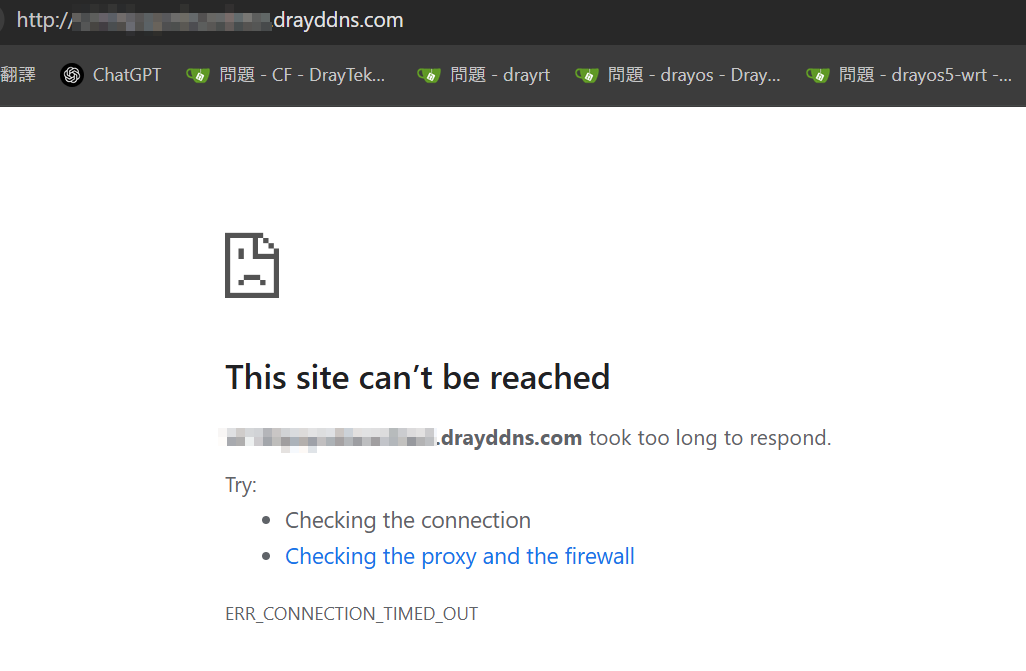
5. Try to connect to the router’s management interface from the Internet using its WAN IP through the connection method you enabled. The connection will not be established because the service port is closed.
6. Go to the Port Knocking Tool web page and click Knock Ports. The tool will knock the router’s ports by sequence.

7. Try accessing the router’s management interface from the Internet again. We should now be able to see the router’s web login page. Once the client successfully unlocks the ports, that client - or any other client using the same public IP will be able to access the router. The established connection will remain active for an hour. After the session expires, the client will need to use the Port Knocking tool again to regain access.
8. Navigate to Utility / Web CLI, login with the username and password, and enter the command “exec portkncok”. The IP address passing the PortKnock checking will display here.

Note:
1. The first knock port of each user profile must be unique and should not overlap with others.
2. Once a user with Port Knocking permission successfully completes the knock sequence, the public IP he uses will gain access to all NAT Port Redirection (Port Forwarding) rules that have Port Knocking enabled, as well as the Router Management interface.
Published On:2025-07-30
ShareWas this helpful?