
IPsec Tunnel between two DrayTek Routers using the same IP subnet
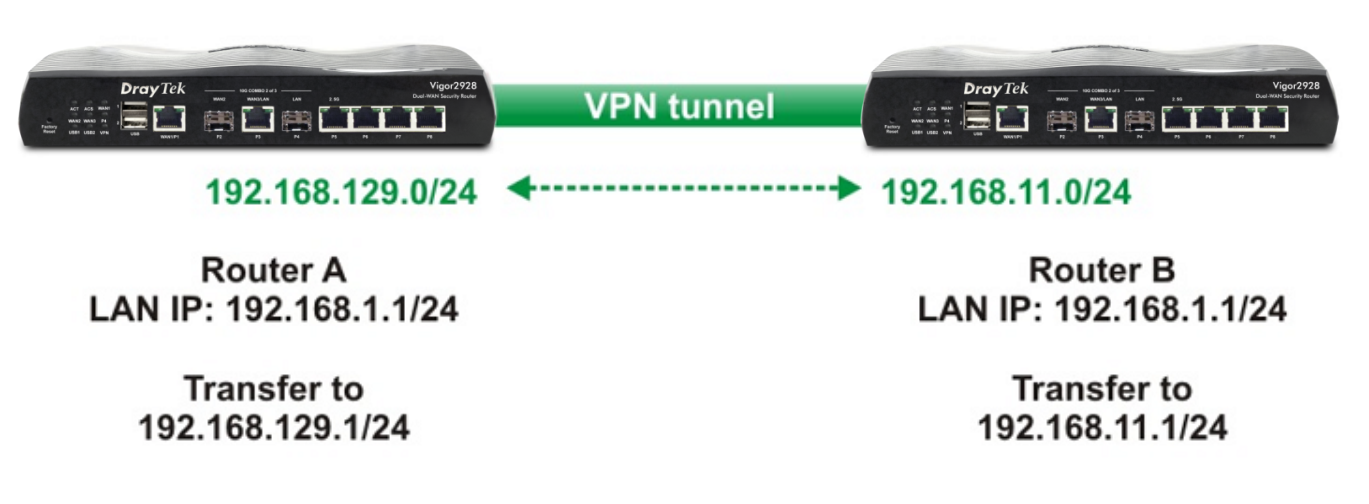
This article shows how to configure LAN-to-LAN VPN between two Vigor Routers which use the same local IP range. The problem of building VPN tunnels to another router that uses the same IP range is that there will be two routes to the same IP subnet that conflicts with each other. If neither of them can change the IP subnet, the solution is to translate the local IP to an unused range for the VPN connection. Below describes how to do that on Vigor Routers.
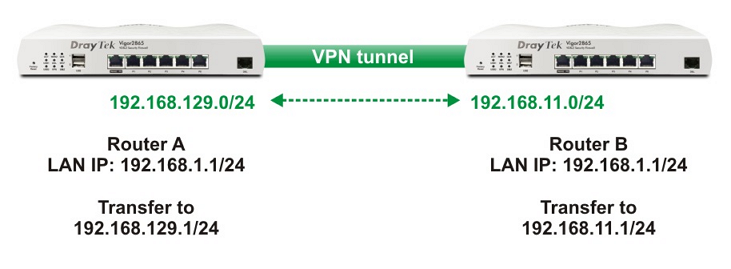
The Configuration of Router A (VPN Server)
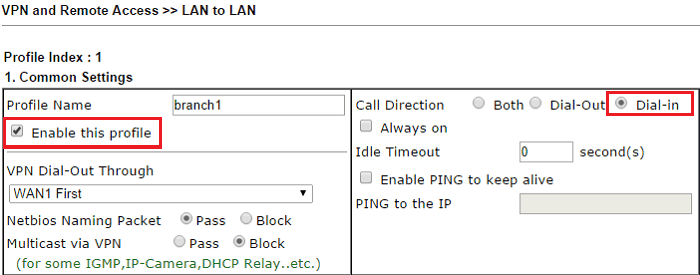
1. Go to VPN and Remote Access >> LAN to LAN to create a VPN profile as follows: In Common Settings:
- Check Enable this profile.
- Select Dial-In for Call Direction
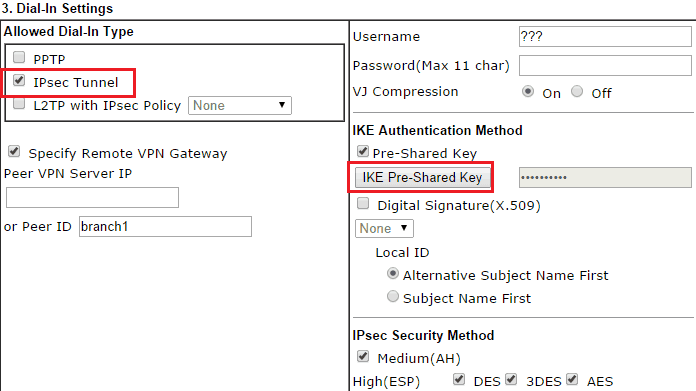
2. In Dial-In Settings:
- Select only IPsec Tunnel for Allowed Dial-in Type
- Select Specify Remote VPN Gateway then input some strings for Peer ID
- Click IKE Pre-Shared Key then input the Pre-Shared Key
3. In TCP/IP Network Settings:
- Enable Translate Local Network
- Select LAN1
- Enter in the Translated IP
- Enter in the Local/Remote Network IP and subnet Mask

The Configuration of Router B (VPN Client)
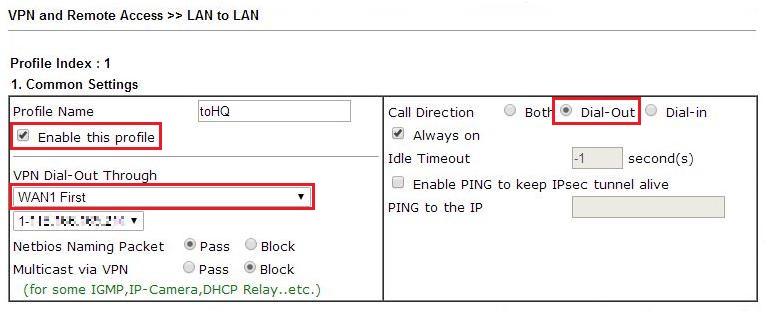
1. Add a profile at VPN and Remote Access >> LAN to LAN as follows: In Common Settings:
- Check Enable this profile
- Select Dial-Out for Call Direction
- Select the WAN interface where Router A is on for VPN Dial-Out Through
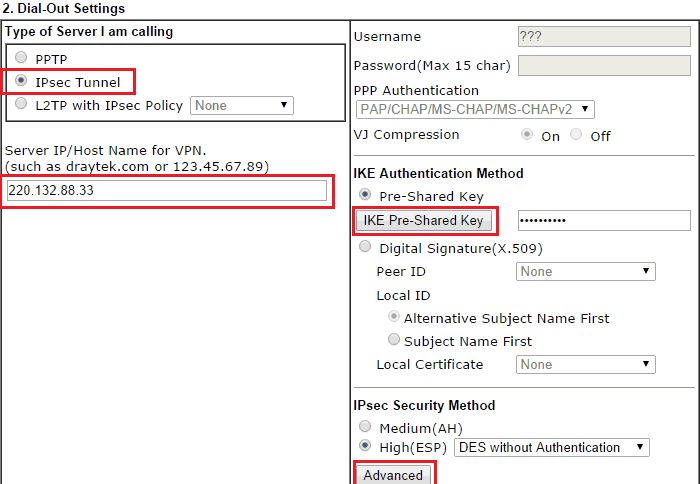
2. Configure Dial-Out Settings:
- Select "IPsec Tunnel" for Type of Server I am calling
- Input Server IP as the WAN IP address of Router A
- Click IKE Pre-Shared Key then input the same key as what was configured on Router A
- Select High(ESP) for IPsec Security Method, and click Advanced
- Select "Aggressive mode"
- Input Local ID as same as the Peer ID on Router A
3. Configure TCP/IP Network Settings:
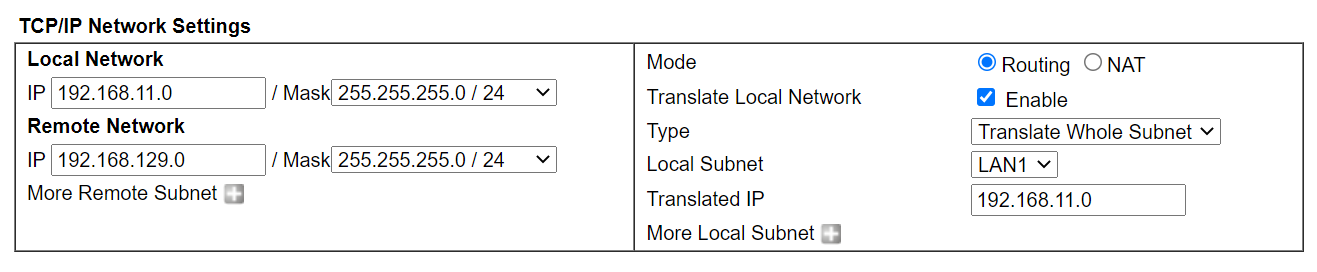
- Enable Translate Local Network
- Select LAN1
- Enter in the Translated IP
- Enter in the Local/Remote Network IP and subnet Mask
4. After the configurations, Network Administrator may check the VPN Status via VPN and Remote Access >> Connection Management.

5. To reach a host behind Router A, a host behind Router B can use the IP address in subnet 192.168.129.0/255.255.255.0.

The Configuration of Router A (VPN Server)
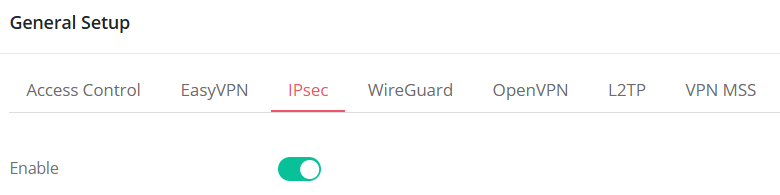
1. Enable IPsec VPN service.
2. Create an IPsec Site to Site VPN profile.
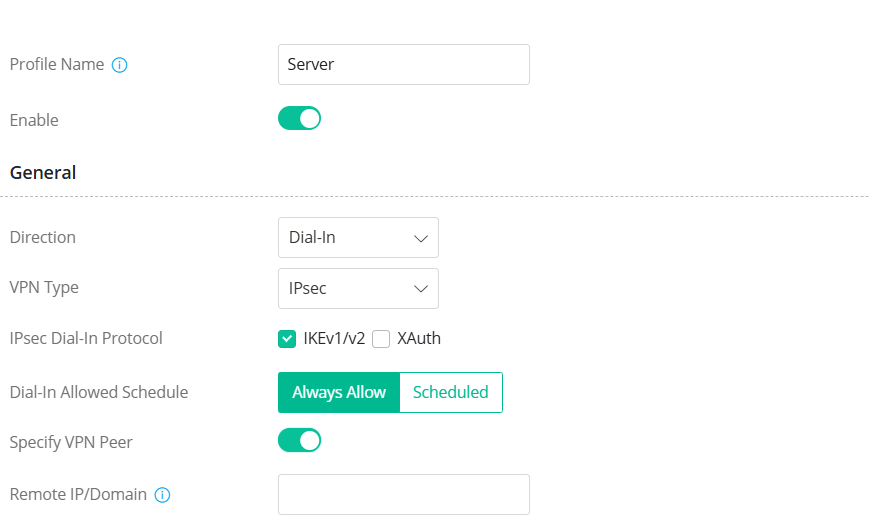
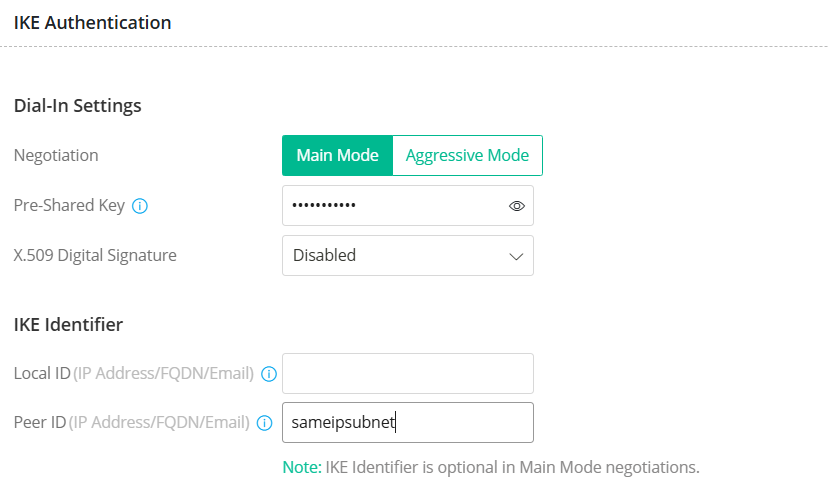
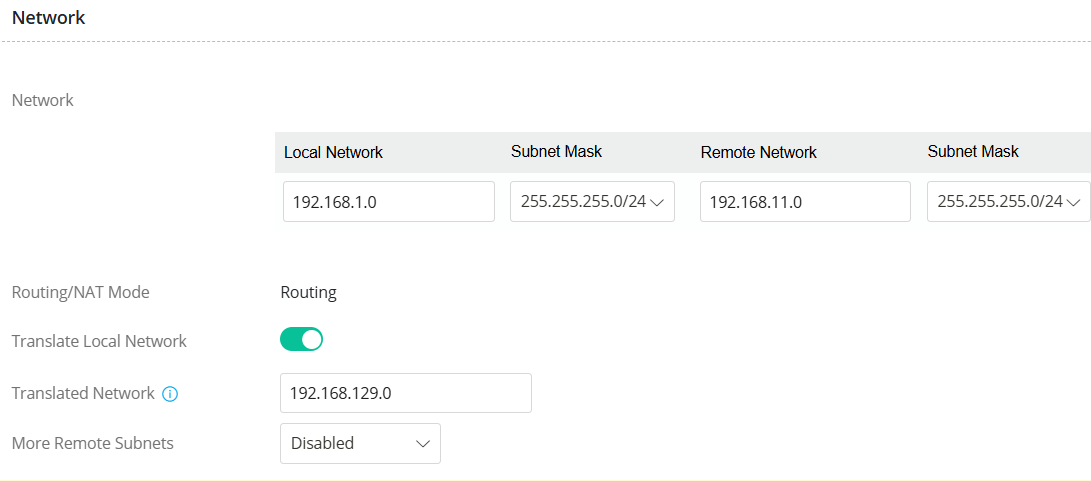
The Configuration of Router B (VPN Client)
1. Enable IPsec VPN service.
2. Navigate to VPN / Site to Site VPN. Click +Add to create an IPsec Site to Site VPN profile.
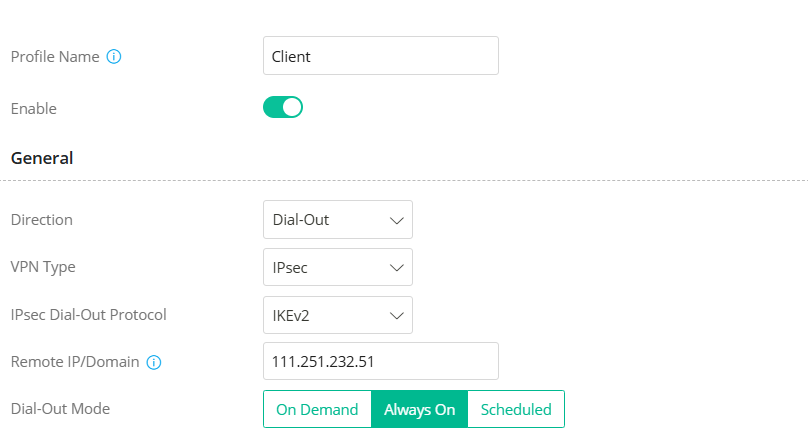
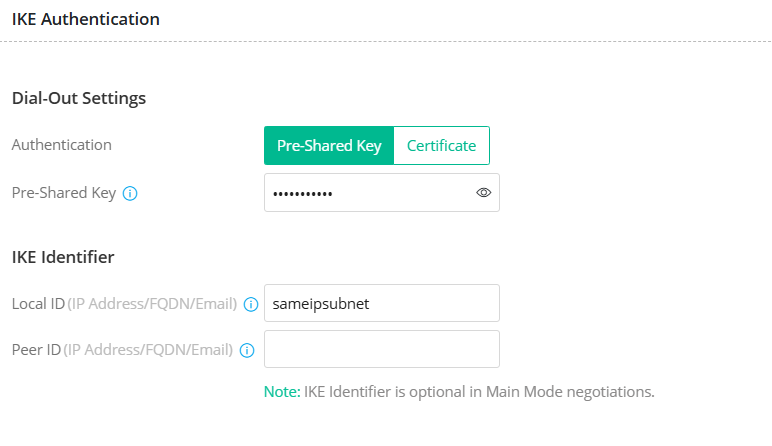
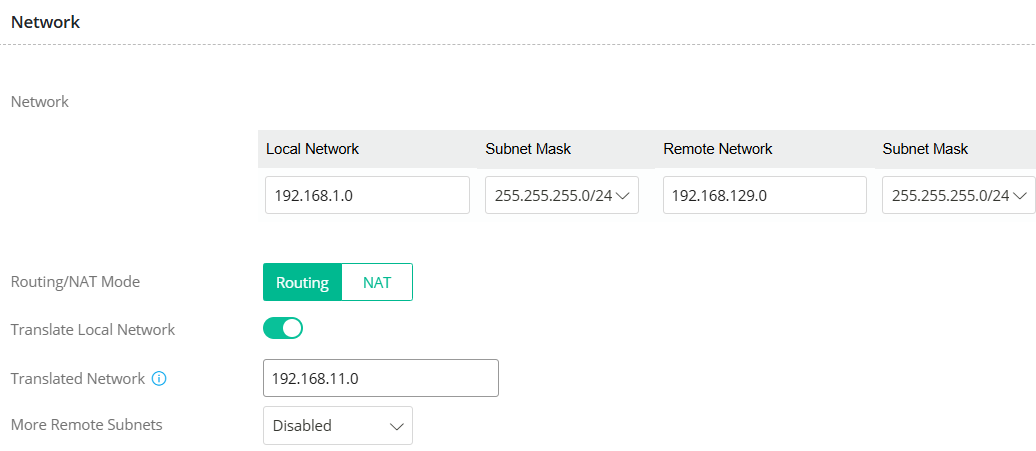
Verify the VPN Connection
1. Navigate to VPN / VPN Connection Status to check if the VPN is up.
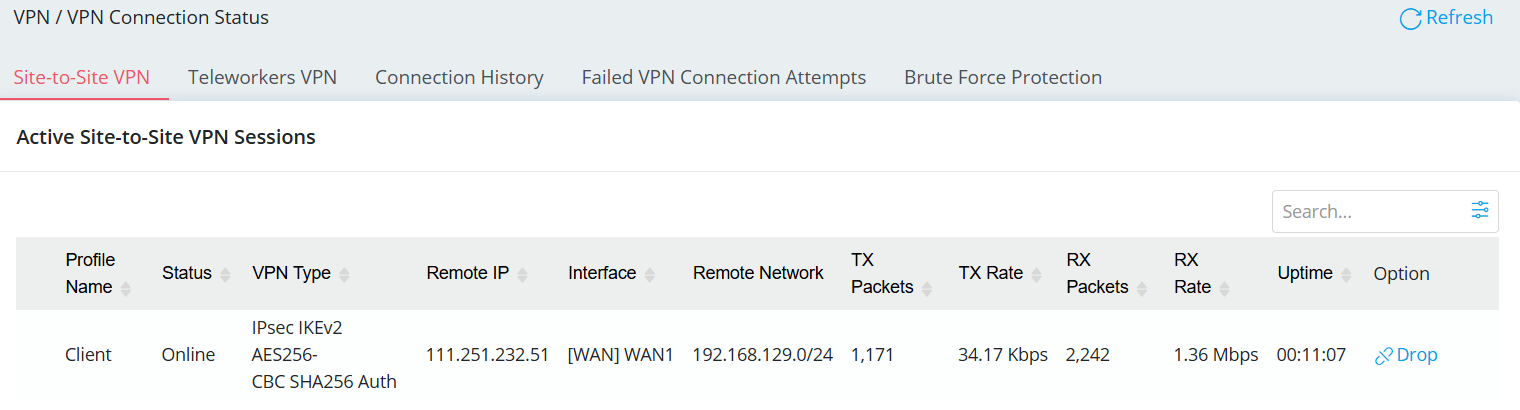
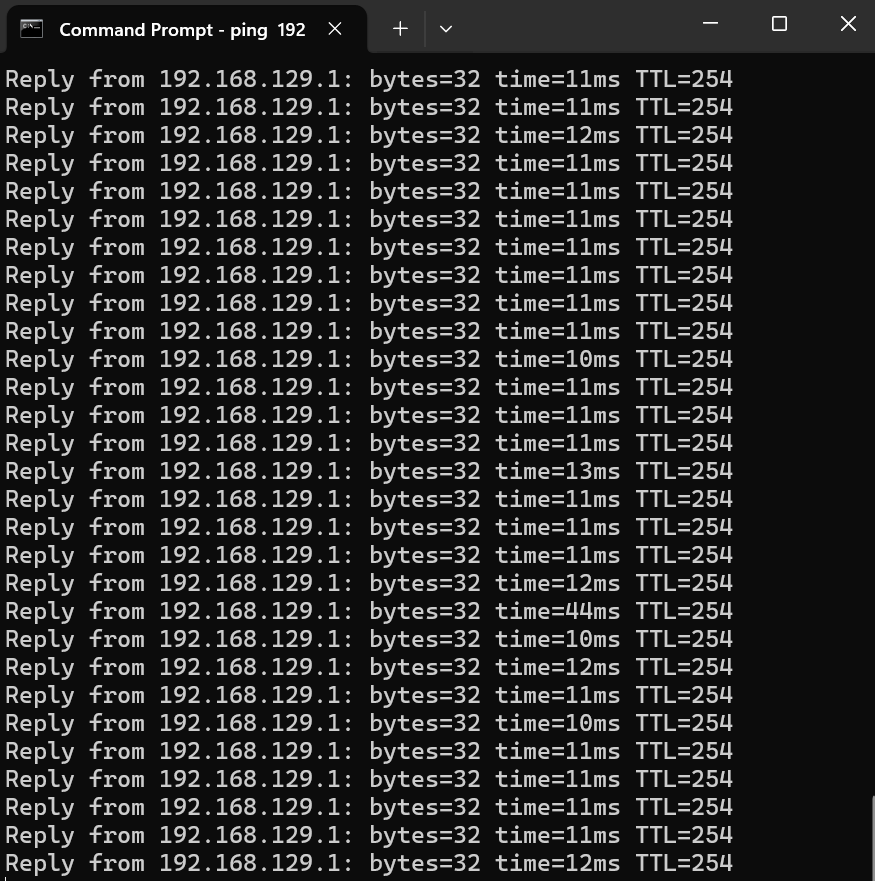
2. Use Ping to verify connectivity to the remote VPN network.
Note: The peer’s IP address is translated. Please use the translated IP address to access the remote network.

The Configuration of Router A (VPN Server)
1. Go to VPN and Remote Access >> VPN Profile >> IPsec add a profile as follows:
- In the Basic tab, enter a Profile name and check Enable
- Enter Local IP /Subnet Mask as the LAN network on Router A.
- Enter the WAN IP of Router B for Remote Host
- Enter the translated LAN IP of Router B at Remote IP/ Subnet Mask
- Enter Pre-Shared Key
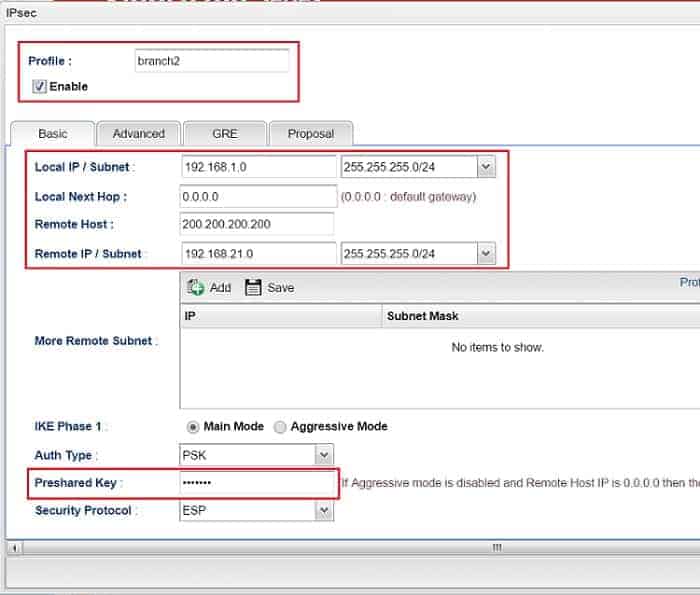
2. In the Advanced tab, enable Apply NAT Policy, and enter a un-used IP range for Translated Local Network. Then, click Apply to save the profile.
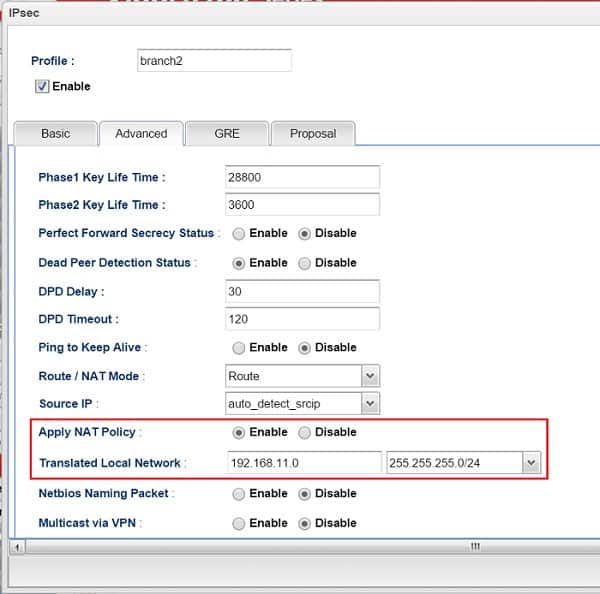
The Configuration of Router B (VPN Client)
3. Similarly, go to VPN and Remote Access >> VPN Profile >> IPsec and add a profile as follows:
- In the Basic tab, enter a Profile name and check Enable
- Enter Local IP /Subnet Mask as the LAN network of Router B
- Enter the WAN IP of Router A in Remote Host
- Enter the translated LAN IP of Router A at Remote IP/ Subnet Mask
- Enter Pre-Shared Key as the same key in Router A's VPN profile.
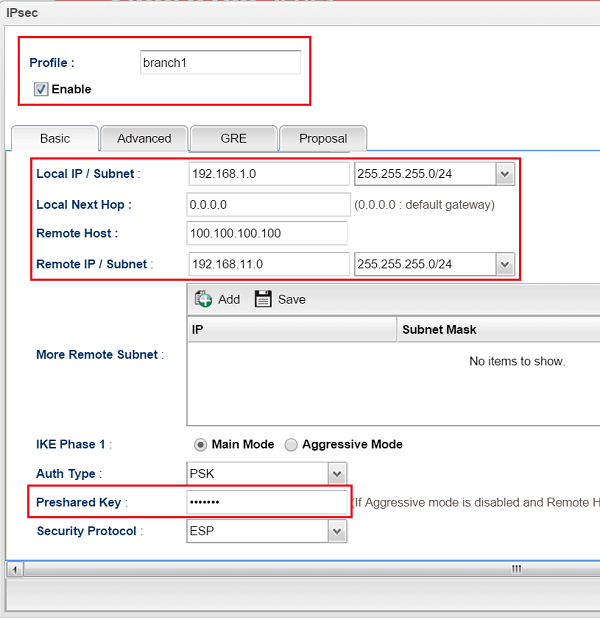
4. In the Advanced tab, enable Apply NAT Policy, and give it a Translated Local Network which is different from that of Router A. Then, click Apply to save the profile.
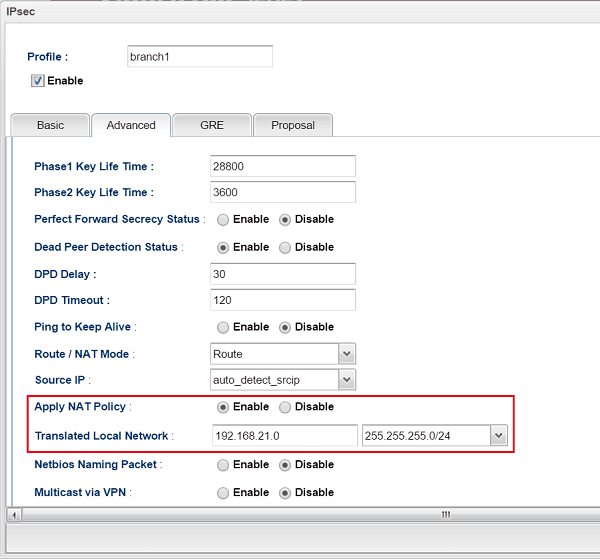
5. To initiate the VPN, go to VPN and Remote Access >> Connection Management, select the Profile created and click Connect.

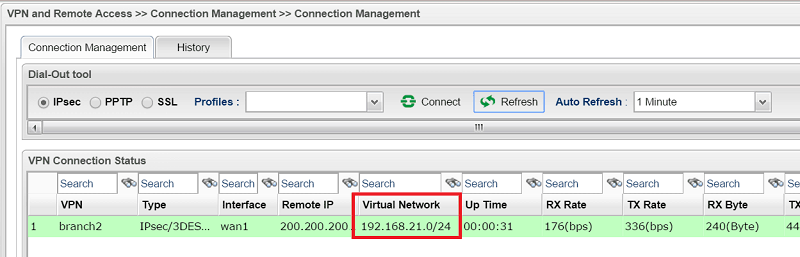
6. If all the settings are matched, the VPN connection will be established. In connection status, we will see the virtual network is the translated IP address.
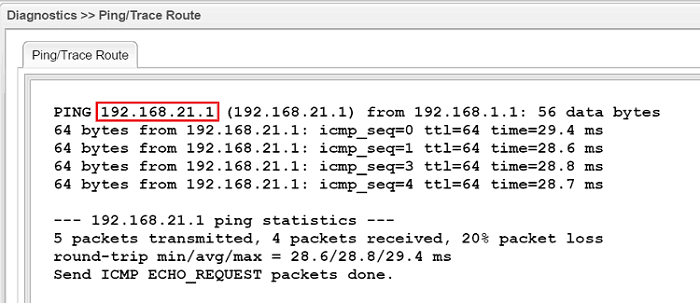
7. And now we can access the remote network by the translated IP address.
Published On:2026-04-10
ShareWas this helpful?