
Manage Switches in Stacking
Stacking is a method of combining multiple switches so they operate as a single logical unit. When stacking is enabled, up to four switches can be grouped together and managed centrally through a single IP address. This document provides examples demonstrating how to manage stacked switches on the WUI interface of primary unit.
Unified Visibility of All Switches
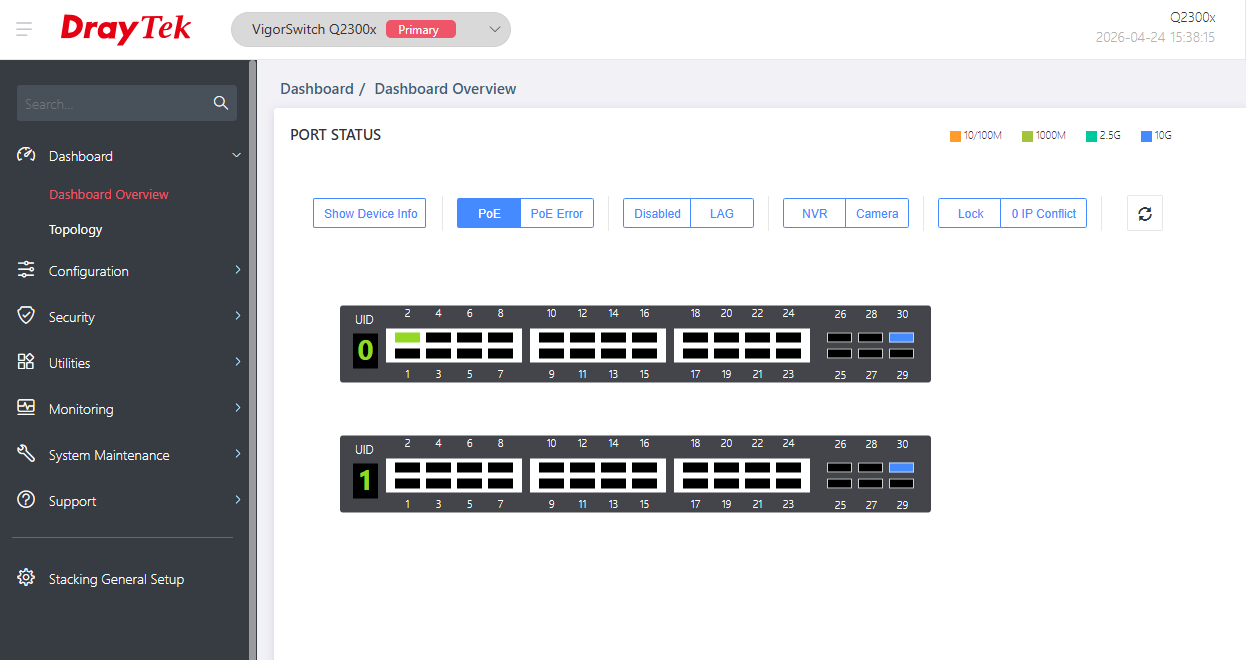
On the Dashboard page, we can view the status of every port across all stacked switches.
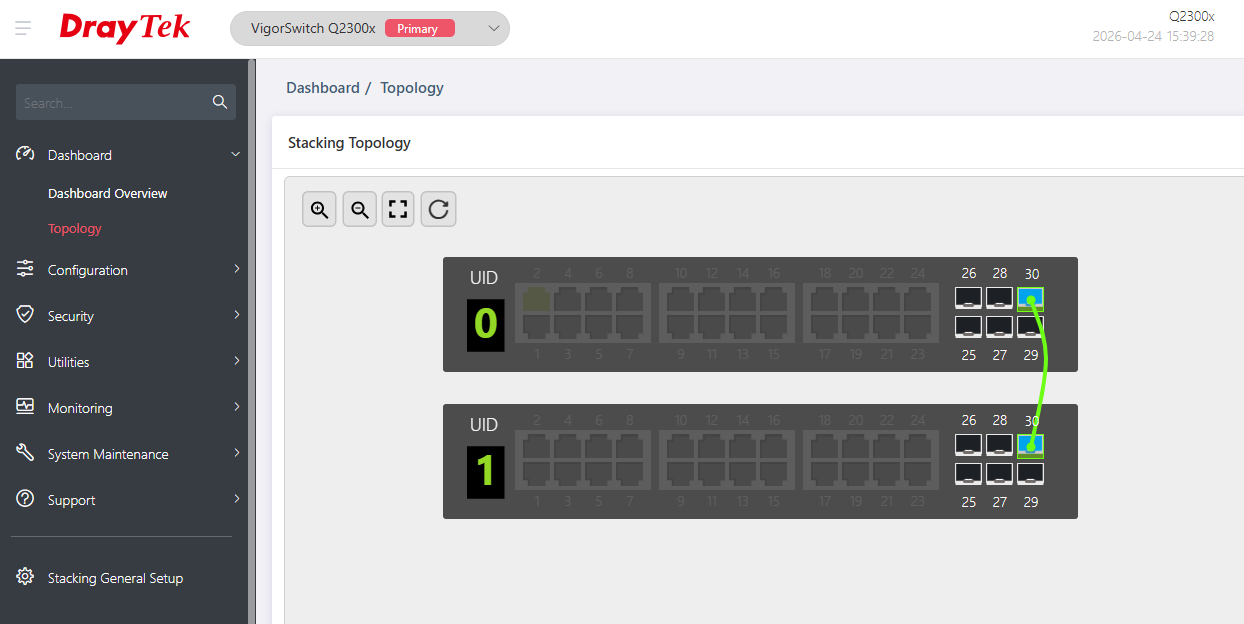
A topology graph is also provided to display the stacking structure. It clearly shows the unit ID and uplink connections of each switch within the stack.
Single Logical Unit Configuration
Since the stacked switches operate as a single logical unit, most configurations are applied globally. The network administrator can configure settings directly on the primary unit, and these settings will be automatically synchronized across all switches in the stack. Only port-specific settings need to be configured individually for each unit.
The following steps provide an example of VLAN configuration:
VLAN Settings:
- default VLAN: VID 1
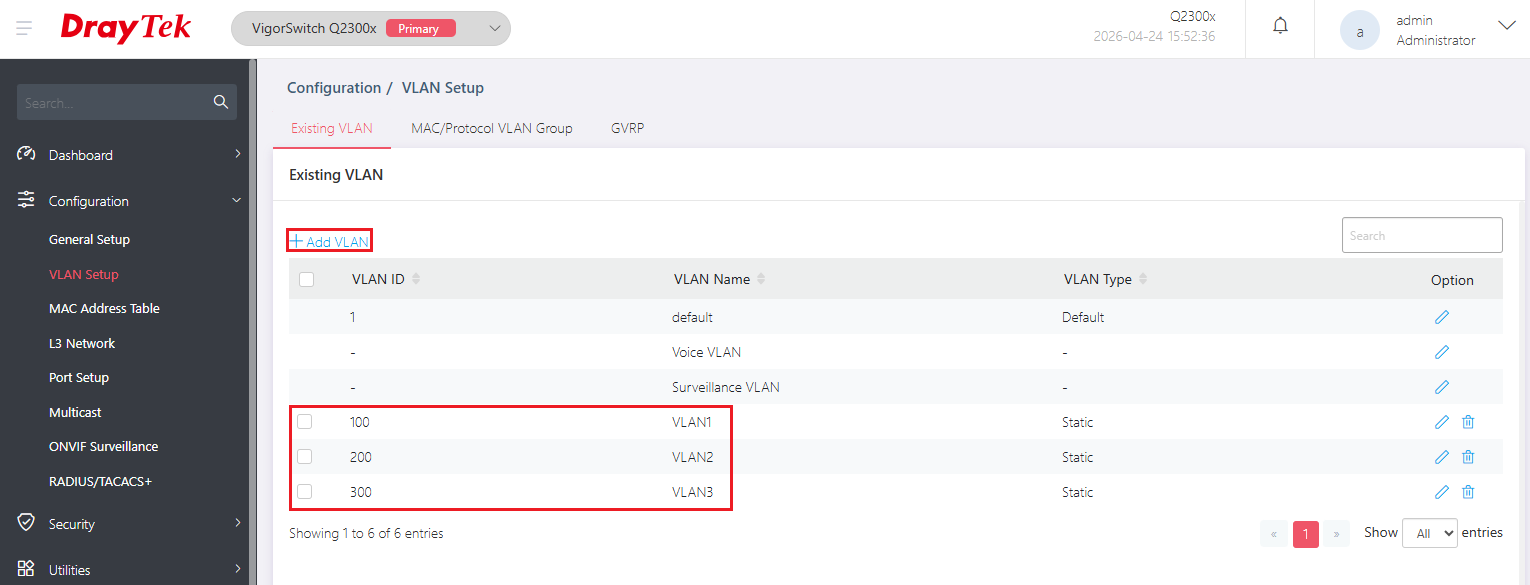
- VLAN1: VID 100
- VLAN2: VID 200
- VLAN3: VID 300
Port Configuration:
Primary(Slot 0):
- P1 ~ P22: Access, PVID 100
- P23 ~ 24: Trunk, PVID 1, tagged VLAN 100, 200, 300
Slot 1:
- P1 ~ P12: Access, PVID 200
- P13 ~ P24: Access, PVID 300
1. Click Primary at the top of the stacking group.
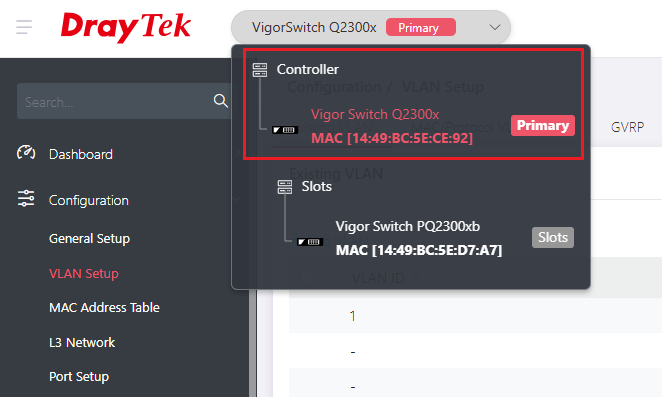
2. Go to Configuration / VLAN Setup, then click +Add VLAN to create VLAN1 - 3(VID 100, 200, 300).
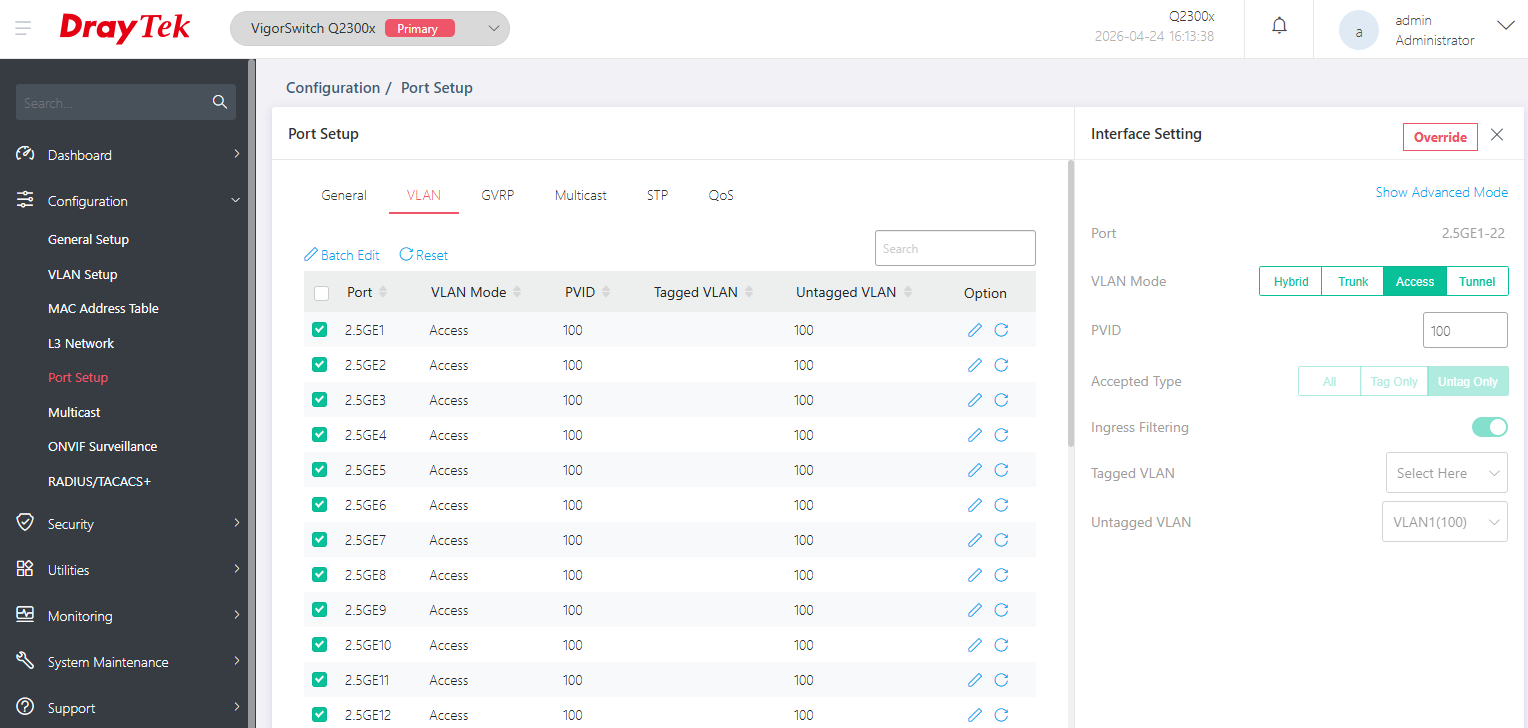
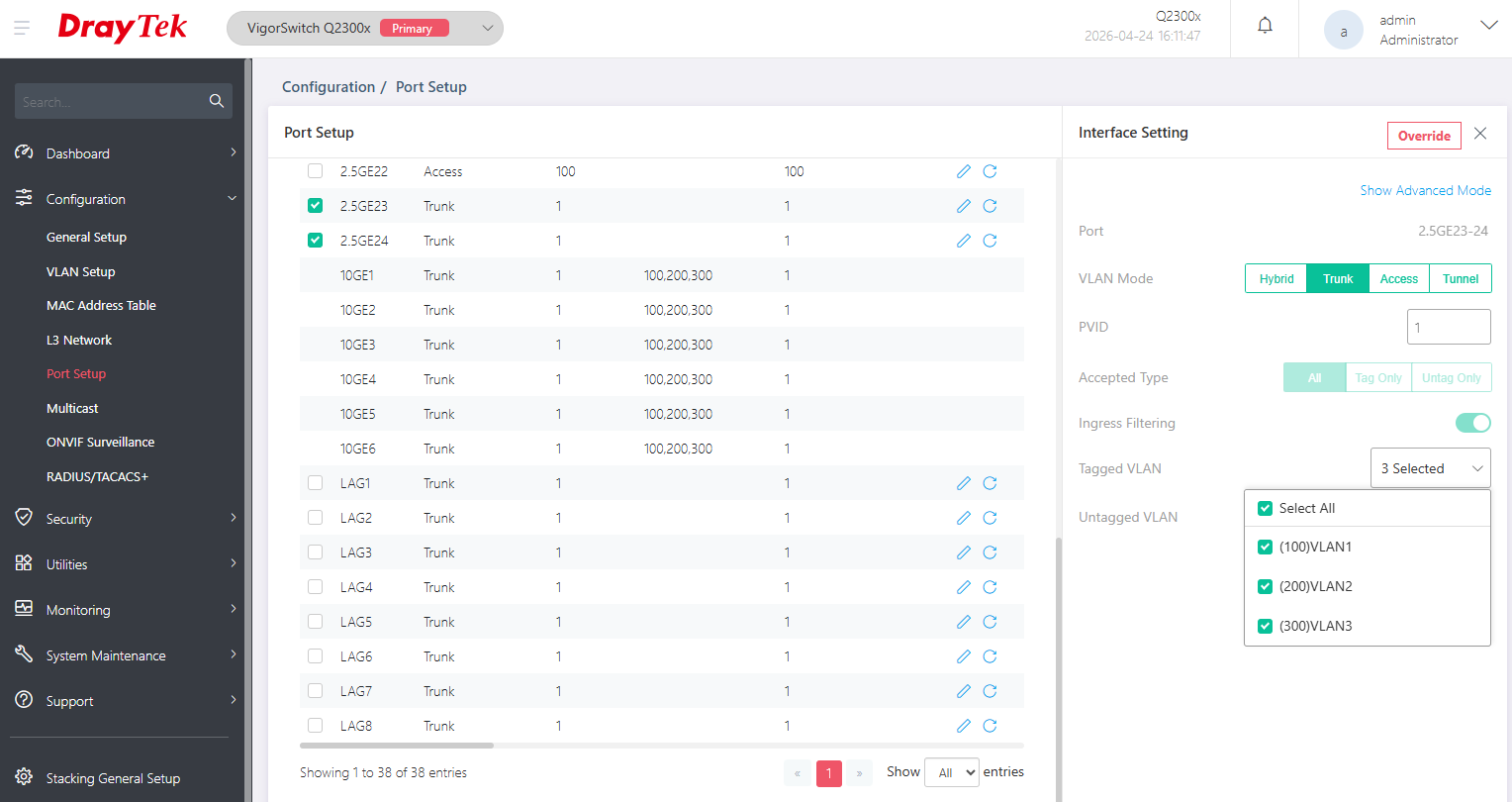
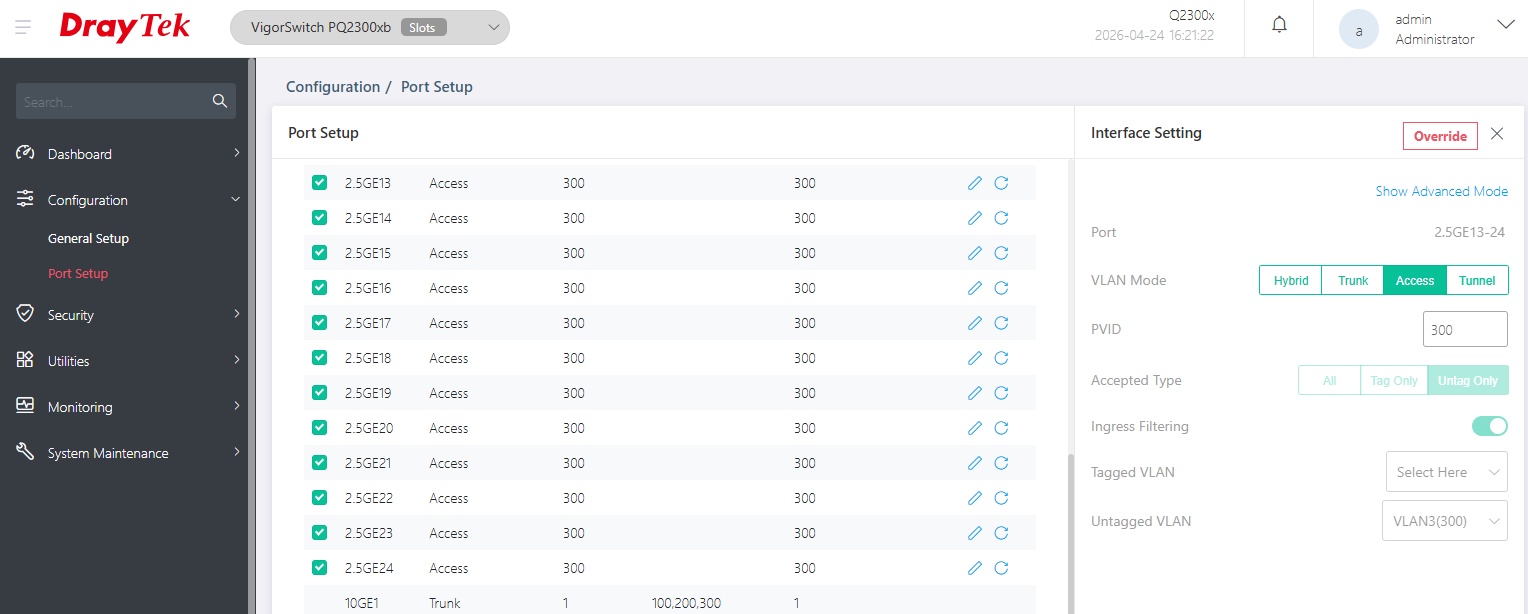
3. Go to Configuration / Port Setup. Configure the ports on the master unit in VLAN tab.
P1 ~ P22: Access mode, PVID 100
P23 ~ 24: Trunk mode, PVID 1, tagged VLAN 100, 200, 300
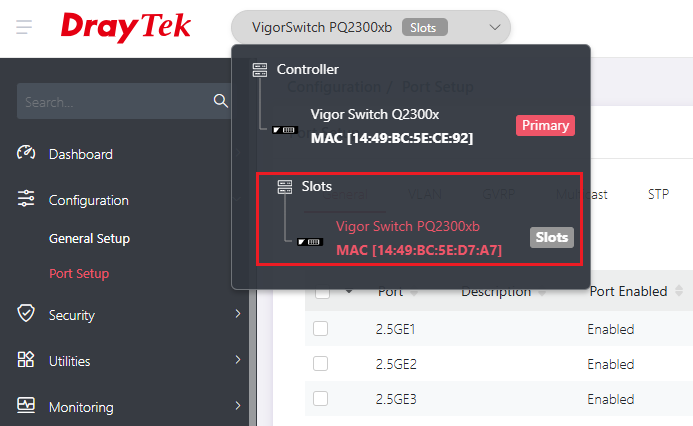
4. Switch to Slot 1 at the top of the stacking group.
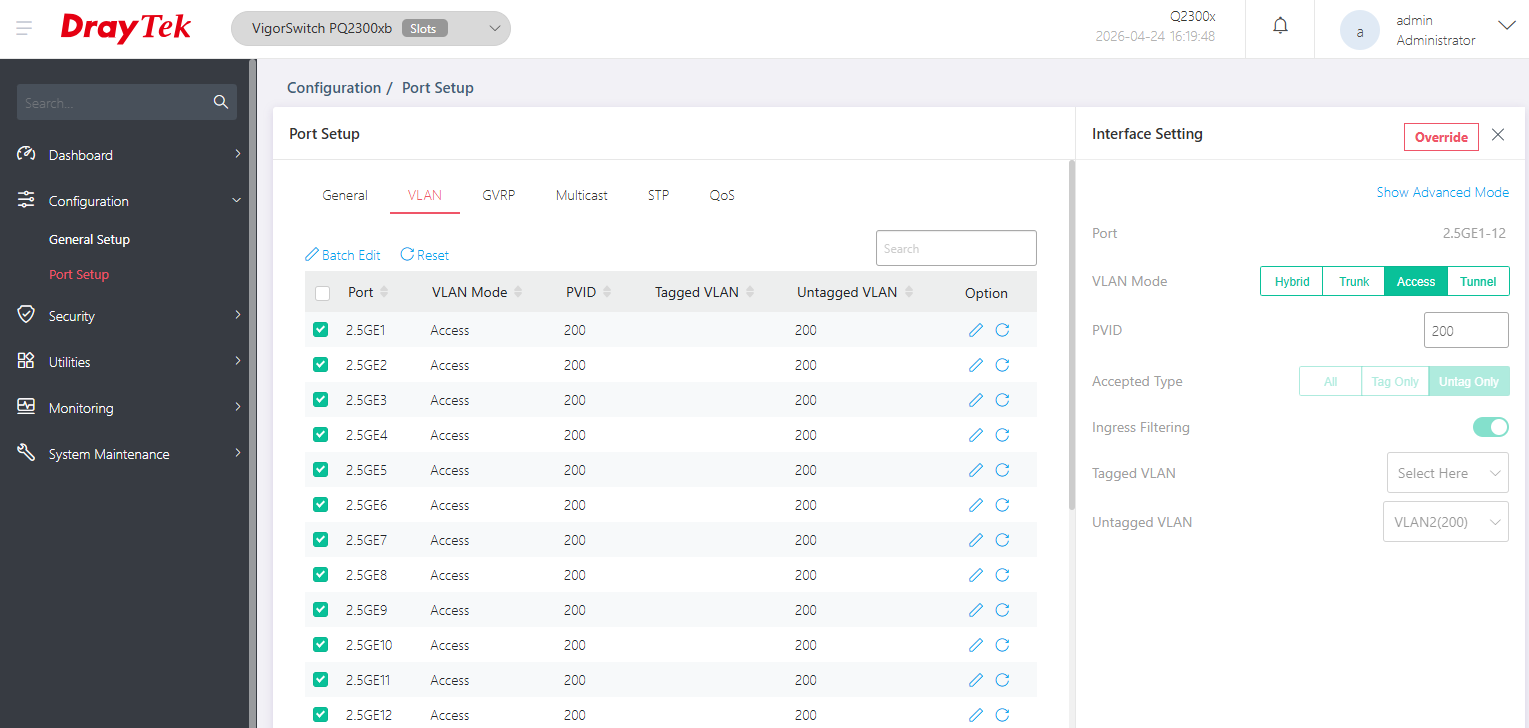
5. Go to Configuration / Port Setup. Configure the ports for Slot 1 in VLAN tab.
P1 ~ P12: Access mode, PVID 200
P13 ~ P24: Access mode, PVID 300
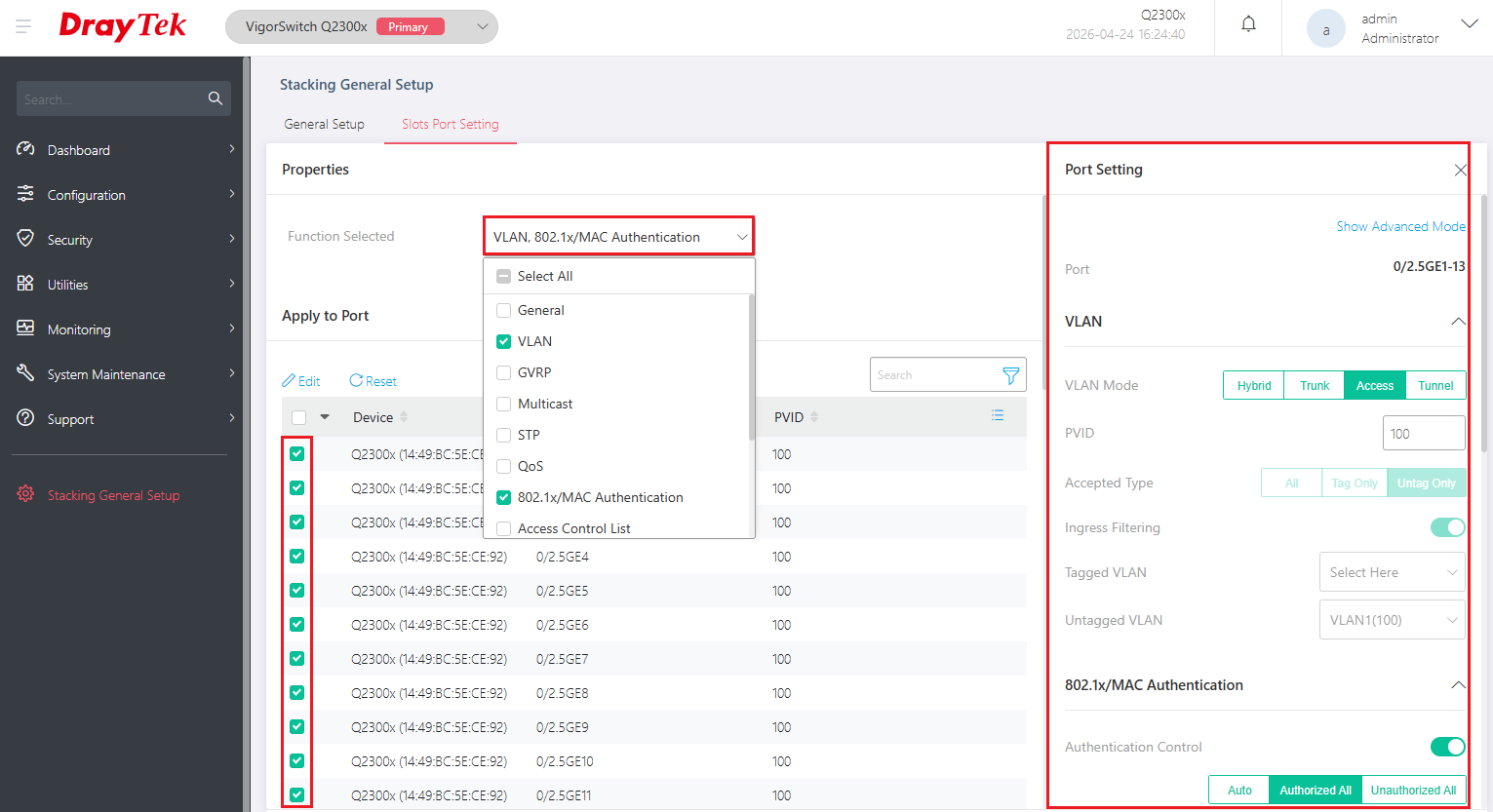
In Stacking General Setup / Slots Port Setting, port-specific settings can be applied to multiple slots at once on this page without switching the WUI interface between slots. This is especially useful when multiple port settings need to be configured efficiently.
- Select the functions that need to be applied to the ports.
- Select the desired ports, then modify the settings in the panel on the right.
Unified Firmware Upgrade and Configuration Backup
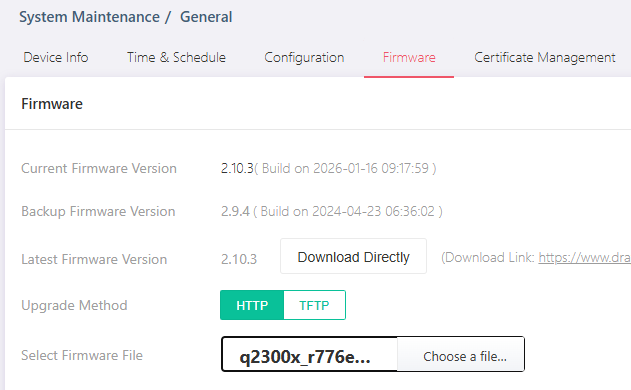
Firmware upgrades only need to be performed on the primary unit. Once the upgrade is initiated, all switches within the stacking environment will be automatically updated as well, ensuring that the firmware versions remain consistent across all devices.
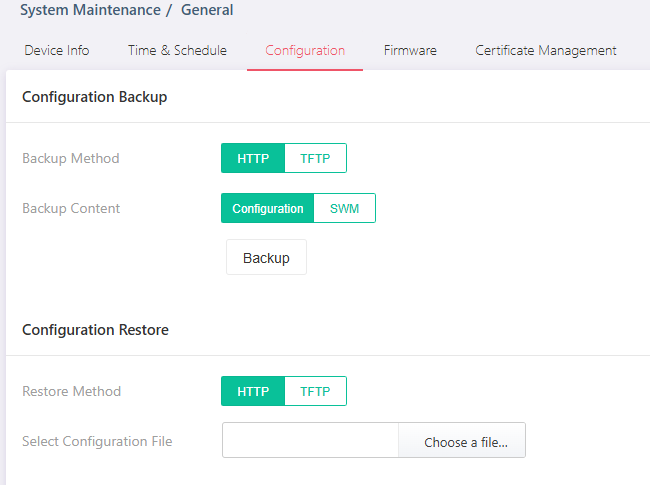
To back up the configuration, simply click the Backup button and download the configuration file from the primary unit. The configuration file contains the complete settings of all stacked switches.
Note:
Before restoring the configuration, ensure that the stacking topology remains unchanged and that all switches has already been added to the stack.
Published On:2026-05-05
ShareWas this helpful?