
Blocking Social Networking Websites by Threat Protection
DrayTek Threat Protection delivers comprehensive, multi-layered security designed to safeguard your network and all connected devices. It provides a cloud-based management portal that allows administrators to manage and monitor devices across the network. In addition, it offers content filtering capabilities, allowing administrators to restrict connected devices from accessing specific categories of websites.
This document demonstrates how to configure Content Filtering in the user portal to prevent devices from accessing social networking websites.
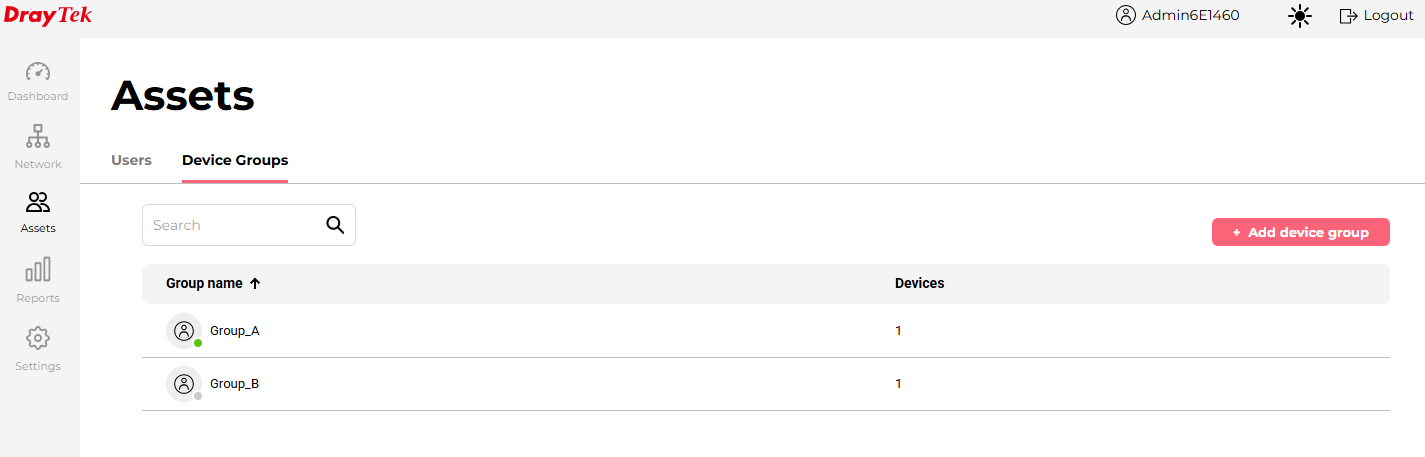
On the Assets page, different policies can be applied to individual users or user groups. In this example, devices that belong to the "Group_A" will have the restriction applied.
User Portal Setup
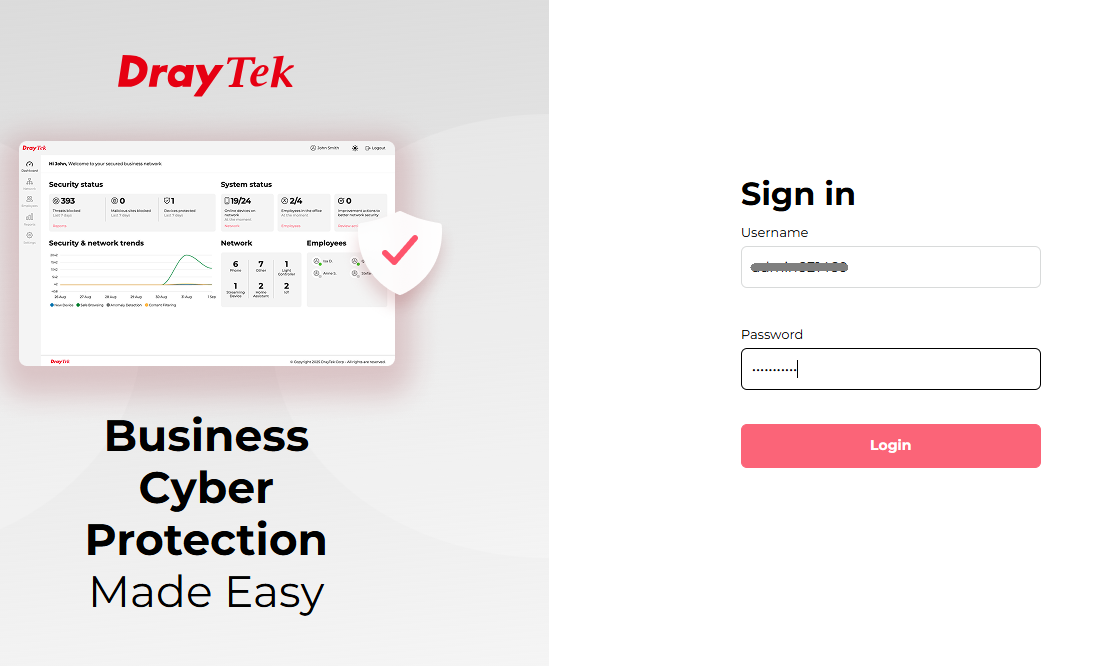
1. Visit the user portal vs.draytek.com and log in with your user account.
2. Go to Assets. Under Device Groups, click Group_A to open the configuration page.
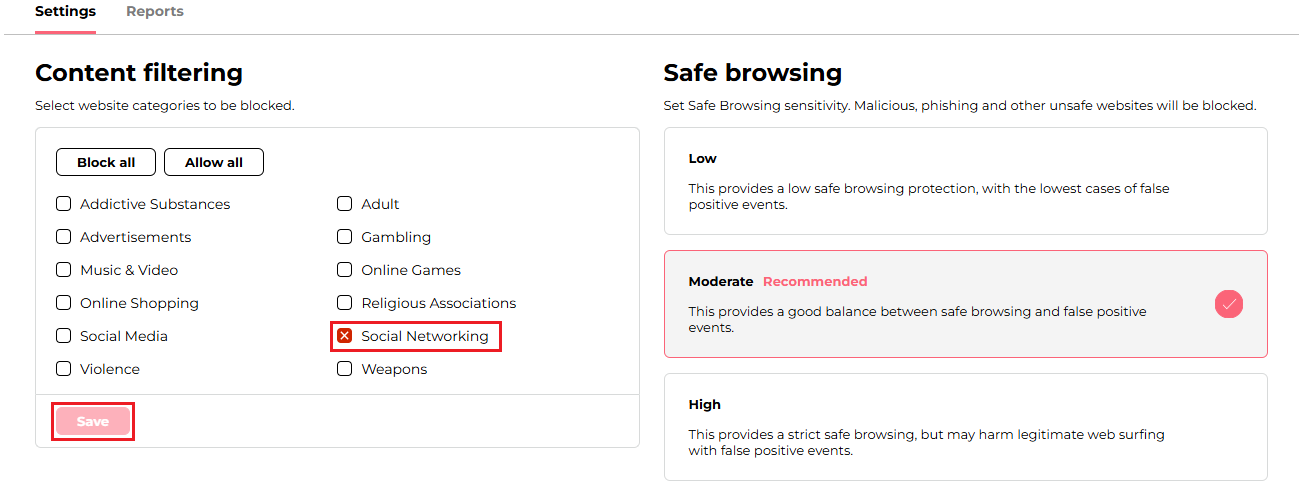
3. In the Content Filtering section, select Social Networking to block access to websites in this category. Then click Save to update the change.
Allowed or Blocked for Specified Websites or Services
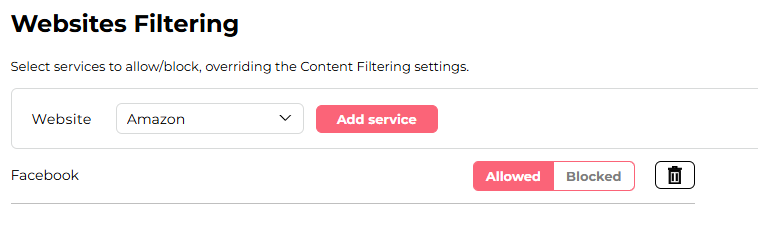
We can define specific access policies for selected websites or services. The actions configured for these specified services will take precedence over the Content Filtering settings. For example, if Group_A is restricted from accessing all social networking websites but is allowed to use Facebook, we can create an exception by adding Facebook to Websites Filtering and setting it to Allowed.
Verify the Configuration
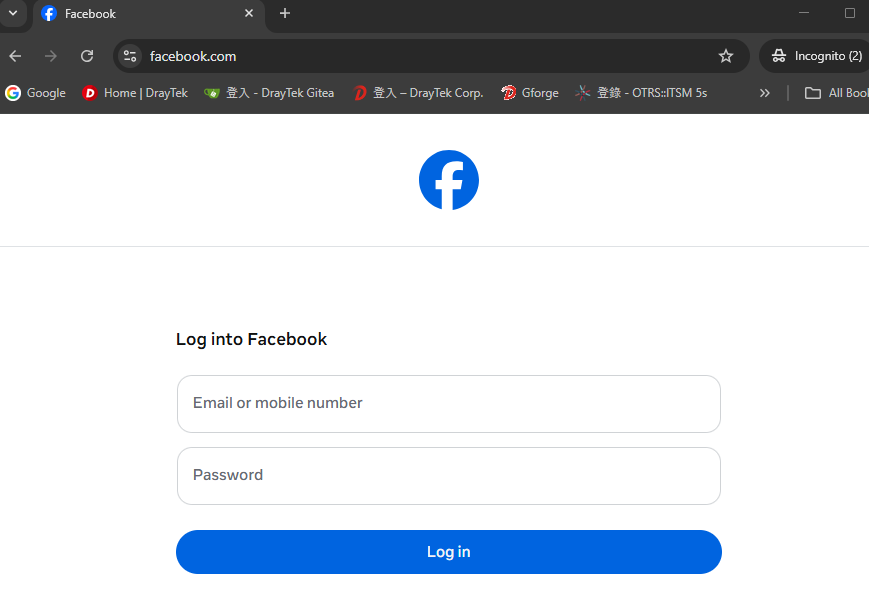
On a device which belongs to Group_A, try to access the Facebook website. The website is allowed and can be accessed.
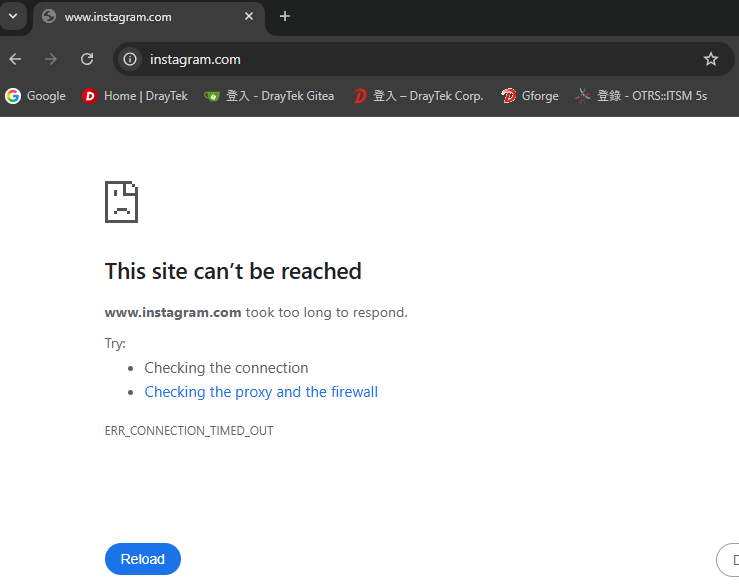
Try to access other social networking websites, such as Instagram. The website is blocked and cannot be accessed.
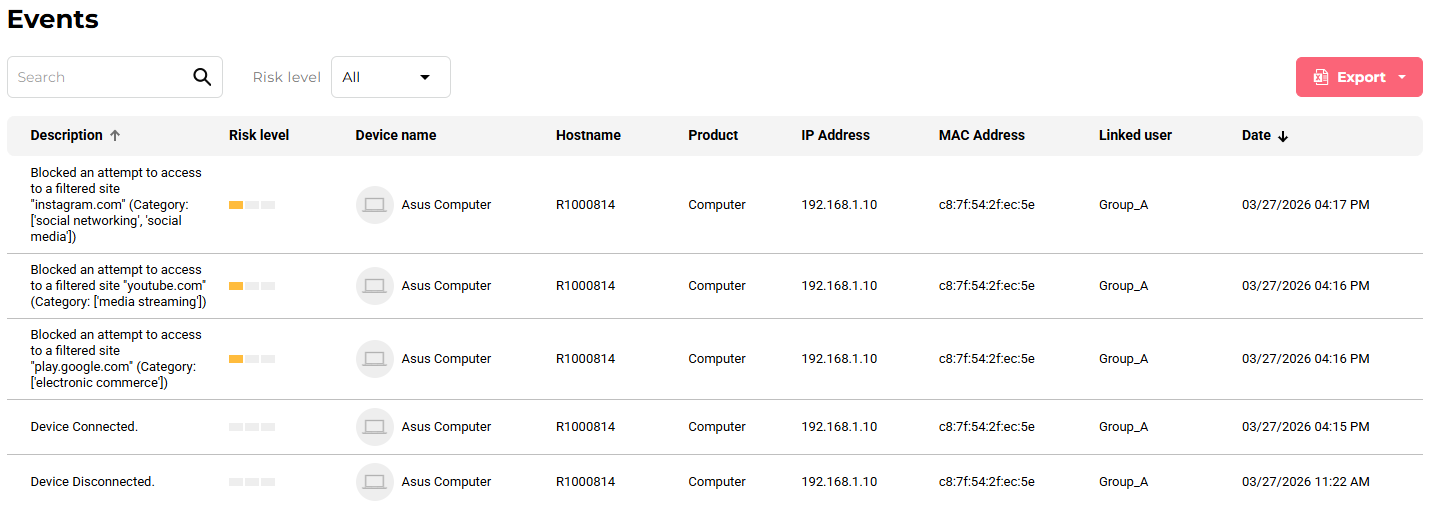
On the user portal, we can see the block events in the Reports page.
Published On:2026-04-01
ShareWas this helpful?