
Sending Notifications via Gmail Server with OAuth 2.0
More and more mail servers, including Google and Microsoft, are adopting the advanced OAuth 2.0 security authorization mechanism to authenticate mail clients. Unlike traditional username/password authentication, OAuth authorization requires identity verification through a third-party application. Vigor Router supports this mechanism, enabling it to send notification emails via such mail servers. The flow process for the Oauth 2.0 are:

This article will introduce how to configure Vigor Router to use OAuth2.0 method to send notification emails through Gmail server.
Supported models and firmware versions:
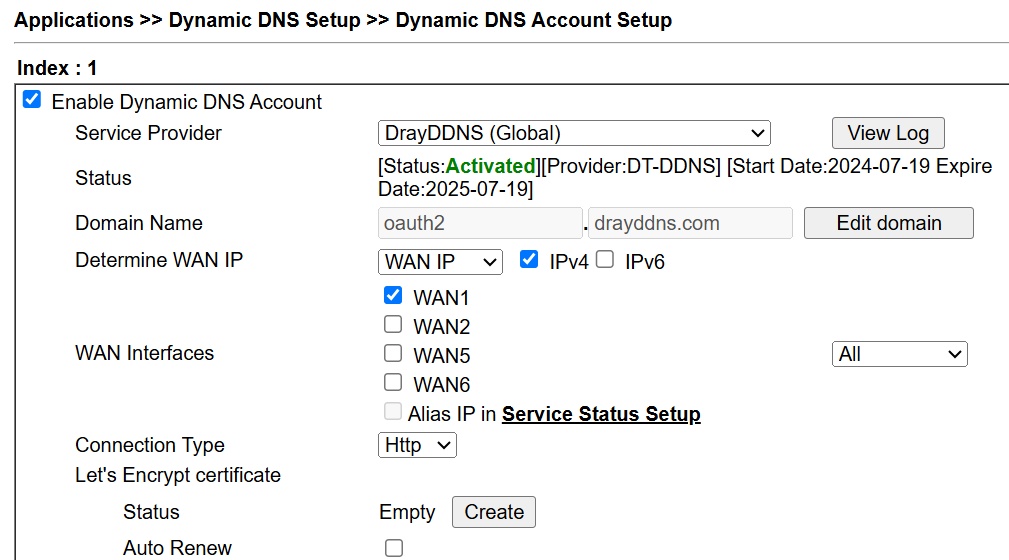
1. Set up a Dynamic DNS profile on the Vigor2927 by navigating to Applications >> Dynamic DNS Setup >> Dynamic DNS Account Setup. In this example, we use the DrayDDNS. This DDNS name will be used in the Google Cloud Console Setup later.
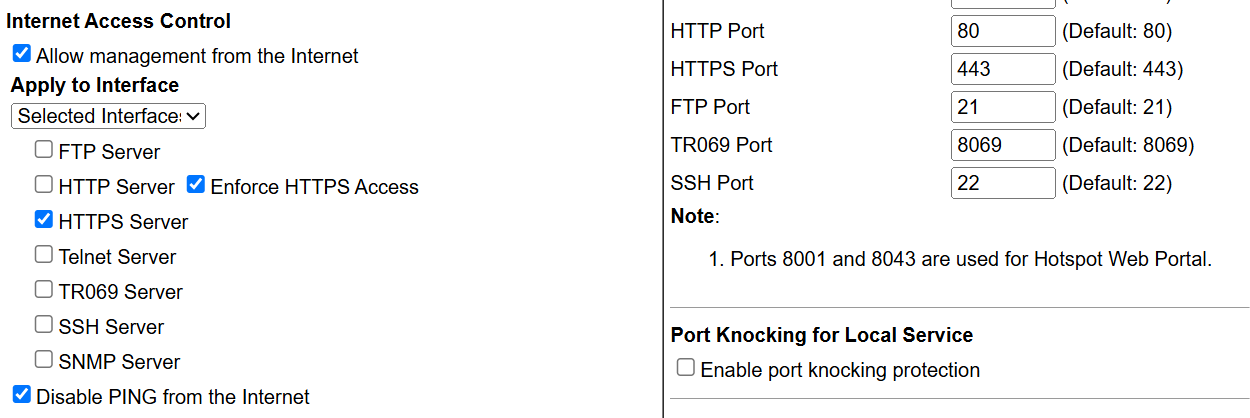
2. Enable HTTPS from WAN by navigating to System Maintenance >> Management. Vigor Router as the Gmail client needs to Requests Access Token from the authorization server, then can send an email. The HTTPS port of Vigor Router needs to be 443 for using the OAuth2.0 function.
3. For making Vigor Router using Gmail with OAuth2.0 authentication, it is needed to create a project in the Google Cloud Console, enable the Gmail API, and generate credentials to obtain the Client ID and Client Secret. Below are the detailed steps:
3.1 URL: https://console.cloud.google.com
3.2 Create a Project
3.3 Enable Gmail API
3.4 Create OAuth 2.0 Credentials
Next, select an application type (e.g., Web application) and fill in:
3.5 Obtain Client ID and Client Secret
After creating the credentials, you’ll see your:
4. Access Vigor Router by https:// DDNS name that created in step 1. Edit a Mail Service Object by navigating to Objects Setting >> SMS/Mail Service Object. Select a profile index, then
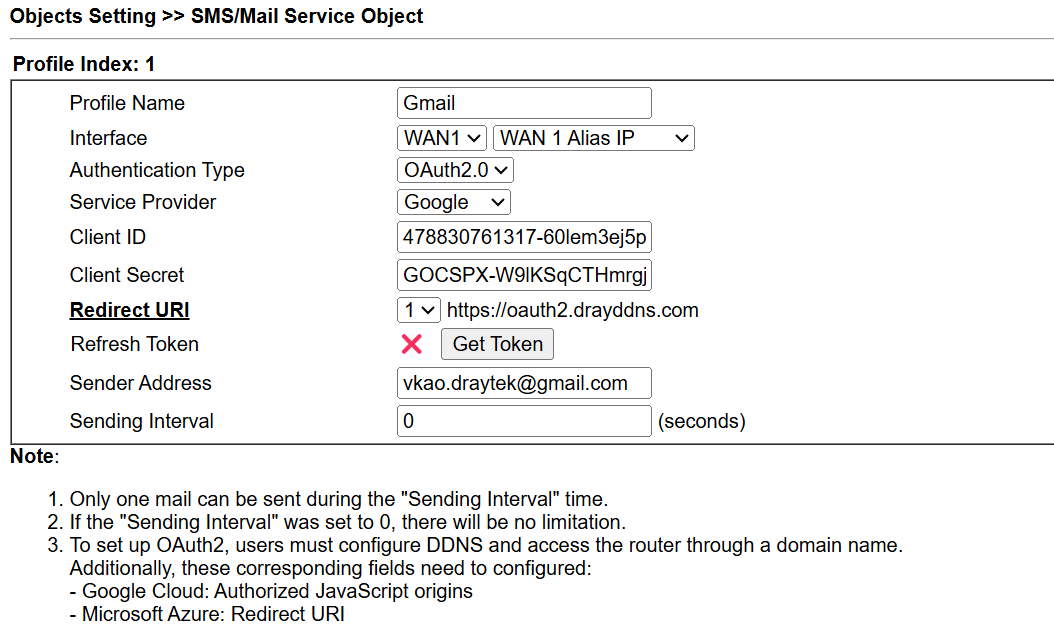
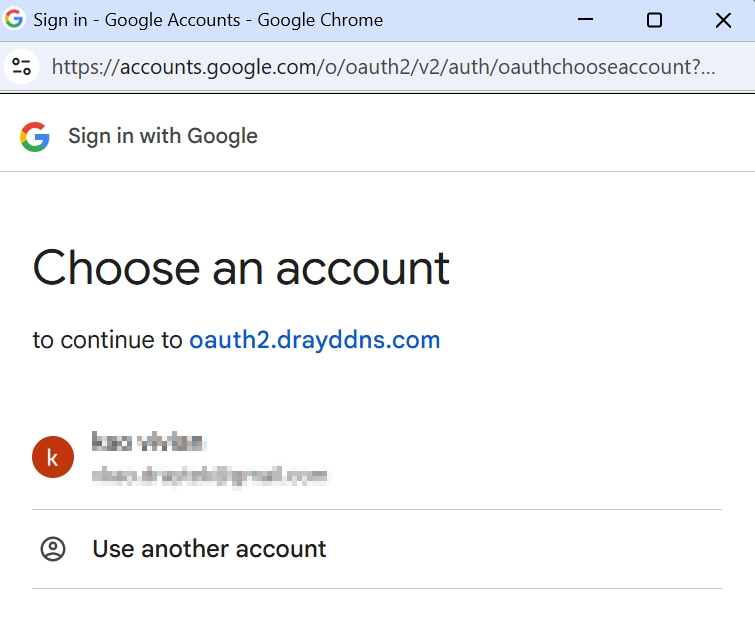
5. Use Send a Test E-mail to ensure if Vigor Router can use Gmail Server with the OAuth2.0 authentication method to send an email.
6. After confirming that the test email is received, proceed to set up the notification objects and configure the Mail Service. Once completed, the Vigor Router will be able to use the Gmail server with OAuth 2.0 to send notification emails.
7. Disable HTTPS from WAN by navigating to System Maintenance >> Management. The initial step of obtaining the OAuth token requires access via the domain, so HTTPS from WAN needs to be enabled temporarily. Once the token is obtained, the Vigor Router will save it and use it to send HTTPS requests directly. These requests will pass the Access List check.
Published On:2025-07-30
ShareWas this helpful?