
Configure Single Sign On with Azure for ACS login credentials
VigorACS supports Single Sign-On with Azure since v3.7.0, the users can login ACS using their Microsoft account after the setup.
1. Login Azure and create your own enterprise application

2. Give a name to the app and select Integrate any other application you don’t find in the gallery

3. Go to Users and groups, add user/group and select the users who can login ACS using their Microsoft account.

4. Set up Single Sign-On in overview with SAML method
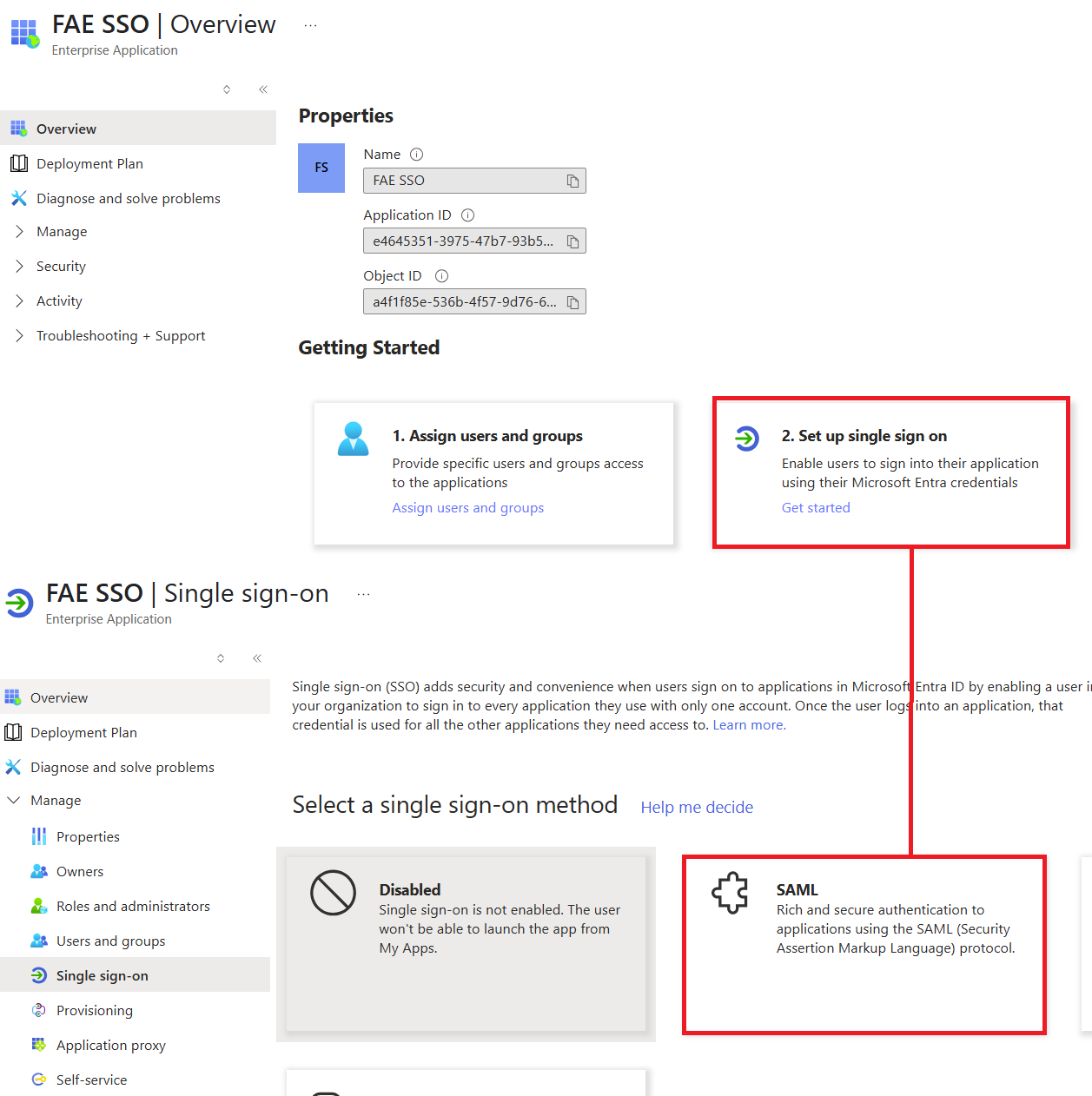
5. Go to Users / External Authentication Server, select the user group to allow SSO
- Enable
- Choose the default user role upon first login
- Select SSO as Authentication Server Type
- Give an Identifier, and copy it to the Identifier of Basic SAML Configuration in Azure SSO
- Enter ACS domain in Replay URL, and copy it to the Reply URL of Basic SAML Configuration in Azure SSO

6. Edit Attribute and Claims, change Unique User Identifier to user.mail

7. Download the Base64 Certificate, and upload it to the ACS Copy Login and Logout URL to the ACS to finish the setup.

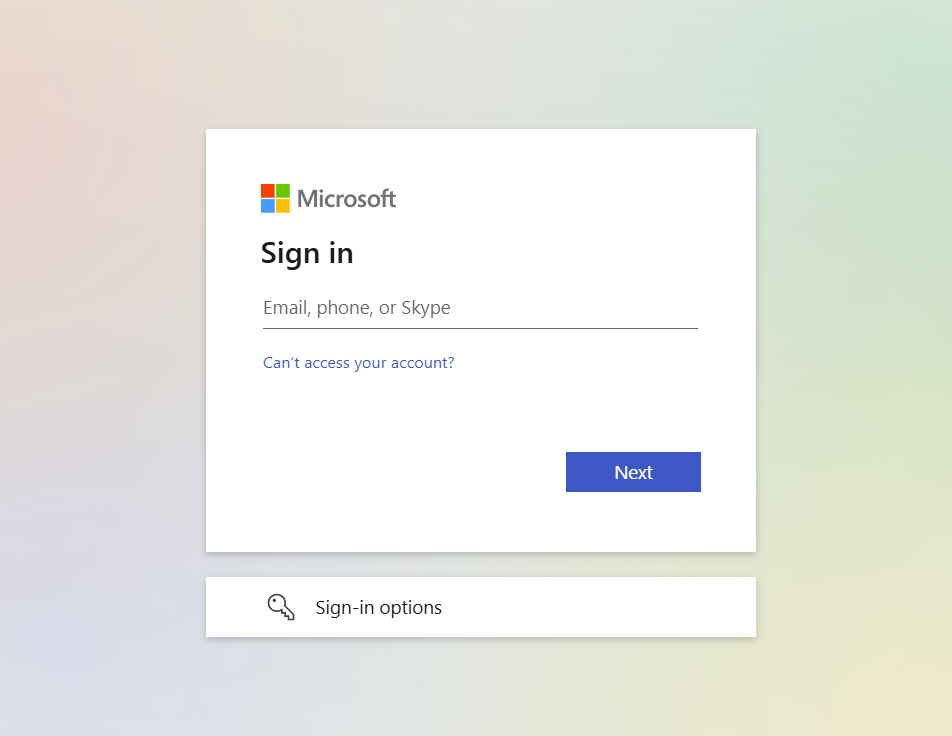
There will be a ‘Login with SSO’ option on the ACS login page, which will redirect the user to the Microsoft login

The user won't be able to get into ACS without a user group at first login.
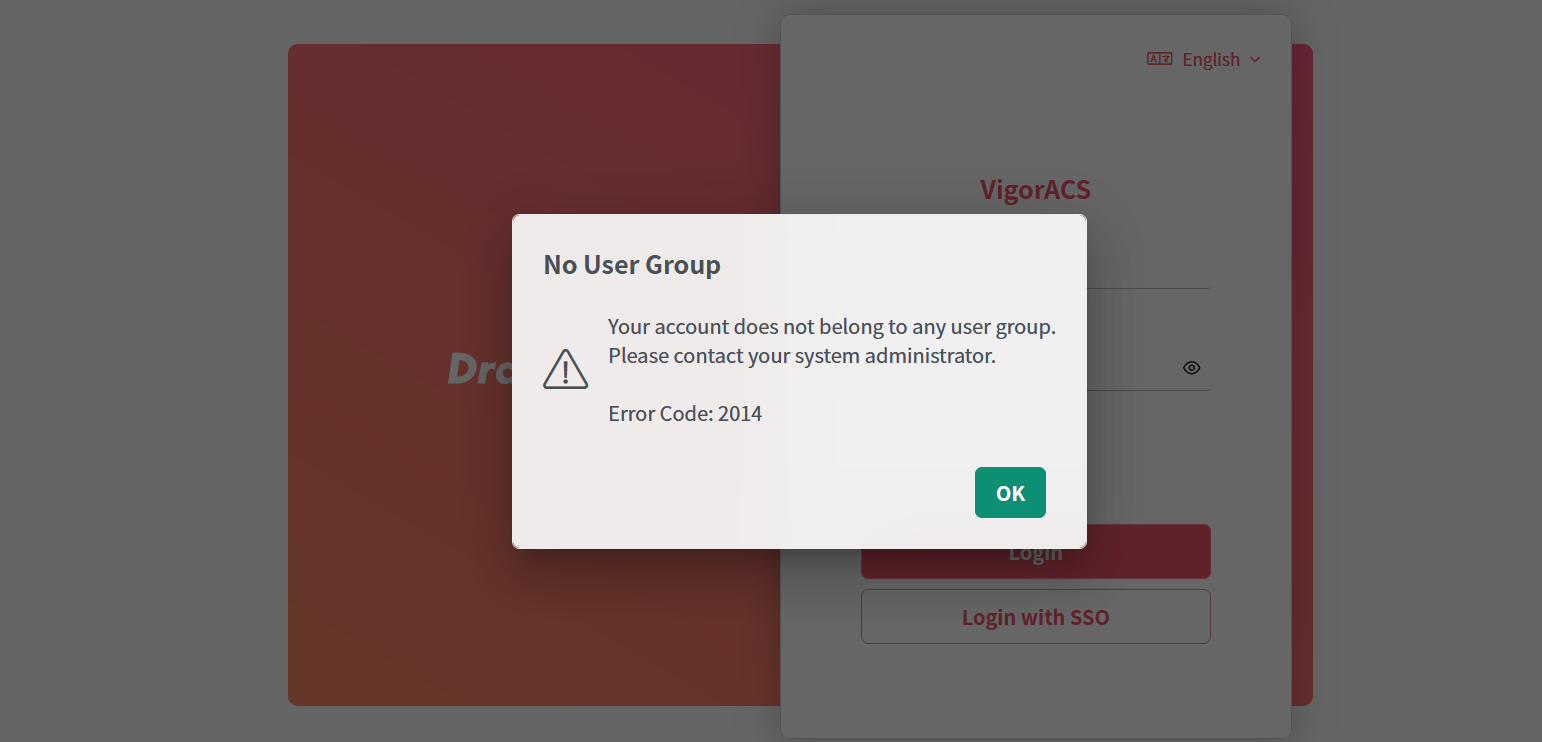
ACS will create the user automatically, and await the administrator to assign the user group. Then the user can proceed to use ACS.


Alternatively, the user can join a user group upon login with the URL including the user group. For more information, please refer to Configure External Authentication server for ACS login credentials.
Published On:2025-06-18
ShareWas this helpful?