
Enhance Network Security based on IP Reputation
IP reputation is a comprehensive assessment of an IP address's credibility based on its historical behavior and activity records. This includes whether the IP has been involved in spam, malware distribution, phishing attacks, and other malicious activities. Security measures based on IP reputation provide a thorough understanding of potential threats, helping to identify and block malicious IP addresses, thereby reducing the risk of network attacks and protecting network resources and data.
The Vigor Router, in collaboration with the URL Reputation Server's professional IP reputation database, plays a crucial role in enhancing network security. It can filter IP addresses attempting to access local services from the Internet as well as those that LAN hosts are trying to connect to. If an IP has a reputation score lower than the defined one, Vigor Router will block its connection, thereby enhancing network security and instilling confidence in the system's capabilities.

Support Models:
Configuration
1. Ensure the Web-Filter License is activated.
Navigate to System Maintenance / Registration & Services to to verify that the Web-Filter service is in an active status. Since IP Reputation relies on the same Web-Filter service, it will only function when the Web-Filter service is activated on the router.
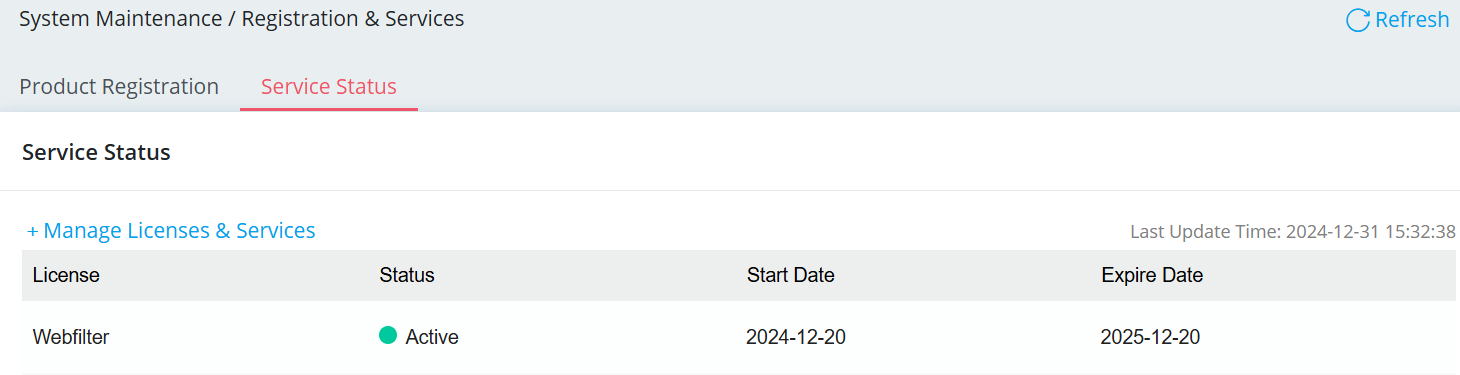
2. Configure IP Reputation Filters.
2-1. Enable IP Reputation Filters.
IP Reputation uses scores to classify risk levels of an IP address. There are 5 levels. Scores between 0-20 indicate high-risk IPs, while scores between 80-100 represent trustworthy IPs.

2-2. The IP Reputation feature can filter both inbound and outbound traffic, including:
Enable the IP Reputation Log and configure the desired settings for block actions and log actions for each traffic direction.
Also filter TCP port 443 is an option for the Outbound Traffic filter. By default, Vigor excludes TCP port 443 from IP Reputation Outbound Traffic filtering because suspicious servers typically do not use TCP port 443 due to the lack of a trusted certificate. These servers may hide in datacenters, sharing IP addresses with reputable services. If an IP is flagged with a low reputation, legitimate HTTPS connections in the same data center may also be impacted.

2-3. Configure the Port List for IP Reputation Filtering
Specify the port list to determine which ports the IP Reputation feature will monitor and filter.
For inbound traffic to the Router WAN, you can select the ports used by the Vigor Router's services that are accessible from the Internet, such as HTTPS Management, IPsec Service, and others.

2-4. Configure IP Allow List (Whitelist) for IP Reputation Filtering
Add the IP to the Allow List to to ensure that essential access will not be blocked by the IP Reputation feature.
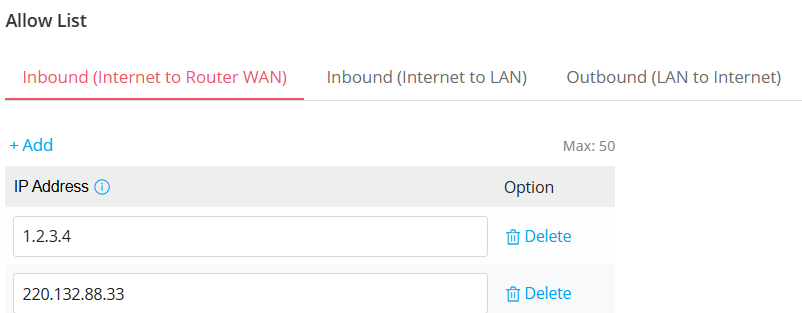
Checking Status
3. Blocked IP addresses identified by the IP Reputation Filter will be displayed on the Security > Security Defense Status page.
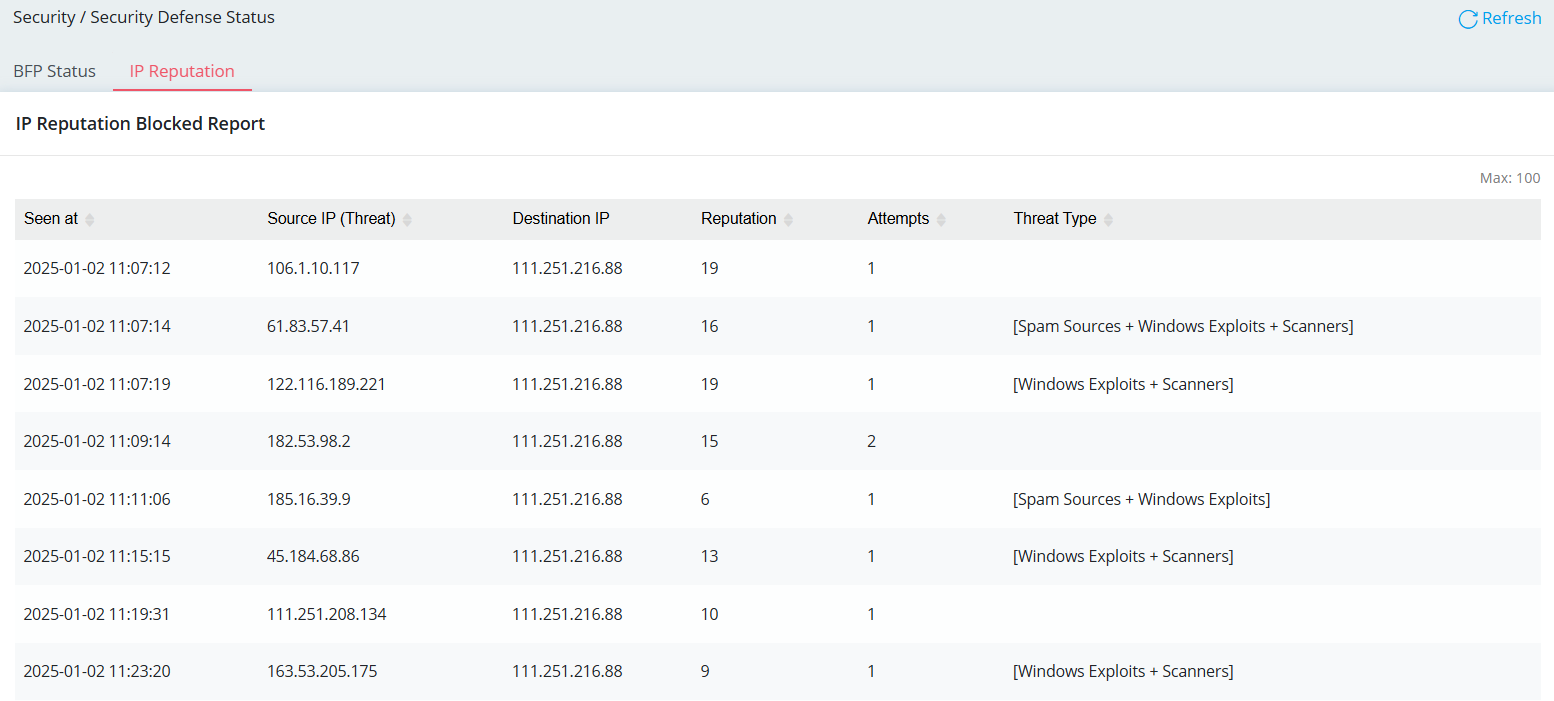
4. Viewing the IP Reputation Block Log.
The IP Reputation Block Log can be viewed in Monitoring / Log Center or Firewall Syslog.
Here is an example of a log entry:
[IP Reputation][WAN->Localhost][DROP][45.184.68.86:1712 -> 111.251.216.88:23][TCP][reputation:13][Windows Exploits + Scanners][433.35ms]
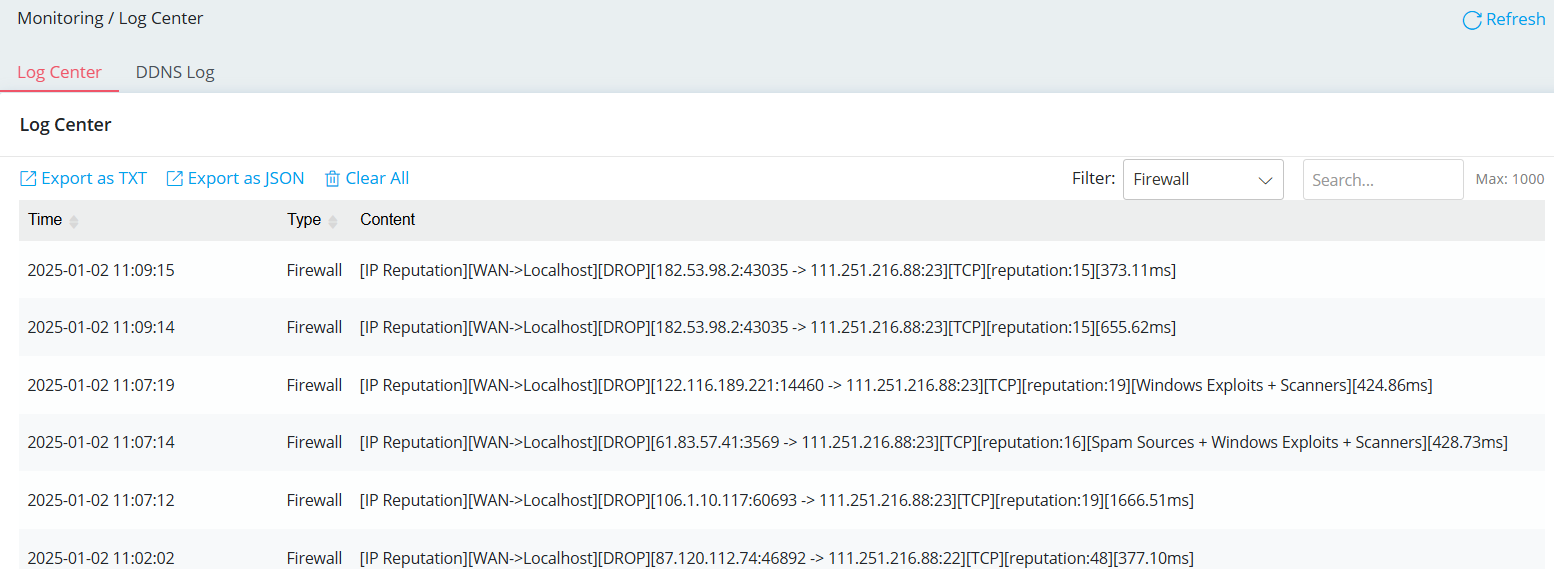
Published On:2025-03-24
ShareWas this helpful?