
Access Multiple Subnets Through the Same VPN Tunnel
This article demonstrates how to configure LAN-to-LAN VPN profile to access more LAN subnets on the remote router from the same tunnel. Suppose there is already a LAN-to-LAN VPN tunnel established between the local network and one of the LAN subnets on the remote router, to access a second LAN subnet via the same VPN tunnel, we only need to add another remote network IP and Mask in the VPN profile.
To access an additional network from the same VPN, go to the LAN-to-LAN VPN profile, click More at TCP/IP Network Setting, and enter the Network IP and Mask of the second subnet on the remote network.
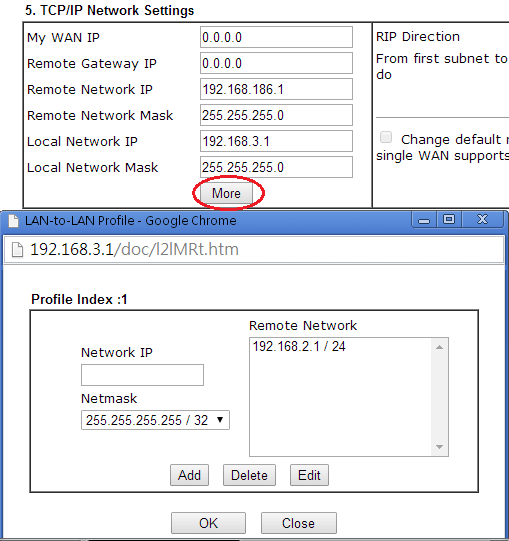
With the above configuration, through only one VPN tunnel, local hosts on the 192.168.3.0/24 network will be able to access both 192.168.186.0/24 and 192.168.2.0/24 network on the remote site.
When both sites are using DrayTek routers and connected with an existing LAN-to-LAN VPN tunnel, it is possible to access multiple remote subnets through the same tunnel by adding the additional remote subnets of the VPN peer in the VPN profile.
This article demonstrates how to configure multiple remote subnets in a VPN profile on a DrayOS5 router.
Go to VPN / Site-to-Site VPN. Edit the VPN profile connected to the VPN peer.
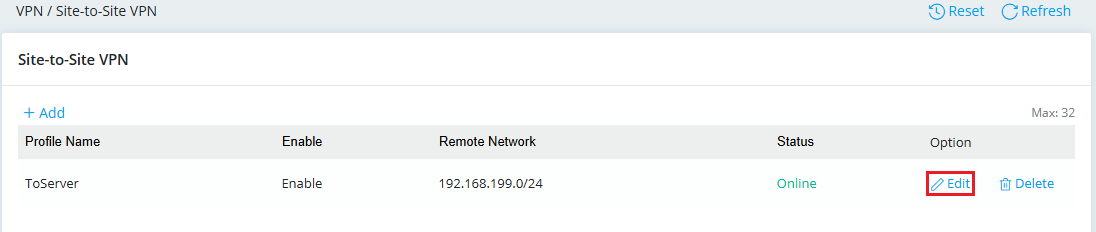
Scroll down to the Network Section:
- Select More Subnets in More Remote Subnets.
- Add additional remote subnets of the VPN peer that need to be accessed through the tunnel.
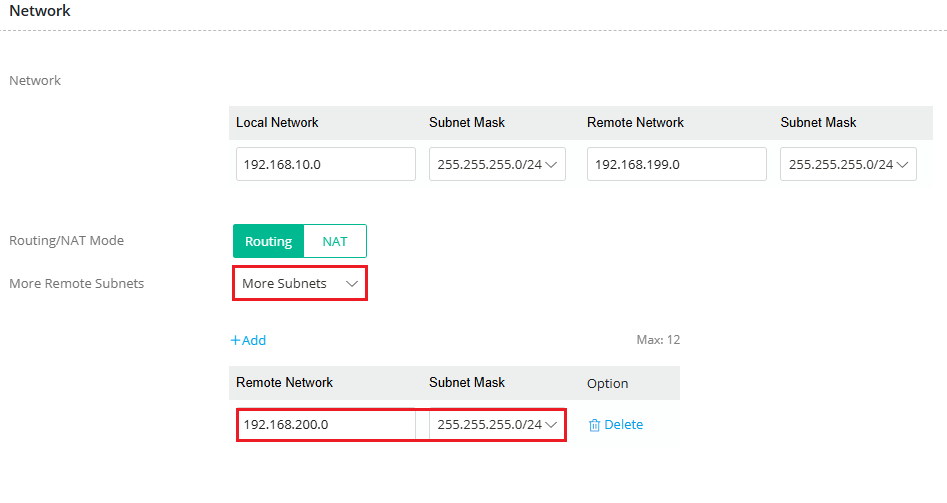
Click Apply to save the settings.
With the above configuration, through only one VPN tunnel, local hosts on the 192.168.10.0/24 network will be able to access 192.168.200.0/24 network on the remote site.
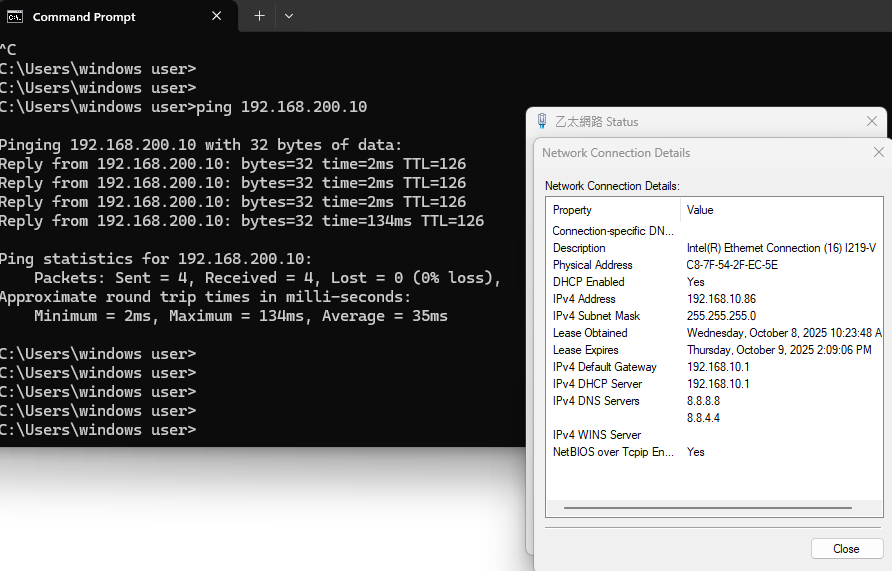
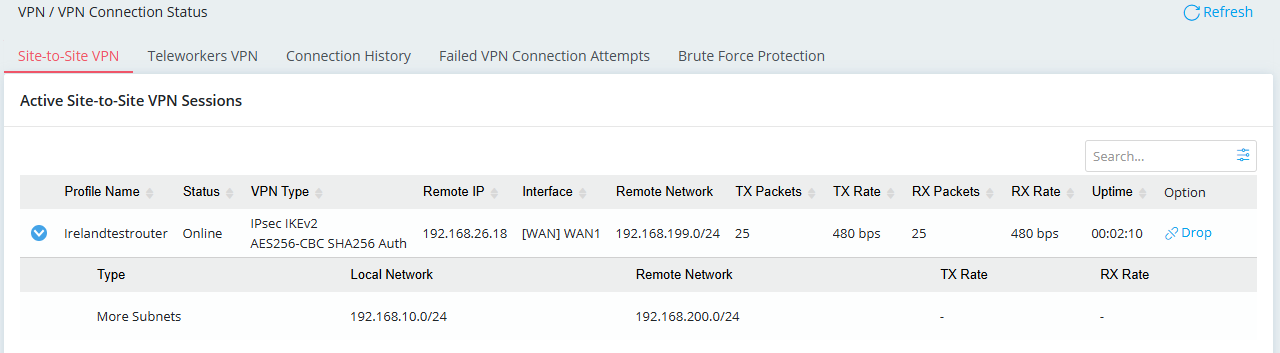
We can also see the additional remote routes in VPN / VPN Connection Status.
Note:
The VPN Status displays multiple routes under the same tunnel for easier identification. However, since there is only one actual VPN connection, all traffic is counted under the main tunnel. Therefore, the TX/RX rates for the additional routes will remain " - ".
This article demonstrates how to configure LAN-to-LAN VPN profile to access more LAN subnets on the remote router from the same tunnel. Suppose there is already a LAN-to-LAN VPN tunnel established between the local network and one of the LAN subnets on the remote router, to access a second LAN subnet via the same VPN tunnel, we only need to add another remote network IP and Mask in the VPN profile.
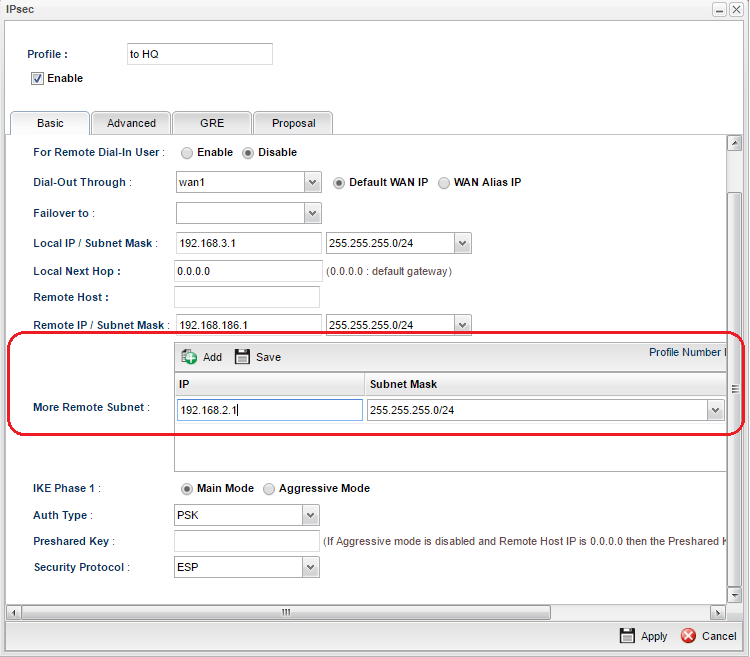
Go to the LAN-to-LAN VPN profile, click Add at More Remote Subnet, and enter the IP address and mask of the second subnet.
Published On:2025-12-09
ShareWas this helpful?